
Lieferung heute & morgen

Qualitätsgarantie

Willkommens-Angebote freischalten: KOSTENLOSE Lieferung | Bis zu 80 % RABATT | Kostenlose 30-Tage-JoyPlus-Testphase
App herunterladen
Modern notebooks are powerful and portable, but this elegance often comes at a price: a minimal number of ports. Anyone who wants to be productive in a home or corporate office will quickly run into limitations. A USB-C docking station promises a solution by transforming a single USB-C port into a multitude of connections for monitors, peripherals, and network cables.
However, the selection is vast, and the technical specifications can be confusing. Many buyers invest in a device that fails to meet their expectations. As your Joybuy Product Recommendation Officer, I'll help you identify the most common pitfalls and make an informed decision.
Before you decide on a model, you should be aware of the typical problems that lead to frustration and unnecessary expense.
To avoid these mistakes, focus on three core technical features. These determine whether a docking station is suitable for your needs as a home office notebook accessory.
The most important function of a full-featured docking station is charging the laptop.
For a smooth and sharp picture, especially with a multi-monitor setup, the following details are crucial:
A good USB-C multiport adapter should offer more than just video outputs.
Here are some product recommendations tailored to specific user profiles that meet the criteria mentioned above.
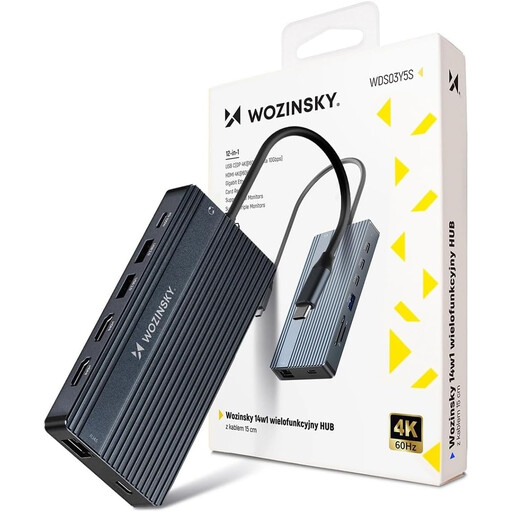
Why this product fits: Ideal for users who want to transform their notebook into a full-fledged workstation. With ports for up to three monitors, high-speed USB ports, Gigabit LAN, and card readers, it leaves nothing to be desired.
Offers 100W Power Delivery, sufficient for most laptops. Explicitly supports 4K@60Hz via HDMI and even 8K via DisplayPort. The aluminium housing ensures good heat dissipation and prevents instability.
Maximum connectivity with 14 ports in a single device, including support for up to three monitors simultaneously (MST for Windows).
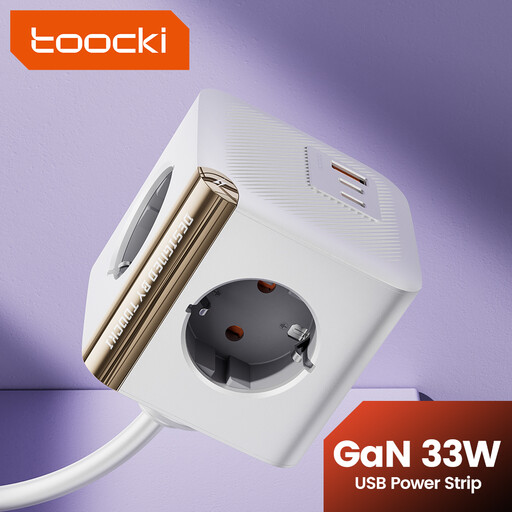
Why this product fits: For users who value a tidy and safe desk. This isn't a data hub, but rather the foundation for a stable power supply for your laptop, docking station, monitors, and accessories.
Addresses an often-overlooked source of error: an unstable or overloaded power supply. The integrated surge protector shields expensive electronics from damage caused by power spikes.
Combines four AC outlets with USB-C and USB-A charging ports. This reduces the need for separate power adapters and minimises cable clutter on and under the desk.
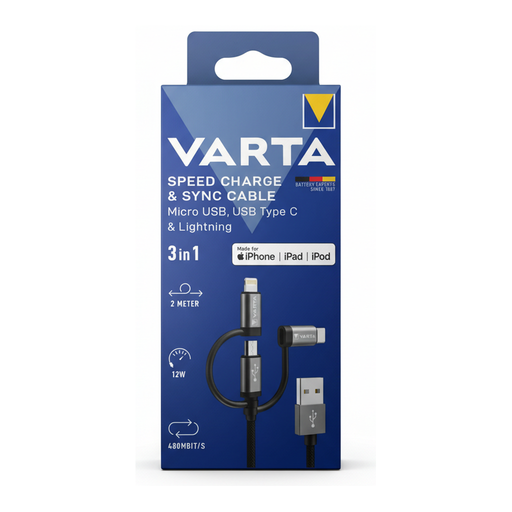
Why this product fits: For anyone who needs to travel light. This single cable replaces three separate ones, ensuring you can charge and sync your smartphone, tablet, and other gadgets at any time.
Solves the problem of having the wrong cable on the go. The MFi certification for the Lightning connector guarantees compatibility and safe charging for Apple devices without error messages.
High versatility thanks to interchangeable tips (Micro-USB, USB-C, Lightning) and a robust, tangle-free design with a nylon braid and 2-meter length.
We have compiled a complete, up-to-date list of products that fully meet these strict selection criteria and safety regulations.
That depends on the type. Simple, passive USB-C hubs are powered by the laptop's USB-C port (bus-powered). These are suitable for connecting low-power devices like a mouse or a USB stick. A full-featured laptop docking station, designed to charge a notebook and run multiple peripherals like monitors and hard drives, absolutely requires its own external power supply (self-powered).
In principle, yes, the basic functions are usually compatible. The challenge lies in running two or more extended (not just mirrored) external monitors. Standard MacBooks (with M1/M2/M3 chips) natively support only one external monitor via the Thunderbolt/USB-C port. To connect multiple extended displays, you need a MacBook docking station that uses DisplayLink technology. Carefully check the product description for explicit compatibility with multi-monitor setups on Macs.
The rule of thumb is: the PD output of the docking station should at least match the wattage of your laptop's original power adapter. Look at the power adapter to find the value in watts (W) (e.g., 65W or 96W). Since the docking station itself also consumes power, it's wise to choose a model that offers slightly more wattage to ensure full-speed charging.