
Lieferung heute & morgen

Qualitätsgarantie

Willkommens-Angebote freischalten: KOSTENLOSE Lieferung | Bis zu 80 % RABATT | Kostenlose 30-Tage-JoyPlus-Testphase
App herunterladen
Modern laptops are powerful and portable, but their minimalist design often comes with a limited number of ports. Anyone looking to be productive in the office or at home and wanting to use multiple monitors, an external keyboard, a mouse, and other peripherals will quickly hit the limits of a single USB-C port. A USB-C Docking Station bundles these connections into a single device, transforming your laptop into a fully-fledged workstation with just one cable.
This article serves as a guide. We will introduce various models and explain the most important technical features to help you make an informed decision for your needs.
Selecting the right model depends on your individual workflows. Three criteria are particularly relevant.
The primary reason for purchasing a docking station is often the desire to connect multiple monitors. Check which and how many video ports you need.
A high-quality docking station not only powers your peripherals but also charges your laptop. This feature is called Power Delivery. A USB-C hub with 100W Power Delivery is sufficient for most high-performance laptops, like a MacBook Pro, to efficiently charge the battery even under load. This saves you from connecting the laptop's power adapter separately and ensures a clutter-free desk.
A docking station serves as a central hub for all your devices.
Based on the criteria mentioned, we have compiled a selection of products that cover different use cases—from comprehensive workstation solutions to specialized adapters.
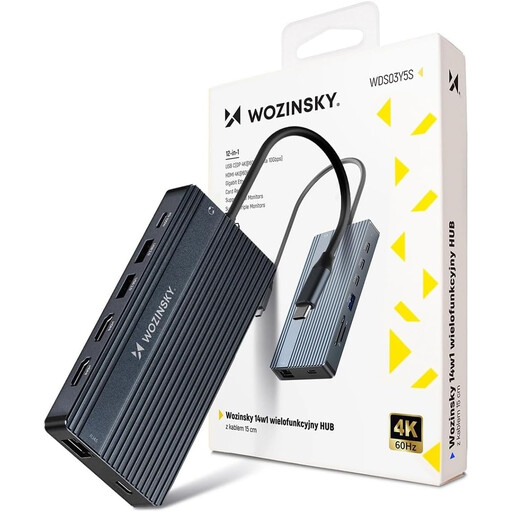
Why It Stands Out The WOZINSKY Hub is a 14-in-1 USB-C hub designed as a comprehensive solution for demanding workspaces. With its enormous variety of ports, it covers almost every conceivable use case, making other adapters redundant.
Advantages
Who It's For This model is aimed at power users, developers, and creative professionals who need maximum connectivity and want to transform their laptop into a stationary, high-performance workstation without compromising on port variety.
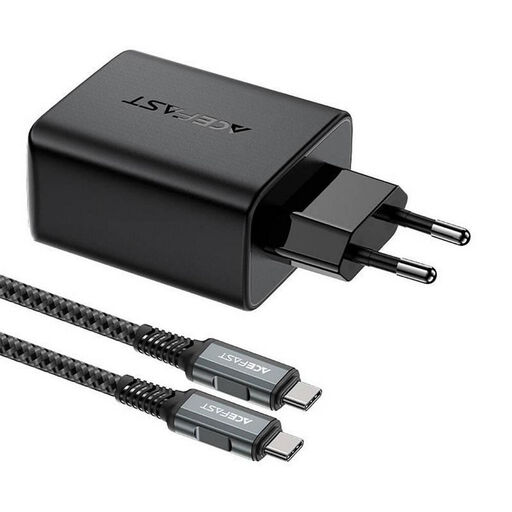
Why It Stands Out The ACEFAST A17 is a smart hybrid solution that combines a powerful 65W GaN power adapter with a multiport adapter. Its compact design makes it an ideal travel companion.
Advantages
Who It's For Ideal for business travelers, mobile workers, and users looking for a minimalist solution. If you mainly need a good charger and the ability to connect a single 4K monitor, this is a very practical and space-saving option.
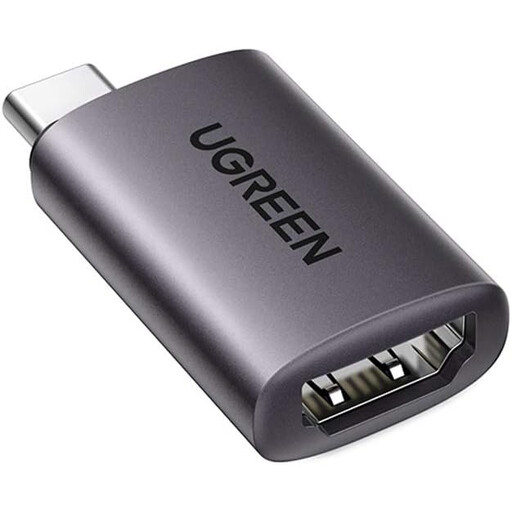
Why It Stands Out This adapter from UGREEN focuses on one essential task: reliably connecting a USB-C device to an HDMI screen. Its strength lies in its simplicity and portability.
Advantages
Who It's For Perfect for users whose only need is to quickly and easily connect their laptop or tablet to a single external monitor, projector, or TV. It is the simplest form of a USB-C to HDMI adapter.
The products presented cover common scenarios. However, if you need a different port configuration or specialized adapters, you may find the right product in our broader selection.
? Explore more HDMI Cable Adapters here.
1. What is the difference between a USB-C Hub and a USB-C Docking Station? A USB-C hub is typically smaller, powered directly by the laptop's USB-C port (bus-powered), and offers a basic expansion of ports. A docking station is often larger, has its own power supply, and is designed for a stationary setup. It provides a wider variety of ports, higher charging power, and often supports multiple monitors.
2. Will a USB-C docking station work with any laptop? No. Your laptop's USB-C port must support video output. This is known as "DisplayPort Alternate Mode" (DP Alt Mode) or is enabled through Thunderbolt 3 or Thunderbolt 4. Check your device's technical specifications to ensure compatibility. Pure USB-C data ports cannot transmit a video signal.
3. Can I run three monitors with a MacBook and a docking station? It depends on the MacBook model. Standard MacBooks with M1 or M2 chips natively support only one external monitor. Models with M1/M2/M3 Pro, Max, or Ultra chips can drive multiple external displays. With Windows laptops, MST technology generally allows for the use of multiple monitors with an extended desktop without issue. Therefore, check the specifications of your laptop and the docking station before purchasing.