
Lieferung heute & morgen

Qualitätsgarantie

Willkommens-Angebote freischalten: KOSTENLOSE Lieferung | Bis zu 80 % RABATT | Kostenlose 30-Tage-JoyPlus-Testphase
App herunterladen
Modern laptops are powerful, but they often lack sufficient ports. A USB-C Docking Station promises to solve this problem, connecting all your peripherals with just a single cable. But the market is crowded, and many products fail to deliver on their promises. Before you expand your connectivity, it's crucial to understand the most common pitfalls to avoid a bad investment. This guide will show you what to look for.
The selection of USB-C hubs is vast, but many models have flaws that only become apparent during daily use. Pay close attention to these three points:
To avoid the aforementioned problems, you should check the following technical specifications before buying. These define the true performance of a docking station.
For a smooth and sharp picture, especially when working with text and graphics, a laptop docking station 4K 60Hz is the standard. A 60 Hz refresh rate ensures smooth rendering of mouse movements and videos. Check which ports (HDMI, DisplayPort) are available and whether your laptop supports DisplayPort Alternate Mode over USB-C, which is a prerequisite for video output. If you're looking for a docking station for 3 monitors, carefully check the manufacturer's specified maximum resolutions and refresh rates for every possible monitor configuration.
The charging power specification is crucial. For most modern notebooks, like a MacBook Pro, a docking station with 100W Power Delivery is recommended. This ensures that the laptop is reliably charged even during demanding tasks. Check the PD port's specification: It should be explicitly labeled as "PD Input" or "PD 100W".
A good docking station should offer more than just video outputs. A USB-C hub with a LAN port (Gigabit Ethernet) provides a stable and fast internet connection, which is often more reliable than Wi-Fi in a home office. Additionally, fast USB ports (USB 3.0 or higher at 5 Gbps or 10 Gbps) are important for swift data transfer from external hard drives or SSDs. Slower USB 2.0 ports, on the other hand, are sufficient for a mouse and keyboard.
Based on the criteria above, we have identified some products that are well-suited for different user profiles.
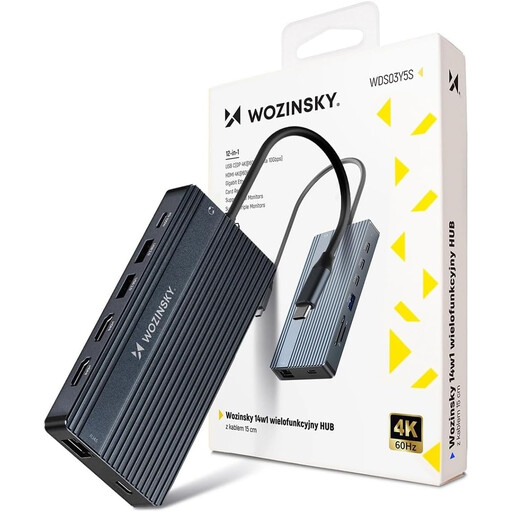
Why This Fits Their Persona: For power users who refuse to compromise on connectivity. This model bundles every conceivable port into one device, putting an end to constant adapter swapping. Ideal for a fully equipped workstation in the office or at home.
With 100W Power Delivery, it reliably charges your laptop. The aluminum housing ensures good heat dissipation, and explicit MST support enables multi-monitor setups on Windows.
Comprehensive connectivity with 14 ports, including 2x HDMI, DisplayPort, Gigabit Ethernet, and multiple USB-A/C ports. Supports up to three monitors simultaneously (system compatibility required).
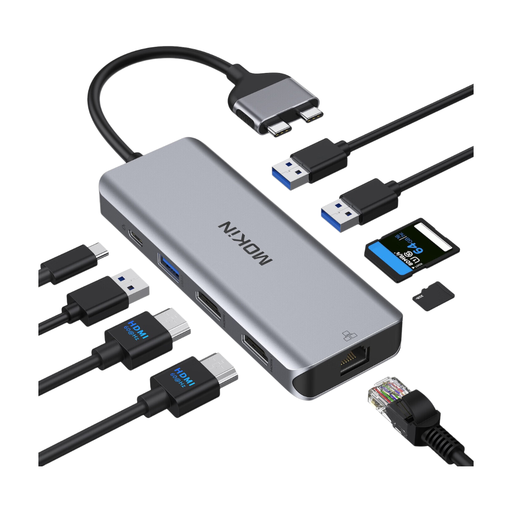
Why This Fits Their Persona: Specifically designed for users of a MacBook Pro or Air (with Intel or M Pro/Max chips) who want to use two external monitors in extended desktop mode. The dual USB-C plug design ensures a stable connection to the laptop.
This model is explicitly designed to bypass the SST limitation of macOS, allowing it to output two different images via the two HDMI ports. It directly addresses the most common pitfall for Mac users.
Enables dual 4K HDMI output for compatible MacBooks. It also offers 100W Power Delivery, Gigabit Ethernet, and fast USB 3.0 ports in a compact, flush-mount format.
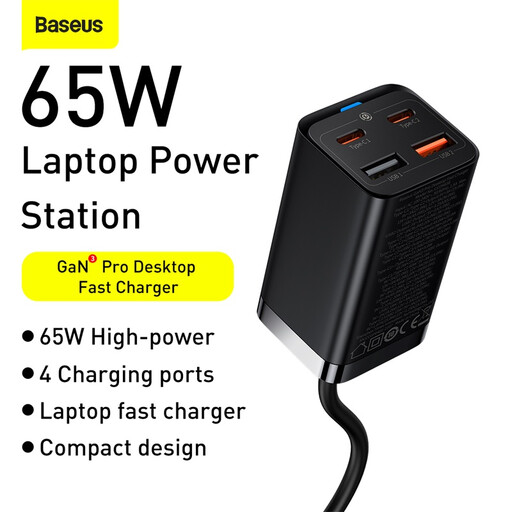
Why This Fits Their Persona: For users whose main concern is efficiently charging multiple devices (laptop, tablet, smartphone) and who place less emphasis on a wide array of peripheral ports. An alternative to a full-fledged docking station.
This device focuses on one core competency: fast and safe charging. It avoids the need to buy an oversized docking station when all that's really needed is a powerful charging solution. The GaN technology ensures efficiency and low heat generation.
Compact design with 65W total output, distributed across two USB-C and two USB-A ports. Smart power distribution charges a notebook and other devices simultaneously at optimal speeds.
We have compiled a complete, up-to-date list of products that fully meet these strict selection criteria and safety regulations.
1. Does every USB-C docking station work with every laptop? No. Compatibility depends on the laptop's USB-C port. For video output, the port must support DisplayPort Alternate Mode. For the maximum performance and functionality that a Thunderbolt 3 Docking Station offers, a corresponding Thunderbolt 3 or Thunderbolt 4 port is required on the laptop. Always check the specifications of both your laptop and the docking station.
2. Why does my docking station get hot during use? Some heat generation is normal, as power conversion and data processing consume energy. However, excessive heat can indicate an overload or poor-quality construction. Models with an aluminum casing dissipate heat more effectively than those made of plastic. Make sure to place the docking station in a well-ventilated area.
3. Can I connect three monitors to my MacBook with a docking station? It's complicated and depends on the MacBook model. Standard MacBooks (e.g., with M1/M2/M3 chips) natively support only one external monitor. To run multiple extended desktops, you either need a MacBook Pro/Max/Ultra model that supports MST, or a special docking station that uses DisplayLink technology (which requires driver installation and can have its own drawbacks). Check compatibility very carefully.