
Lieferung heute & morgen

Qualitätsgarantie

Willkommens-Angebote freischalten: KOSTENLOSE Lieferung | Bis zu 80 % RABATT | Kostenlose 30-Tage-JoyPlus-Testphase
App herunterladen
A single USB-C port is expected to power a monitor, keyboard, mouse, network connection, memory card and charger all at once. This is where a USB-C docking station comes in. However, USB-C hubs, USB-C multi-port adapters and fully equipped USB-C docks can differ considerably in terms of port selection, display output and compatibility.
If you focus only on the number of ports or terms such as “4K” and “100 W”, you could end up buying a product that does not deliver the functionality you need for your setup. The following criteria will help you assess technical specifications objectively and choose a suitable laptop docking station for the office, university, home office or creative applications.
USB-C initially describes only the shape of the connector. Not every USB-C port supports DisplayPort Alt Mode, Thunderbolt or the transmission of video signals. To connect a monitor, the USB-C port on your laptop, tablet or smartphone must explicitly support the relevant function.
A USB-C hub with HDMI cannot force display output if the host port does not provide a video signal. It is therefore worth checking the technical specifications of the end device before buying.
When choosing a USB-C docking station with 4K, always look at the combination of resolution, refresh rate and number of displays. 4K at 30 Hz, for example, is suitable for static office applications, but scrolling and video playback will feel less fluid than with 4K at 60 Hz.
With a dual-HDMI docking station, the maximum resolution may also drop when two monitors are used at the same time. Some models support only mirroring under macOS or require specific chipsets or connection standards.
A USB-C hub with Power Delivery may support an input power of up to 100 W. Some of this power may be used to run the hub and connected devices. You will also need a compatible USB-C power supply and a suitable cable.
Check how much charging power your notebook actually requires and whether the supplier distinguishes between PD input and available output power. A hub without pass-through PD, such as the MOKiN USB-C to 2×USB-A 3.1 + 2×USB-C 3.1, is primarily intended for data transfers and does not charge the laptop through the hub while it is in use.
Before buying, make a short list of the devices you need to connect:
A USB-C hub with Ethernet is useful for video conferences, large downloads and desk-based work. For photographers and video producers, a USB-C hub with an SD card reader and TF slot can make it easier to access memory cards directly. Also check whether SD and TF cards can be read simultaneously.
USB 2.0 theoretically reaches up to 480 Mbit/s and is mainly suitable for a mouse, keyboard or basic input devices. USB 3.0 or USB 3.2 Gen 1 is often specified as offering up to 5 Gbit/s. USB 3.2 Gen 2 can support up to 10 Gbit/s, depending on the product.
Actual speeds depend on factors including the host port, cable, storage device and file type. When several devices are used at the same time, they share the available bandwidth on many hubs. Fast USB-C or USB-A data ports are therefore a sensible choice for external SSDs and large video files.
Windows supports extended multi-monitor operation via MST on many devices. Under macOS, limitations vary depending on the model and chip. Specifications such as “Dual 4K” should therefore always be read together with the supported operating system.
For smartphones and tablets, OTG and DisplayPort Alt Mode support are also relevant. An adapter may fit physically while still being unable to provide display output or charging. Thunderbolt adapters are not automatically compatible with every standard USB-C port either.
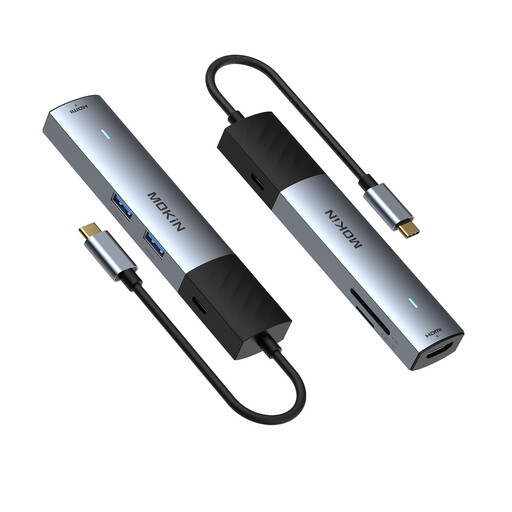
Why this product suits this profile: This 7-in-1 design combines HDMI, USB-A, USB-C, SD, TF and PD in one compact adapter for everyday office, study and home-office tasks.
The specifications state 4K at 60 Hz and separate SD and TF slots. The card reading speed is listed as 20–40 MB/s, which is suitable for straightforward transfers.
USB data rates of up to 5 Gbit/s and USB-C PD 3.0 with up to 100 W input power.
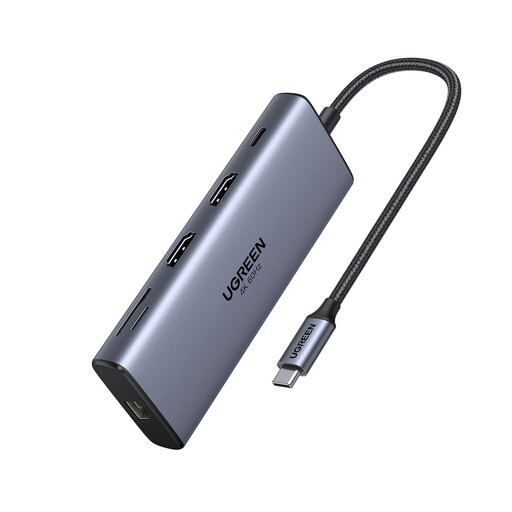
Why this product suits this profile: With two HDMI ports, USB-C data ports, card readers, Ethernet and PD, this dock is designed for permanent workstations with several connected devices.
The product specifications distinguish between two HDMI outputs supporting up to 4K at 60 Hz, as well as MST under Windows and dual output under macOS.
Two USB-C 3.2 ports with speeds of up to 10 Gbit/s, Gigabit Ethernet and USB-C PD up to 100 W.
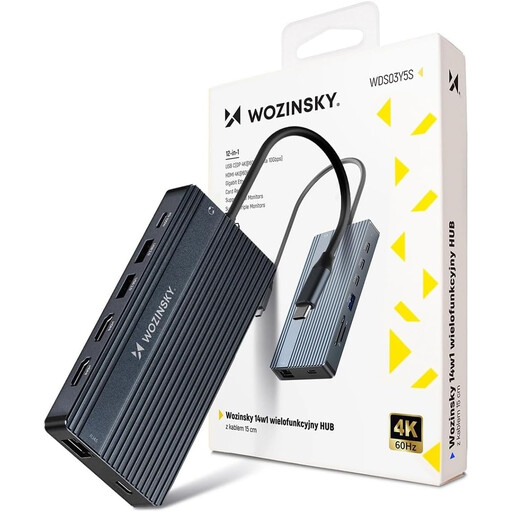
Why this product suits this profile: The extensive range of ports is ideal for creatives, office workstations and users who want to connect monitors, USB devices, network equipment, audio and memory cards at the same time.
The specification lists the monitor connections individually: two HDMI ports with 4K at 60 Hz, DisplayPort, VGA, plus MST for Windows and SST for macOS.
14 ports, Gigabit Ethernet, 3.5 mm audio, SD/TF readers and USB-C PD up to 100 W.
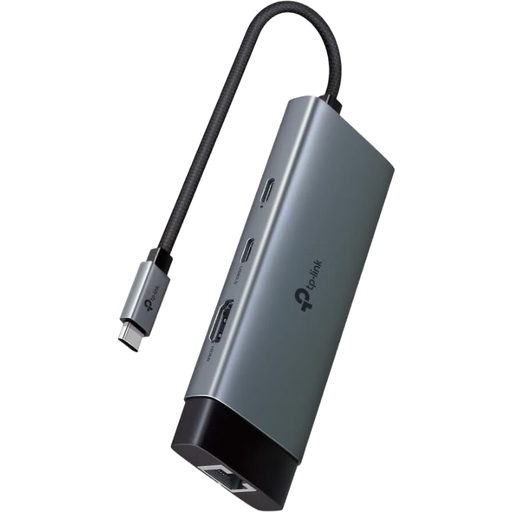
Why this product suits this profile: This 6-in-1 hub is designed for laptops, tablets and smartphones, connecting a monitor, network, USB accessories and charger through a single port.
The technical specifications explicitly state HDMI with 4K at 60 Hz, Gigabit Ethernet and the supported operating systems. The host port must support DP Alt Mode for display output.
USB-C PD up to 100 W, two USB-A data ports and one USB-C data port with speeds of up to 5 Gbit/s, plus RJ45 Ethernet.
We have put together a complete, regularly updated list of products that fully meet these strict selection criteria and the safety regulations applicable in the EU.
No. The key factors are the USB-C standard, DisplayPort Alt Mode, Thunderbolt support and the operating system. Also check for limitations when using multiple monitors. Compare the product page with the computer’s technical specifications before buying.
Not always. For data transfer and individual USB devices, compact hubs can often draw sufficient power from the host. If you want to charge a laptop while using several connected devices, a USB-C hub with Power Delivery is a sensible choice. The charger is normally connected separately to the PD input.
Use suitable cables and power supplies, keep ventilation openings clear and avoid moisture, heavy impacts and excessive strain on the connection cable. Storage devices should be safely ejected before being disconnected. The housing may become warm under heavy use, so a well-ventilated, dry environment is advisable.