
Lieferung heute & morgen

Qualitätsgarantie

Willkommens-Angebote freischalten: KOSTENLOSE Lieferung | Bis zu 80 % RABATT | Kostenlose 30-Tage-JoyPlus-Testphase
App herunterladen
A USB-C docking station can connect a laptop or tablet to a monitor, keyboard, mouse, network, memory cards and a charger. In practice, however, models can differ considerably. Many poor purchases are not caused by the number of ports, but by a lack of compatibility, shared bandwidth or unclear information about monitor support.
This buying guide from the Joybuy Product Recommendation Officer explains which technical specifications matter before you buy and which models suit different usage scenarios.
The USB-C connector initially describes only the shape of the port. A laptop may support USB-C for data and charging, but not provide video output. To connect a monitor, the host device will generally need DisplayPort Alt Mode or a Thunderbolt port.
You should therefore check:
A USB-C hub with HDMI can only output a picture if the source device provides the necessary video interface.
The term “4K HDMI Dock” is not enough as a buying criterion. What matters is whether 4K is supported at 30 Hz or 60 Hz. 4K at 30 Hz is suitable for office applications and static content, while 60 Hz can feel more comfortable for smooth scrolling, video playback and many creative applications.
A docking station for multiple monitors comes with additional limitations. Depending on the operating system, graphics chip and dock, two HDMI outputs may support only mirroring, a limited resolution or different image content. The manufacturer’s specifications should therefore be checked for your specific device configuration.
A USB-C docking station with Power Delivery can charge your laptop while it is in use. The “100 W PD” specification often refers to the dock’s maximum input power. Some of this power is needed to run the docking station itself, so the actual power passed on to the notebook may be lower.
Pay attention to:
Some models are supplied without a power adapter. This should be taken into account when planning the overall cost.
For a home office, HDMI, USB-A, USB-C and Power Delivery are often sufficient. For photographers and creative users, however, a USB-C hub with an SD card reader or additional TF/microSD slots can be important. If you rely on a stable network connection, choose a USB-C dock with Ethernet and an RJ45 Gigabit port.
Typical port groups include:
More ports are not automatically better. What matters is whether the interfaces can be used simultaneously at sufficient speeds.
“Up to 5 Gbit/s” or “up to 10 Gbit/s” are theoretical maximum values. In practice, several ports often share the available bandwidth. If you use an SSD, monitor and card reader at the same time, data transfers may be slower.
For basic peripherals, a USB-C hub with USB 3.0 is sufficient. If you copy large video or photo files, consider USB 3.2 with speeds of up to 10 Gbit/s or a Thunderbolt docking station. With a compatible cable, Thunderbolt 4 provides data, video and charging functions through a single connection. However, the host device must also support this standard.
Aluminium housings can help dissipate heat, but they do not replace adequate ventilation. Compact multiport adapters are ideal for travelling, while desktop laptop docking stations often offer more ports and a separate power supply.
You should also check:
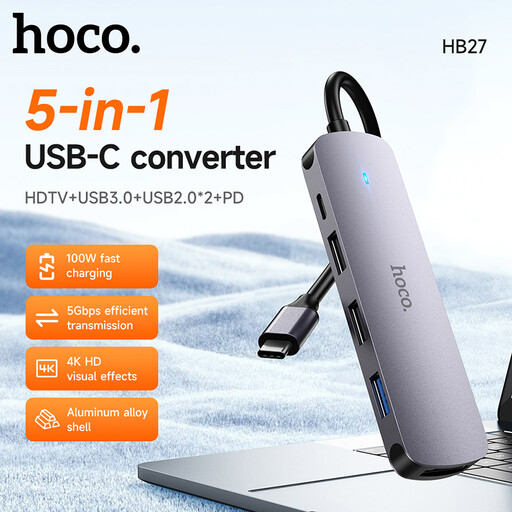
Why this product suits the profile: This 5-in-1 hub combines HDMI, USB ports and charging in a compact format. It is suitable for a laptop, tablet or OTG-enabled smartphone with modest connectivity needs.
The specifications explicitly state 4K at 30 Hz and up to 60 W Power Delivery. This makes it easier to assess the limitations before buying.
One USB 3.0 port, two USB 2.0 ports, HDMI and a 60 W PD port; aluminium alloy and ABS plastic.
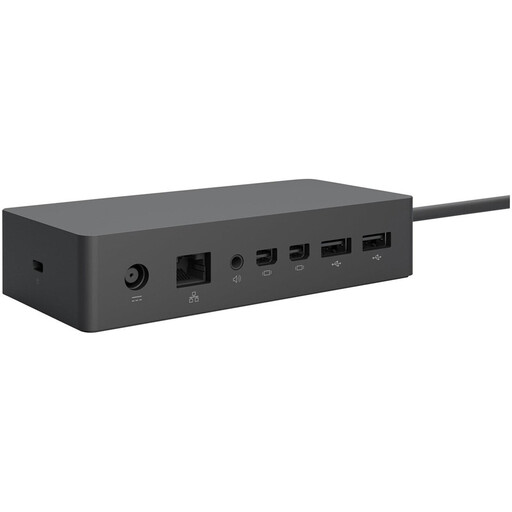
Why this product suits the profile: For a desktop setup with a Thunderbolt 4-enabled Windows device, it offers three Thunderbolt 4 ports, three USB-A 3.0 ports, Gigabit Ethernet and audio.
The product data indicates Thunderbolt 4 and Windows compatibility. Before buying, check whether your own device supports this standard.
Daisy-chaining via Thunderbolt 4, Gigabit Ethernet, a 3.5 mm audio port and plug-and-play functionality for most Windows devices, according to the product description.
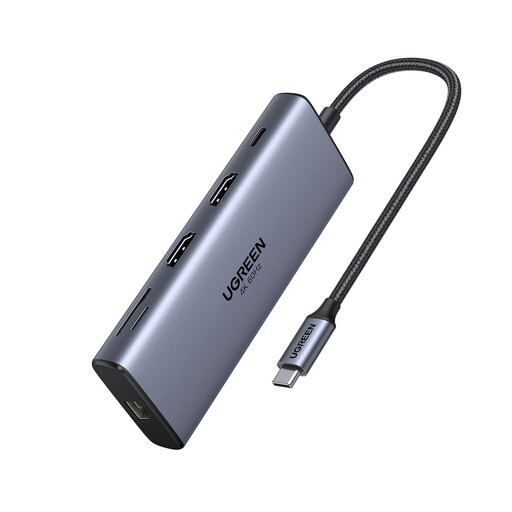
Why this product suits the profile: This model is aimed at users who need two HDMI outputs, fast USB-C data ports, memory card readers, Ethernet and charging in a single device.
The product specifications distinguish between two 4K HDMI outputs, USB speeds of up to 10 Gbit/s and 100 W PD. This makes it easier to match the dock with your monitors and power supply.
Two HDMI ports with 4K at 60 Hz according to the manufacturer, two USB-C 3.2 ports, SD/TF reader, Gigabit Ethernet and 100 W PD.
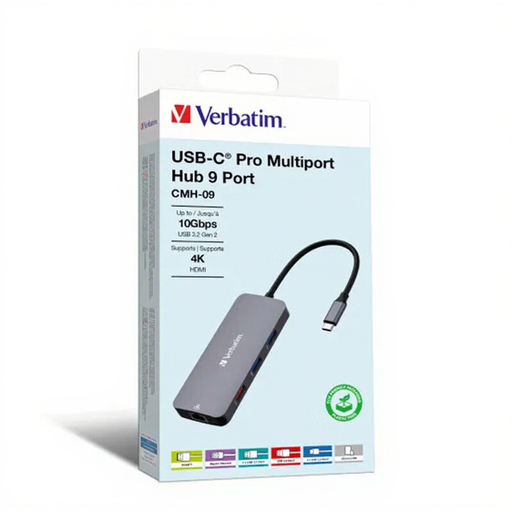
Why this product suits the profile: This 9-port multiport adapter combines HDMI, Gigabit Ethernet, two USB-C and three USB-A ports with SD and microSD card readers.
The ports and standards are listed individually: HDMI supports 4K Ultra HD, Ethernet operates at Gigabit speeds and the USB ports are specified as 5 or 10 Gbit/s class.
Direct access to SD and microSD cards, HDMI output, RJ45 Gigabit Ethernet and nine ports for desktop workstations.
We have put together a complete, regularly updated list of products that fully meet these strict selection criteria and the safety regulations applicable in the EU.
If you experience problems, using a different USB-C or HDMI cable, updating the operating system and checking the manufacturer’s specifications can often help. Some devices require a driver or firmware update.
No. The key factor is which USB-C functions the laptop supports: data transfer, DisplayPort Alt Mode, Power Delivery or Thunderbolt. The operating system and maximum supported monitor resolution must also be compatible with the dock.
This depends on the model, host device and operating system. For example, a dock with two HDMI ports may support different image content or mirroring only. Specifications such as “4K at 60 Hz” should always be checked for both single-monitor and multi-monitor operation.
Its own power consumption is normally lower than that of a monitor or laptop. However, when Power Delivery is used, the dock converts some of the power supplied by the adapter for its own functions. As a result, a 100 W PD input may deliver less power to the laptop.