
Lieferung heute & morgen

Qualitätsgarantie

Willkommens-Angebote freischalten: KOSTENLOSE Lieferung | Bis zu 80 % RABATT | Kostenlose 30-Tage-JoyPlus-Testphase
App herunterladen
Modern laptops like the MacBook or Dell XPS feature a minimalist design, often with only a few USB-C ports. A USB-C docking station or a USB-C hub promises to solve this problem by consolidating a multitude of ports into a single device. However, the market is flooded with products that have misleading specifications, which can quickly lead to a bad purchase. As your Joybuy Product Recommendation Officer, I'll help you distinguish the important features from the trivial ones and make an informed decision.
Many users invest in a multiport adapter only to discover in frustration that it doesn't deliver the promised performance. Watch out for these three typical pitfalls:
To avoid these pitfalls, you should check three core technical specifications before buying. These determine whether a docking station will make your workday easier or harder.
Look for a docking station that supports 100W Power Delivery. This is especially important for users of power-hungry laptops like a docking station for MacBook Pro. It's important to know that the docking station itself consumes power (typically 10–15 watts). Therefore, a hub with a 100W PD input will pass through about 85–90 watts to the laptop. This ensures your device charges reliably even during demanding tasks.
For a smooth and comfortable viewing experience, an HDMI or DisplayPort connection that supports 4K at 60 Hz is essential. The difference from 30 Hz is immediately noticeable and a must-have for anyone who uses an external monitor more than just occasionally. Some advanced models even offer 4K at 120 Hz, which is particularly relevant for creative professionals in video editing or for gaming applications. Windows users should also look for Multi-Stream Transport (MST) support to drive two or more monitors with different content.
Not all USB ports are created equal. Check the specifications carefully:
For professional users, an integrated laptop hub with Ethernet port (RJ45) is indispensable for a stable and fast wired network connection. Photographers and videographers will also benefit from a built-in USB-C SD card reader that supports high transfer speeds.
Based on these criteria, we have identified a few models that represent a suitable solution for specific user groups.
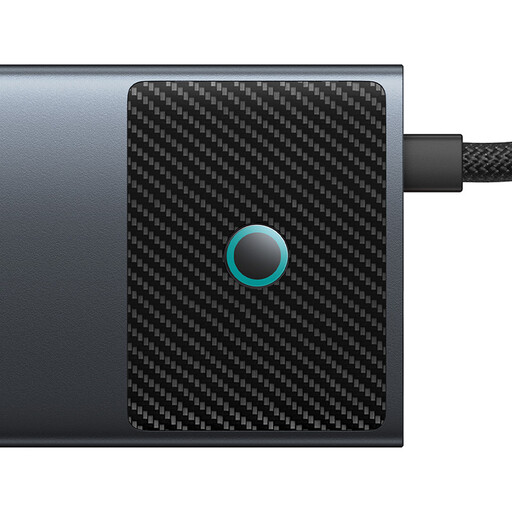
Why it's a match: Designed for users who demand maximum performance and connectivity. Ideal for video editing, graphic design, or complex multi-monitor setups with a MacBook Pro or other high-end laptop.
This model avoids the bandwidth and refresh rate traps by providing two high-spec HDMI ports (4K@120Hz and 4K@60Hz) and dedicated 10 Gbps data ports (USB-A and USB-C).
The ability to drive two high-resolution monitors at high refresh rates, combined with 100W PD and fast data ports, makes it a comprehensive solution for demanding workflows.
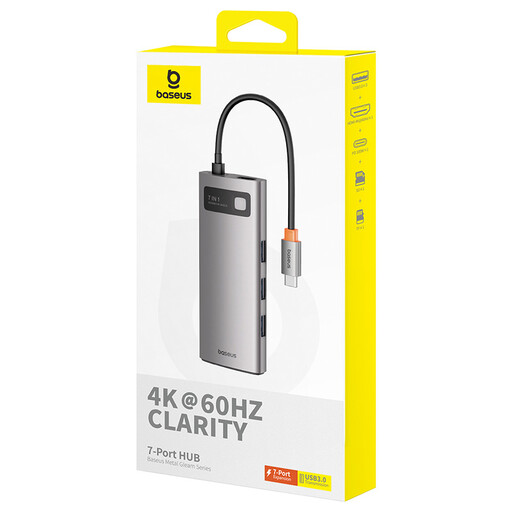
Why it's a match: A balanced solution for daily use in the home office. It provides all the essential ports to create a tidy and functional workspace with a monitor, peripherals, and charging capability.
This model avoids the 30 Hz trap by offering smooth 4K@60Hz video output. It also bypasses the charging power trap by supporting 100W Power Delivery, ensuring reliable power supply.
An excellent price-to-performance ratio. It combines the most important high-end features (4K@60Hz, 100W PD, USB 3.0) in a compact and affordable package without compromising on core functions.
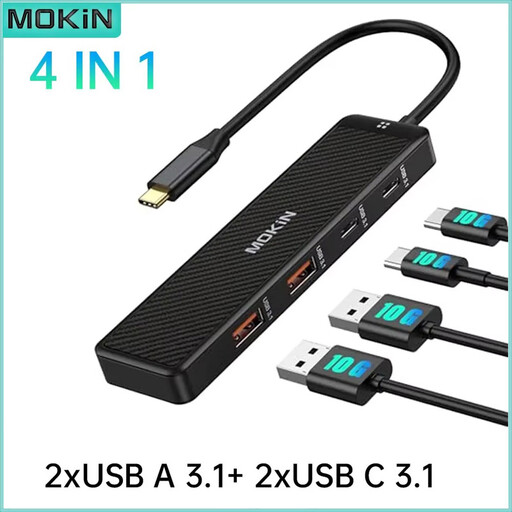
Why it's a match: Perfect for users whose primary requirement is the rapid transfer of large amounts of data. This specialized hub forgoes video outputs to focus on maximum data speed.
This hub avoids the bandwidth trap by specializing in a single function. All four ports (two USB-A and two USB-C) support the fast USB 3.1 standard at 10 Gbps without having to share bandwidth with video or charging functions.
Uncompromising speed for data transfers. Ideal for connecting multiple external SSDs or other high-speed storage devices to accelerate workflows.
We have compiled a complete, real-time updated list of products that fully meet these strict selection criteria and German safety regulations.
1. Does a USB-C docking station need its own power supply? That depends on the type. Smaller, portable USB-C hubs are often "bus-powered," meaning they draw their power directly from the laptop. Larger docking stations, especially those with many ports and high charging power, use "pass-through charging." This involves connecting the laptop's original power adapter to the docking station, which then distributes power to the laptop and the connected devices. For stable performance, this is the recommended method.
2. Does a USB-C docking station get hot, and is that normal? A certain amount of heat generation is normal. Converting power for the charging function and processing high-speed data generates heat. An aluminum casing, as used in many high-quality models, acts as a heat sink to dissipate this heat. However, if a hub becomes too hot to touch, or if performance degrades, it's a sign of poor design or overload.
3. Do all ports on a docking station work the same for MacBook and Windows? Mostly, yes, but there is a key difference in how multiple monitors are handled. Windows supports Multi-Stream Transport (MST) technology, which allows a single USB-C port to drive two or more external monitors with different content (extended mode). macOS does not support MST in the same way; when two monitors are connected to a single port on a hub, the same image is typically mirrored on both external screens. For true dual-monitor support on a MacBook, special docking stations with multiple video controllers or Thunderbolt technology are required.