
Lieferung heute & morgen

Qualitätsgarantie

Willkommens-Angebote freischalten: KOSTENLOSE Lieferung | Bis zu 80 % RABATT | Kostenlose 30-Tage-JoyPlus-Testphase
App herunterladen
Modern laptops like the MacBook or Dell XPS feature a slim design, often at the expense of port variety. Frequently, only a few USB-C ports are available. If you want to connect an external monitor, transfer data from a memory card, and charge your notebook at the same time, you'll quickly hit a wall. A USB-C Hub is the practical solution to easily expand your device's connectivity.
This article serves as a guide. We will introduce various models and explain the key criteria for selection, helping you make an informed decision for your workspace in the office, at home, or on the go.
Choosing the right hub depends on your individual needs. You should consider three key aspects in your decision.
Think about which devices you connect daily. A good USB-C Multiport Adapter should offer the ports that are most relevant to you.
Ensure the hub is compatible with your laptop and its operating system (macOS, Windows, Linux). For video output via USB-C, the port on your laptop must support DisplayPort Alternate Mode (DP Alt Mode). You can find this information in your device's technical specifications. A USB-C hub for MacBook users should also accommodate the specific requirements of macOS, particularly when it comes to driving multiple external monitors.
The terms USB-C Hub and USB-C Docking Station are often used interchangeably, but they describe different use cases.
Here is a selection of models that cover different needs—from a compact all-rounder to a comprehensive connectivity solution.
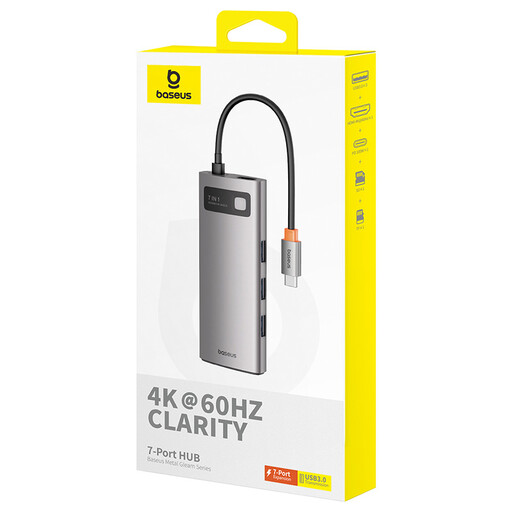
Why it stands out: This model from Baseus offers a balanced mix of the most essential ports in a compact and lightweight design. Its support for 4K@60Hz sets it apart from many entry-level models and ensures high-quality video output.
Pros:
Who is it for? Ideal for professionals, students, and anyone looking for a reliable and portable solution for daily use. It's a great choice for connecting an external monitor, using peripherals, and charging your notebook simultaneously.
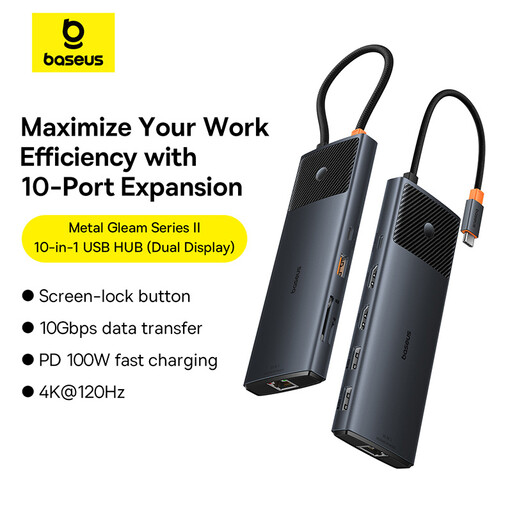
Why it stands out: The Baseus Metal Gleam II is designed for multi-screen productivity. With two HDMI ports supporting different resolutions and refresh rates, plus fast 10 Gbps data ports, it's a tool for demanding users.
Pros:
Who is it for? Perfect for power users, creative professionals, and office workers who need a dual-monitor setup. The high-speed data ports and Ethernet connection make it a powerful centerpiece for any desk.
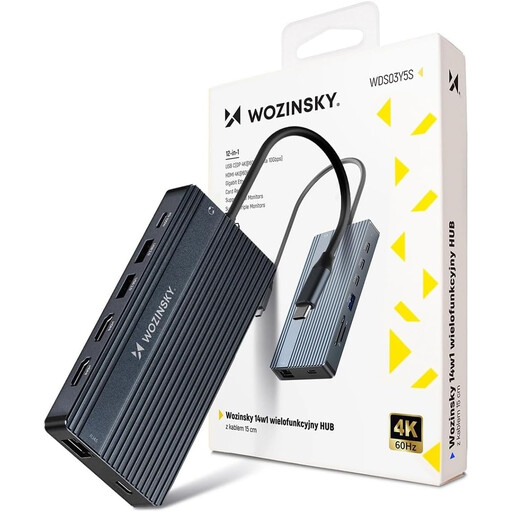
Why it stands out: This adapter from Wozinsky is a full-fledged Laptop Docking Station with an impressive 14 ports. It allows you to connect up to three external monitors and offers a wealth of USB ports, making it the ultimate solution for complex work environments.
Pros:
Who is it for? Designed for users who refuse to compromise on connectivity. It transforms a notebook into a powerful workstation and is ideal for developers, designers, and anyone running a desk with maximum peripherals.
If the models presented here don't fully meet your needs or if you're looking for more specific solutions, a wide range of other adapters is available. Every workspace is unique, and the right choice depends on your personal devices and workflow.
Discover our full range of HDMI Computer Adapters and find the ideal solution for your needs.
A USB-C Hub is typically smaller, more portable, and powered by the laptop. It's designed for mobile use. A USB-C Docking Station is larger, usually offers more ports, and often has its own power supply. It's designed for a fixed desk setup to connect a notebook to numerous peripherals.
Yes. The USB-C port with Power Delivery (PD) on a hub is purely a pass-through port. To charge your notebook via the hub, you must connect your laptop's original USB-C power adapter to the hub's PD port. The hub itself does not generate power.
No, it depends on the hub and the laptop. The basic requirement is that the laptop's USB-C port supports DisplayPort Alternate Mode. To run multiple monitors, the hub must have multiple video outputs (e.g., two HDMI ports) and support Multi-Stream Transport (MST). MST generally only works on Windows. MacBook models (except for those with M Pro/Max/Ultra chips) can natively extend to only one external display via a single USB-C port (screen mirroring on additional monitors is possible).