
Lieferung heute & morgen

Qualitätsgarantie

Willkommens-Angebote freischalten: KOSTENLOSE Lieferung | Bis zu 80 % RABATT | Kostenlose 30-Tage-JoyPlus-Testphase
App herunterladen
Modern laptops like the MacBook or Dell XPS feature a sleek design, often at the expense of port variety. Frequently, only one or two USB-C ports are available. For anyone needing to connect monitors, external hard drives, network cables, or memory cards, a central solution is essential. A USB-C hub or a USB-C docking station consolidates these connections and helps declutter your workspace.
This guide explains the most important criteria for choosing a suitable multiport adapter and presents a selection of models for various use cases.
A contribution from the Joybuy Product Recommendation Officer
The right hub for you depends on your individual needs. You should consider three key aspects in your decision.
Consider which devices you use daily. The most important ports include:
A USB-C hub with a charging function is especially convenient. The USB-C Power Delivery (PD) port allows you to charge your laptop while the hub powers all your peripherals. Pay attention to the maximum charging power, specified in watts (W). A rating of 100W PD is sufficient for most modern laptops. Note that the hub itself consumes a portion of the power (around 10-15W) for its own operation.
Ensure the hub is compatible with your device's operating system (Windows, macOS, Linux). There are key differences, especially when using multiple monitors:
Based on the criteria mentioned, we have compiled a selection of USB-C hubs that cover different needs.
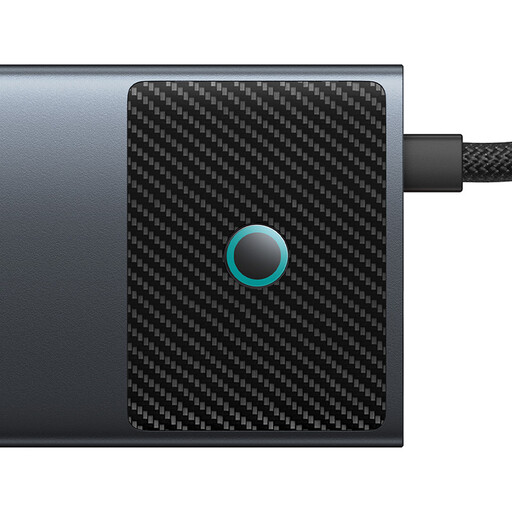
What sets it apart This model from Baseus is aimed at demanding users who value high image quality and fast data transfer. Its standout feature is the dual HDMI ports, one of which supports a 4K at 120Hz resolution. This is ideal for fluid motion in video games or during video editing. Additionally, one USB-A and one USB-C port offer data rates of up to 10 Gbps.
Advantages
Who is it for? This hub is a great choice for gamers, creative professionals, and power users who want to run one or two high-resolution monitors at a high refresh rate while also benefiting from fast data transfers.
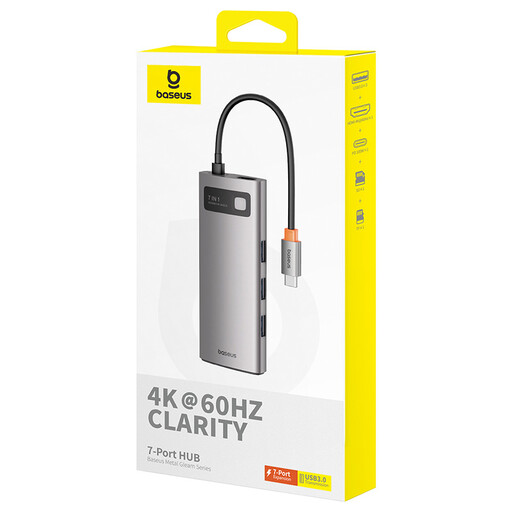
What sets it apart The Baseus 7-Port Hub is a compact and versatile all-rounder. It bundles the most commonly needed ports into a slim aluminium housing, making it ideal for mobile use or a tidy desk. It provides a solid set of essential features for everyday tasks in a home office or for studying.
Advantages
Who is it for? This USB-C multiport adapter is ideal for professionals, students, and home office users looking for a reliable and straightforward solution to expand their laptop's connectivity without needing an excessive number of specialised ports.
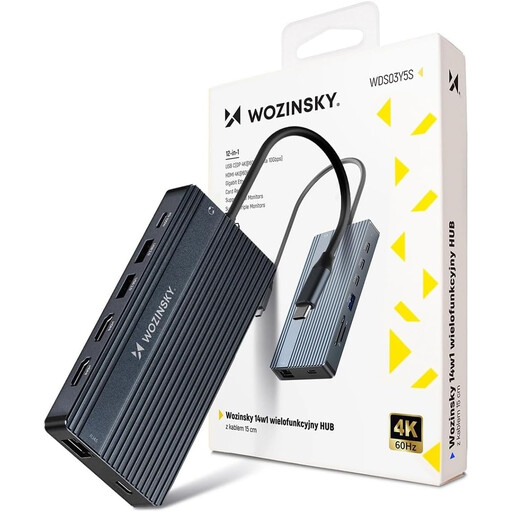
What sets it apart The Wozinsky 14-in-1 Hub is a fully-fledged laptop docking station that leaves little to be desired. With a total of 14 ports, it transforms any laptop into a powerful workstation. A key highlight is its ability to drive up to three external monitors simultaneously (on Windows via MST), thanks to two HDMI ports and a DisplayPort connection.
Advantages
Who is it for? This USB-C hub is the solution for power users, developers, and anyone looking to set up a permanent workspace with multiple monitors and numerous peripherals. It replaces a traditional docking station and consolidates all connections into a single cable to the laptop.
The models featured here cover common scenarios. If you haven't found the right device for your specific needs or are looking for different configurations, you can find a wider selection of hubs and adapters in our USB-to-USB Converters category.
The terms are often used interchangeably, but there are functional differences. A USB-C hub is typically smaller, more portable, and draws power from the laptop's USB-C port (bus-powered). A USB-C docking station is usually larger, designed for stationary use, and has its own power adapter. This allows it to support more and higher-power ports and often offers advanced features like driving multiple monitors.
Most USB-C hubs are generally compatible with MacBooks for basic functions like data transfer, charging, and connecting a single monitor. The challenge lies in driving two or more external monitors in extended desktop mode. Standard MacBooks (with M1/M2/M3 chips) natively support only one external display. To bypass this limitation, you need a hub or docking station with special technology like DisplayLink, which is explicitly advertised for multi-monitor setups with macOS.
When using products from reputable brands that comply with USB-IF specifications, the risk of damage is extremely low. High-quality hubs include protection mechanisms against overvoltage, overcurrent, and overheating. It is advisable to use the hub in combination with your laptop's original power adapter or a certified third-party power adapter to ensure a stable and safe power supply.