
Lieferung heute & morgen

Qualitätsgarantie
App herunterladen
Kategorien
Modern laptops, like the MacBook Pro or Dell XPS, are distinguished by their sleek designs and excellent portability. However, this evolution often comes at the cost of port variety. A single USB-C port frequently has to handle data, video, and power. A USB-C Hub, also known as a Type-C Hub or Multiport Adapter, solves this problem by expanding a single port into a multitude of interfaces. This guide provides a technical framework for selecting the right model based on specific requirements and functionalities.
Choosing a USB-C hub should be based on an analysis of your required features. The following criteria are essential for making an informed decision.
The primary function of a hub is to expand connectivity. Analyse your needs:
The Power Delivery feature allows you to charge your laptop through the hub while other devices are connected. The USB-C port on the hub serves as the input for your power adapter. Models with 100W PD are powerful enough to supply electricity to even demanding laptops, like a USB-C Hub for MacBook Pro, under full load. A portion of the power (approx. 10-15W) is used to operate the hub itself, with the remainder passed through to the laptop.
To run two or more monitors, a docking station for 2 monitors is required. These models feature multiple video outputs (e.g., 2x HDMI or 1x HDMI and 1x DisplayPort). The ability to display extended desktops (Extended Mode) across multiple monitors depends on both the hub and the operating system. For example, macOS systems using standard USB-C hubs often only support screen mirroring (Mirror Mode) on multiple external displays. Windows systems are more flexible in this regard.
Verify the hub's compatibility with your operating system (Windows, macOS, Linux, ChromeOS) and your specific device. High-quality hubs are often made of an aluminium alloy, which is not only durable but also aids in heat dissipation. A compact form factor is advantageous for users on the go.
Based on the technical criteria above, we present three models that cater to different user profiles.
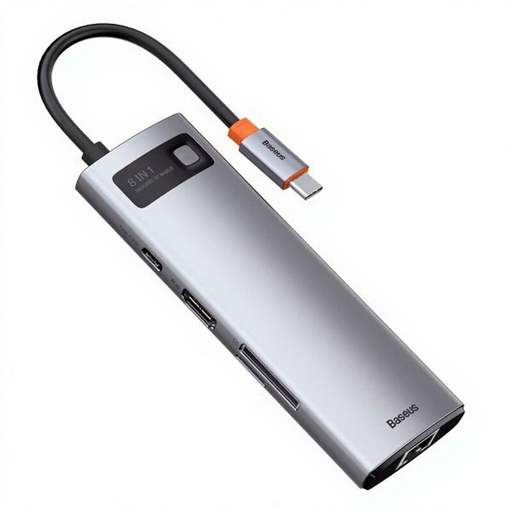
Why It's Worth Considering: This model from Baseus offers a balanced combination of portability and functionality. Its aluminium alloy casing is robust and efficiently dissipates heat. With 100W Power Delivery and a 4K HDMI output, it covers the core requirements of many users. According to the manufacturer, each port is controlled by an independent chip, which is designed to ensure stable performance during simultaneous use.
Technical Specifications:
Best For: Professionals and students who need a compact yet powerful all-in-one solution for on-the-go use or the home office.
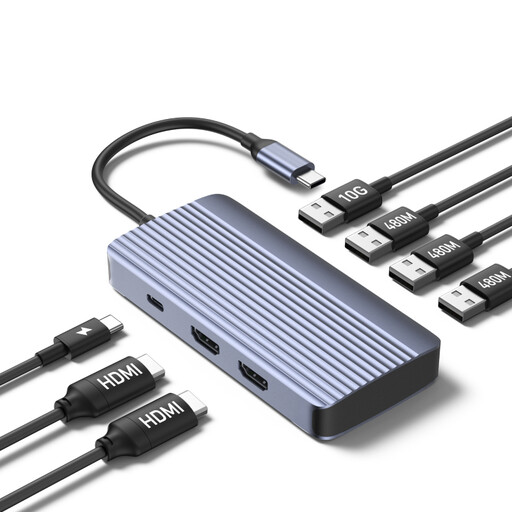
Why It's Worth Considering: The Anker 7-in-1 Hub is designed as a docking station for 2 monitors, aimed at users looking to boost their productivity with an expanded workspace. It offers two HDMI ports for a dual-display configuration (1080p@60Hz). A standout feature is its 10 Gbps USB-C data port, which accelerates the transfer of large files.
Technical Specifications:
Best For: Windows users and developers who require a dual-monitor setup for multitasking and value high data transfer speeds.
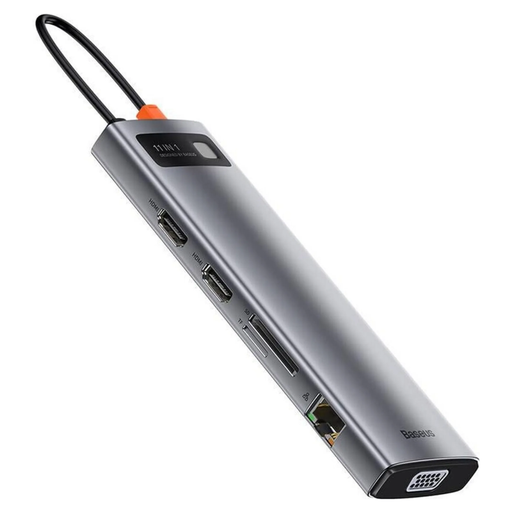
Why It's Worth Considering: This 11-in-1 model is a comprehensive laptop docking station that leaves little to be desired. It offers maximum port variety, including a VGA port for compatibility with older monitors and a 3.5mm audio jack. With two HDMI ports and the VGA port, complex multi-monitor setups can be achieved. Its high port density makes it an ideal solution for a fixed workstation.
Technical Specifications:
Best For: Creative professionals, home office power users, and anyone seeking a stationary docking solution with maximum connectivity for various peripherals and monitors.
If the models presented here don't perfectly match your requirements, a wide range of other devices with different port configurations and form factors are available. You can find a larger selection of solutions in our Docking Station Accessories category.
1. What is the difference between a USB-C Hub and a USB-C Docking Station? Technically, the distinction is fluid. A USB-C Hub is typically smaller, more portable, and powered directly by the laptop's USB-C port. A USB-C Docking Station is often larger, designed for stationary use, and frequently includes its own external power supply and a greater number of ports, especially for multiple monitors. Models with 100W PD pass-through, like those featured here, blur these lines.
2. Does a USB-C hub need its own power supply? Most USB-C hubs draw their power directly from the laptop. This is sufficient for operating low-power peripherals (like a mouse or keyboard). However, to charge the laptop while simultaneously running power-hungry devices (e.g., external hard drives), a hub with Power Delivery is necessary. The laptop's power adapter connects to this hub.