
Lieferung heute & morgen

Qualitätsgarantie

Willkommens-Angebote freischalten: KOSTENLOSE Lieferung | Bis zu 80 % RABATT | Kostenlose 30-Tage-JoyPlus-Testphase
App herunterladen
A USB-C hub can expand a single port on your laptop, MacBook or tablet with several additional interfaces. In practice, however, models differ considerably in video output, data speeds, power delivery and compatibility. If you only look at the number of ports, you could end up buying a device that has plenty of connections but cannot run your preferred monitor at the expected refresh rate.
An ‘11-in-1’ model sounds comprehensive, but the individual ports may use different standards. USB-A ports with 5 Gbit/s are suitable for hard drives and fast USB sticks. USB 2.0 ports with speeds of up to 480 Mbit/s are better suited to a mouse, keyboard or basic receiver.
The same applies to USB-C: not every port supports data transfer, video output and charging at the same time. Before buying, you should therefore check the function of each port in the product specifications.
A USB-C hub with HDMI can output 4K resolution at 30 Hz or 60 Hz. 30 Hz is sufficient for many presentations and office applications, while 60 Hz can provide smoother visuals and be more comfortable for video playback and longer work sessions. The host device’s USB-C port must also support DisplayPort Alt Mode.
Further restrictions may apply when using multiple monitors. The operating system, graphics chip, USB-C standard and MST support determine whether screens can be mirrored or used as extended displays.
A USB-C hub 100W Power Delivery model accepts up to 100 W via the PD port, according to its specifications. Some of this power may be used by the hub itself and connected devices. The actual power reaching the laptop may therefore be lower. A separate USB-C power supply is also usually required.
You should also consider heat generation. When charging, outputting 4K video and using several USB devices simultaneously, the casing should be unobstructed and there should be sufficient airflow.
For typical office and home-working tasks, a USB-C hub with USB-A is useful if you need to connect a keyboard, mouse, USB stick or printer. If you transfer photos and videos from cameras, you will need a USB-C hub with an SD card reader. Some models also include a TF or microSD slot. Check whether SD and TF can be used simultaneously and what read and write speeds are specified.
A USB-C hub with Ethernet can be useful for video conferences, large file transfers or an unstable Wi-Fi connection. Gigabit Ethernet corresponds to a network connection of up to 1,000 Mbit/s; the actual speed depends on factors including the router, cable and network.
For a single screen, a USB-C hub 4K with HDMI is often sufficient. The specifications should clearly state whether 4K is supported at 30 or 60 Hz. With two monitors, the available HDMI, DisplayPort or Thunderbolt connections are crucial.
A USB-C docking station designed for a permanent desk setup often offers additional ports, a power supply and a wider choice of video connections. A Thunderbolt docking station, on the other hand, requires a compatible Thunderbolt device and cable. A standard USB-C connection cannot automatically replace Thunderbolt functionality.
USB-C initially describes the shape of the connector, not its complete range of functions. Before placing your order, you should check:
Take particular care with MacBook models using different chip generations. Some dual-HDMI hubs are only compatible with specific Intel or Pro/Max configurations. Before buying, compare the relevant manufacturer’s specifications with your own model.
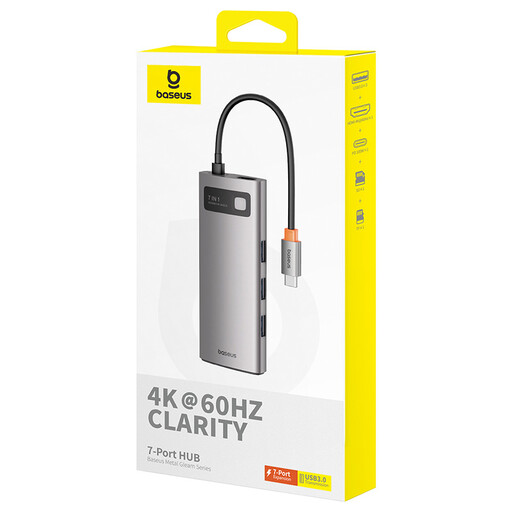
Why this product suits this profile: This model combines HDMI, three USB-A 3.0 ports, an SD/TF card reader and PD in a compact design. It is suitable for basic office, tablet and travel tasks.
The specifications provide clear figures: HDMI up to 4K at 60 Hz, USB 3.0 up to 5 Gbit/s and PD up to 100 W. This makes its performance easier to assess than by looking at the number of ports alone.
4K HDMI output, three USB-A data ports and SD and TF slots in a 7-in-1 format.
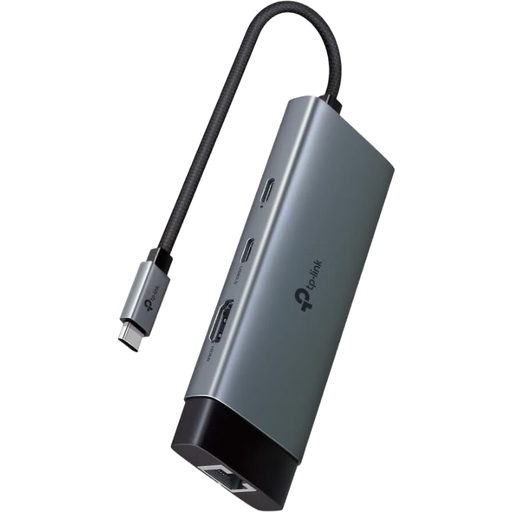
Why this product suits this profile: For home-office users with a monitor, network connection and several USB devices, the clearly labelled interfaces are practical.
The product information distinguishes between HDMI, Gigabit Ethernet, USB-C and USB-A data ports. Compatibility with several operating systems is also specified.
HDMI up to 4K at 60 Hz, Gigabit Ethernet, two USB-A ports with speeds of up to 5 Gbit/s and PD up to 100 W.
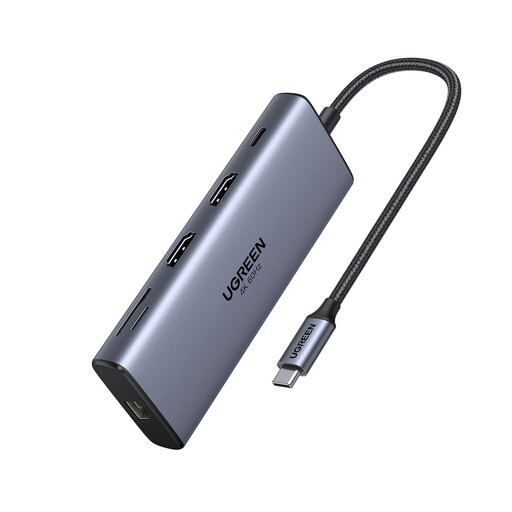
Why this product suits this profile: Creatives, photographers and users with multiple screens get HDMI, fast USB-C data ports, card readers and Ethernet in a single docking solution.
The specifications set out the different USB standards and highlight the requirements for two 4K monitors. This reduces the risk of confusing a high number of ports with identical performance.
Two HDMI outputs with support for up to 4K at 60 Hz, USB-C data transfer of up to 10 Gbit/s, Gigabit Ethernet and PD up to 100 W.
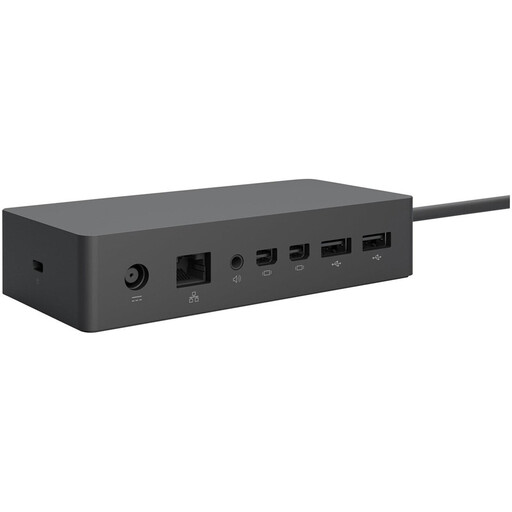
Why this product suits this profile: For a permanent workstation with a compatible Thunderbolt device, this docking station offers several high-speed connections, Ethernet and audio.
The Thunderbolt 4 interface is clearly identified as the main connection. Before buying, you must therefore check whether your laptop or tablet supports Thunderbolt 4.
Three Thunderbolt 4 and three USB-A 3.0 ports, Gigabit Ethernet, an audio connection and support for multiple monitors via compatible connections.
We have put together a complete, regularly updated list of products that fully meet these strict selection criteria and the safety regulations applicable in the EU.
No. The USB-C port must support the required function, such as DisplayPort Alt Mode for HDMI or Power Delivery for charging. Dual-monitor models may also be subject to restrictions caused by the MacBook chip and operating system. You should therefore check the compatibility list for the relevant product.
Its lifespan depends on the number of connection cycles, cable quality, heat generation and the load placed on it by connected devices. Using the hub in a well-ventilated area, plugging and unplugging it carefully and using suitable power supplies can reduce mechanical and electrical strain. If the connections become loose or the device becomes unusually hot, stop using it.
A passive multiport adapter draws a small amount of power from the host device. If a PD power supply is connected, the laptop can be charged at the same time. Power distribution depends on the hub, power supply and connected devices. When using hard drives, monitors and card readers, you should take the technical specifications for maximum power consumption into account.