
Lieferung heute & morgen

Qualitätsgarantie

Willkommens-Angebote freischalten: KOSTENLOSE Lieferung | Bis zu 80 % RABATT | Kostenlose 30-Tage-JoyPlus-Testphase
App herunterladen
Modern laptops like the MacBook Pro or Dell XPS are powerful and sleek, but this minimalism comes at a cost: a severely limited number of ports. A USB-C hub seems like the simple solution, but the market is flooded with products whose marketing promises often fail to match reality. Many users invest in an adapter only to be confronted with overheating, unstable connections, or disappointing performance shortly after.
As your Joybuy Product Recommendation Officer, I'm here to help you identify these pitfalls. Instead of falling for exaggerated advertising claims, we'll focus on the technical facts that are crucial for reliable and long-lasting performance.
The 3 Most Common Traps When Buying a USB-C Hub:
To avoid a bad purchase, you should check three core technical features. These define the performance and reliability of your setup.
For a smooth and comfortable viewing experience on an external monitor, a 60Hz refresh rate is essential. The difference compared to 30Hz is immediately noticeable: mouse movements are smoother, videos run more fluidly, and the overall user experience feels more responsive.
To ensure your laptop charges reliably even under heavy use, a hub with a 100W PD port is the recommended choice. After subtracting the hub's own power draw, about 85-90W remains for your device. This is sufficient for most modern laptops, including demanding models like the MacBook Pro. A weaker PD port can cause your laptop's battery to slowly drain even while plugged in.
The sheer number of ports isn't everything. Speed is critical for an efficient workflow.
Here are a few models suited for specific user groups, based on objective technical features.
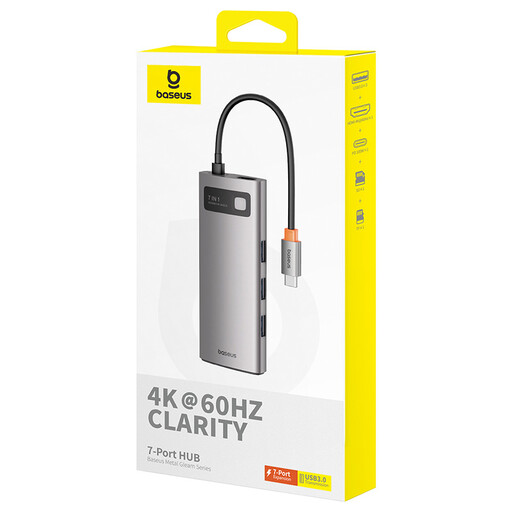
Why it's a good fit: Ideal for users who frequently switch between the office and home. It offers a balanced mix of essential ports in a compact, durable aluminum housing that fits easily into any laptop bag.
This model delivers a smooth 4K resolution at 60Hz, bypassing the 30Hz trap. The 100W PD port ensures that even high-performance laptops are charged reliably.
Offers three fast USB 3.0 ports at 5 Gbps for swift data transfers and integrated SD/TF card readers, making it a versatile all-rounder.
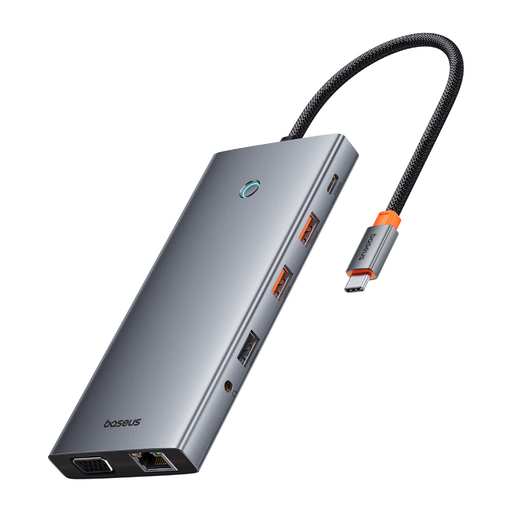
Why it's a good fit: Designed for creative professionals and developers who need a permanent workstation with maximum connectivity. It can drive up to four monitors and offers an exceptional variety of ports for complex setups.
Solves the problem of inadequate video outputs with a combination of 2x HDMI, 1x DisplayPort, and 1x VGA. The 10 Gbps data ports prevent bottlenecks when transferring large amounts of data.
Supports video resolutions up to 8K at 30Hz via DisplayPort. The USB-C and USB-A ports, compliant with the USB 3.2 Gen 2 standard, enable extremely fast data transfers.
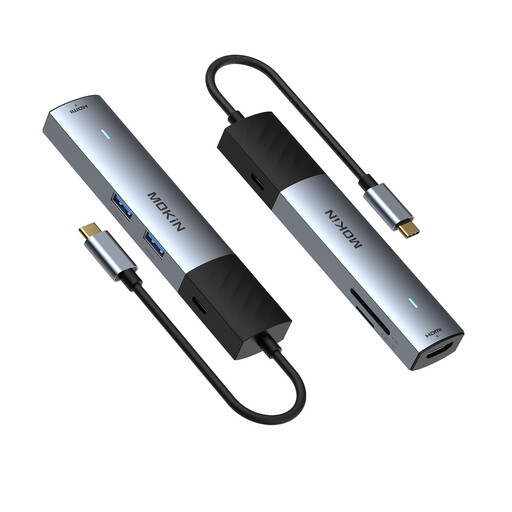
Why it's a good fit: A solid choice for students and home office users who need a reliable port expansion without having to invest in high-end features they won't use.
It offers the crucial performance features of 4K@60Hz and 100W Power Delivery, thus avoiding the most common weaknesses of cheaper alternatives. You get future-proof specifications at an accessible price.
Excellent value for money. The combination of fast USB 3.0 ports (5 Gbps) and key high-end features makes it a pragmatic and durable solution.
We have compiled a complete, up-to-date list of products that fully meet these strict selection criteria and comply with rigorous German safety standards.
A high-quality USB-C hub from a reputable manufacturer poses no risk to your laptop when used correctly. Issues like overheating or unstable power supply mainly occur with very cheap, poorly designed models. Look for hubs with an aluminum casing for better heat dissipation and certified chipsets for Power Delivery to ensure safe operation.
For most users, a capable USB-C hub is perfectly sufficient. It handles video, data, and power transmission for the most common use cases. A Thunderbolt 3 dock is advisable if you have professional requirements, such as simultaneously running two 4K monitors at 60Hz or connecting high-performance external SSDs that need the full 40 Gbps bandwidth. Check if your laptop has a Thunderbolt port (identifiable by the lightning bolt symbol).
It's normal for a USB-C hub to become warm during operation. Inside, energy-intensive processes are taking place, such as converting power for the charging function and processing data signals for monitors and USB devices. An aluminum casing acts as a heatsink, dissipating the heat outwards. As long as the hub doesn't get too hot to touch, there is generally no cause for concern.