
Lieferung heute & morgen

Qualitätsgarantie

Willkommens-Angebote freischalten: KOSTENLOSE Lieferung | Bis zu 80 % RABATT | Kostenlose 30-Tage-JoyPlus-Testphase
App herunterladen
A USB-C hub expands a single port on your laptop or tablet with USB ports, HDMI, card readers, networking or charging functions. The choice may seem straightforward at first glance: many models advertise multiple ports, 4K output and 100 W charging. In practice, however, problems often arise from unclear compatibility or shared power ratings.
As a Joybuy Product Recommendation Officer, I therefore focus on clear technical specifications and whether a model suits your specific usage needs.
The socket alone reveals little about its functions. A USB-C port may only transfer data, or it may also support DisplayPort Alternate Mode, Thunderbolt and USB Power Delivery. For a USB-C hub with HDMI, the host device’s USB-C port must support video output.
You should therefore check the technical specifications of your MacBook, Windows laptop or tablet before buying. With some devices, multiple monitors are only possible with certain standards or in restricted operating modes.
The 4K specification may refer to a maximum resolution at 30 Hz or 60 Hz. 4K at 30 Hz is generally suitable for office applications, but for fast movement, gaming or smooth scrolling, 4K 60 Hz may be more suitable. The HDMI version, graphics unit, cable and connected monitor must also support this output.
A USB-C hub with PD 100W generally refers to the maximum input power for pass-through charging. A separate USB-C power supply is required. The hub itself uses some of the power, so less than 100 W may reach the laptop. The power supply, charging cable and the laptop’s requirements should all be considered together.
First, consider which devices you want to connect at the same time:
With many hubs, bandwidth is shared between several ports. If multiple hard drives are used simultaneously, the speed may fall below the stated maximum.
For a USB-C hub with HDMI, you should pay attention to the resolution and refresh rate. A model with HDMI 4K 60 Hz is designed for compatible monitors, presentations and media playback. Whether one or more monitors can be operated independently also depends on the operating system and laptop.
A Thunderbolt docking station generally offers more bandwidth than a simple USB-C multiport adapter. It is particularly useful when you need several displays, fast storage and networking at the same time. Thunderbolt 3 and Thunderbolt 4 should not be treated as equivalent to just any USB-C port.
A compact USB-C adapter is usually powered directly by the host device. When several hard drives or power-hungry devices are connected, the available power may be limited. For a permanent workstation, a laptop docking station with its own power supply is often more suitable.
Also consider the cable length, housing material, ventilation and the position of the ports. A longer cable can be helpful when laptop ports are difficult to access, while a compact hub takes up less space when travelling.
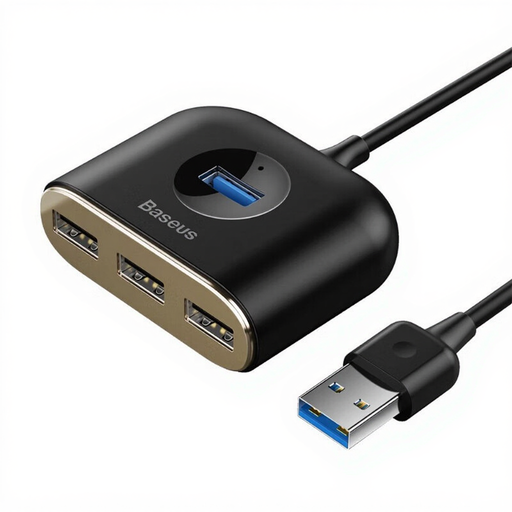
Why this product suits the profile: This adapter is aimed at users who want to connect several USB devices, such as a mouse, keyboard or USB stick. It features a 1-metre cable, one USB 3.0 port and three USB 2.0 ports.
The different USB standards are clearly specified. This makes it easy to see that not every port is intended for fast data transfer.
1 × USB 3.0, 3 × USB 2.0, a 1-metre cable and plug-and-play compatibility with Windows, macOS and Linux according to the product specifications.
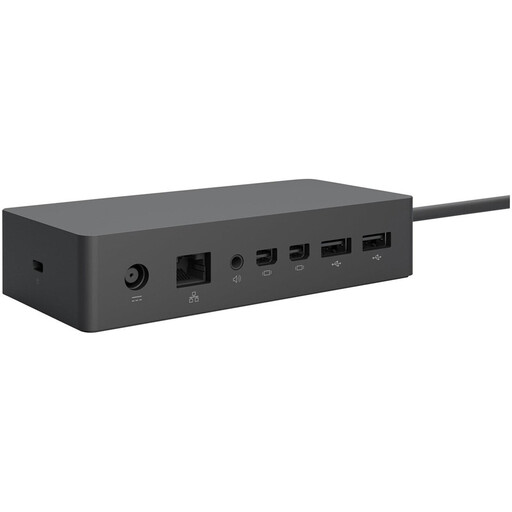
Why this product suits the profile: For a permanent Windows workstation with monitors, networking and peripherals, this docking station provides a central connection via Thunderbolt 4.
The technical specification goes beyond simple USB expansion: three Thunderbolt 4 ports, Gigabit Ethernet and an audio port are clearly listed.
3 × Thunderbolt 4, 3 × USB-A 3.0, RJ45 Gigabit Ethernet and a 3.5-mm audio port; a power supply is listed as included.
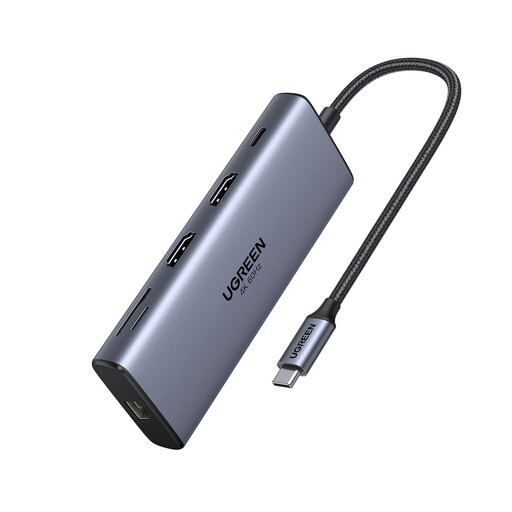
Why this product suits the profile: This 10-in-1 dock is suitable for home working, creative work and users with multiple monitors, memory cards, USB devices and wired networks.
The specifications distinguish between video output, USB data rates, networking and the PD function. This lets you check before buying whether the features meet your actual needs.
2 × HDMI supporting up to 4K at 60 Hz, 2 × USB-C 3.2 supporting up to 10 Gbit/s, SD/TF reader, Gigabit Ethernet and USB-C PD input up to 100 W according to the description.
We have compiled a complete, regularly updated list of products that fully meet these strict selection criteria and the safety regulations applicable in the EU.
No. For HDMI or DisplayPort, the MacBook port must support the relevant video output. The macOS version, chip generation and hub model can also affect whether multiple monitors run independently.
A hub with USB-C Power Delivery can pass power through to the laptop from a connected PD charger. The maximum power depends on the power supply, cable, hub and laptop. A data hub without PD pass-through will generally not charge the laptop through the hub.
Its lifespan depends on the housing, connectors, heat generation and how it is used. Avoid moisture, severe impacts and permanently blocked ventilation areas. If you use it frequently with several devices, the housing should be able to dissipate heat sufficiently.