
Lieferung heute & morgen

Qualitätsgarantie

Willkommens-Angebote freischalten: KOSTENLOSE Lieferung | Bis zu 80 % RABATT | Kostenlose 30-Tage-JoyPlus-Testphase
App herunterladen
Modern laptops like the MacBook Pro or Air are powerful and portable, but their minimalist port selection presents a challenge for many users. A single USB-C port for power, data, and video forces users to look for an expansion solution. A USB-C hub seems like the simple answer, but the market is flooded with products featuring misleading claims. This guide will help you navigate the common pitfalls and make an informed decision.
Before you invest in a new multiport adapter, you should be aware of the most common marketing traps that lead to frustration and unnecessary expense.
To find the right USB-C hub for your needs, focus on these three core areas.
For a productive workspace with external monitors, the video ports are critical.
The Power Delivery (PD) feature is essential for reducing cable clutter. A single cable supplies power to the laptop and connects all your peripherals.
A good USB-C Multiport Adapter expands your laptop with all the necessary interfaces.
Here are some models tailored to specific use cases that meet the criteria mentioned above.
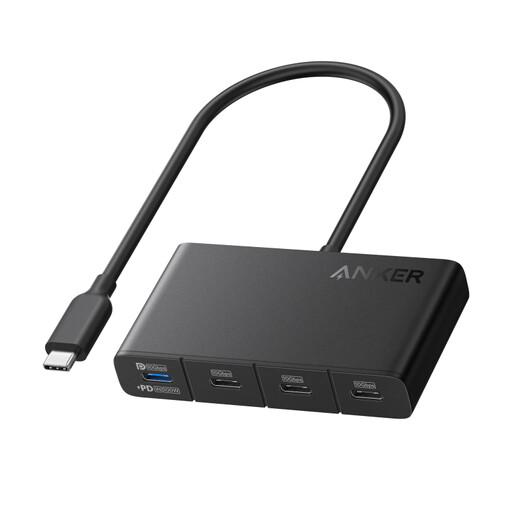
Why This Fits Their Persona: Ideal for users who are often on the go and need a compact yet powerful solution for presentations and connecting essential peripherals. The device is small enough for any laptop bag.
It delivers smooth 4K@60Hz video output and features fast 10 Gbps data ports, setting it apart from many similarly compact models.
Combines high performance (4K@60Hz, 10 Gbps) with a very compact form factor. The 100W PD input ensures sufficient charging power.
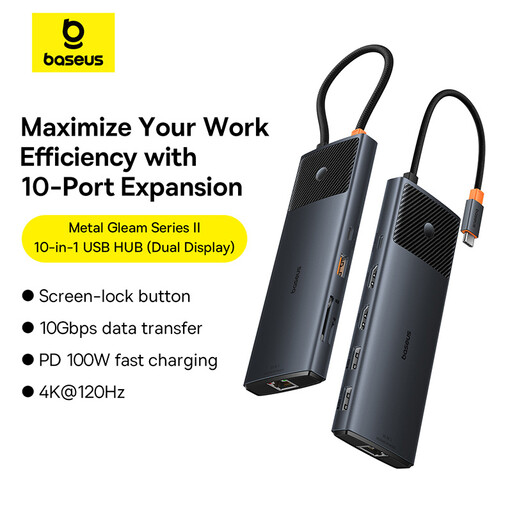
Why This Fits Their Persona: Designed for video editors, designers, and photographers who need uncompromising connectivity for a dual-monitor setup, fast data transfers, and direct access to memory cards.
Offers outstanding video performance with support for two monitors (up to 8K@30Hz/4K@120Hz + 4K@60Hz), completely bypassing the 30Hz trap. The 10 Gbps ports prevent data transfer bottlenecks.
Comprehensive connectivity with 10 ports, including dual HDMI, 10 Gbps USB-A/C, Ethernet, and SD/TF card readers. An all-in-one solution for demanding workflows.
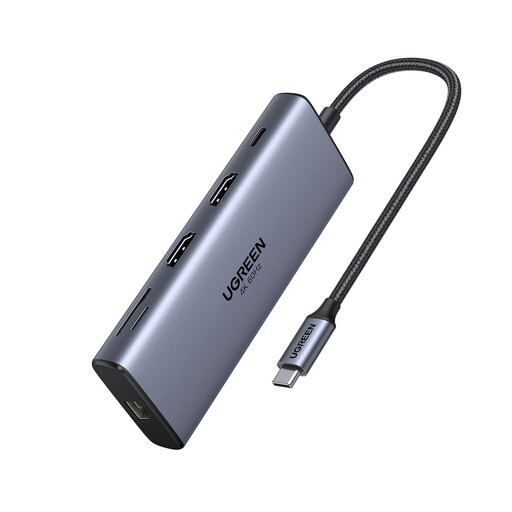
Why This Fits Their Persona: Perfect for users who want to turn their laptop into a full-fledged docking station at home. It provides everything needed for a clean, powerful desk setup with two monitors.
Guarantees a smooth display on two monitors at 4K@60Hz (assuming MST support). The 100W PD function with high pass-through power reliably supplies even demanding laptops.
A very well-balanced docking solution with fast 10 Gbps USB-C and USB-A ports, Gigabit Ethernet, and dual 4K video output. Offers an excellent price-to-performance ratio for a complete desktop expansion.
We have compiled a complete, up-to-date list of products that fully meet these strict selection criteria and safety regulations.
Generally, most USB-C hubs are cross-platform compatible for basic functions like data transfer and charging. The biggest differences lie in video output for multiple monitors. Windows laptops typically support MST (Multi-Stream Transport), which allows for displaying different content on two external monitors. On Apple laptops with standard M-series chips (e.g., M1, M2, M3), support is often limited to a single external monitor, or the image is simply mirrored on two monitors. Only models with an M Pro, M Max, or M Ultra chip offer native support for multiple extended displays. Therefore, always check the product description for explicit compatibility information for your operating system and device model.
Yes, it's normal for a USB-C hub or docking station to become warm during operation. Converting video signals, transferring data at high speeds, and especially the Power Delivery charging function all generate heat that is dissipated through the casing. As long as the device doesn't get so hot that you can't touch it, there is generally no cause for concern. Make sure to place the hub in a well-ventilated area and do not cover it.
The terms are often used interchangeably today, but there is a traditional distinction. A USB-C Docking Station was originally a larger, stationary unit, often with its own power supply, designed for a fixed desk setup. A USB-C Hub was typically smaller, more portable, and drew its power directly from the laptop. Today, the lines have blurred. There are highly capable, compact hubs that offer the functionality of a docking station. Instead of relying on the name, it's more important to compare the specifications: the number and type of ports, video resolution, and charging power are the decisive criteria.