
Lieferung heute & morgen

Qualitätsgarantie

Willkommens-Angebote freischalten: KOSTENLOSE Lieferung | Bis zu 80 % RABATT | Kostenlose 30-Tage-JoyPlus-Testphase
App herunterladen
Modern laptops like the MacBook or Dell XPS feature a minimalist design, often at the expense of port variety. A USB-C hub or a USB-C docking station is therefore essential for many users to connect monitors, keyboards, hard drives, and other accessories. But the market is crowded and full of products whose specifications promise more than they can deliver.
As your Joybuy Product Recommendation Officer, I'll help you identify the technical pitfalls and make an informed decision. This guide shows you what to look for to avoid falling into the most common marketing traps.
Many buyers are disappointed after a short time because their new hub doesn't deliver the expected performance. This is often due to misleading product information. Here are the three problems you should avoid:
To avoid these problems, you should check three core technical parameters before buying. These determine whether a multiport adapter is suitable for your needs.
If you want to connect an external monitor, the HDMI or DisplayPort connection is crucial. Look explicitly for the 4K@60Hz specification. This ensures twice the refresh rate of 30Hz models and provides a sharp, fluid display without visible stuttering. This requires that your laptop's USB-C port supports "DisplayPort Alternate Mode" (DP Alt Mode), which is the case with most modern devices.
The charging power of a PD port is specified in watts (W). Check the power rating of your laptop's original power adapter (e.g., 65W, 87W, or 100W). The hub's PD port should support a charging power of at least 85W to reliably supply even high-performance laptops like a USB Hub for MacBook Pro while other devices are connected. Note that the hub itself consumes a small portion of the power (approx. 10-15W) for its own operation.
For fast data exchange with external hard drives, USB sticks, or an SD card reader, USB ports with the USB 3.0 standard (also known as USB 3.2 Gen 1) or higher are essential. These offer transfer speeds of 5 Gbps or more. In comparison, USB 2.0 only manages 480 Mbps. For professional users who regularly transfer large files, models with USB 3.2 Gen 2 (10 Gbps) are an even better choice. A USB-C splitter with LAN port also offers a stable alternative to unreliable Wi-Fi.
Based on these objective criteria, we have identified some models that are suitable for different user groups.
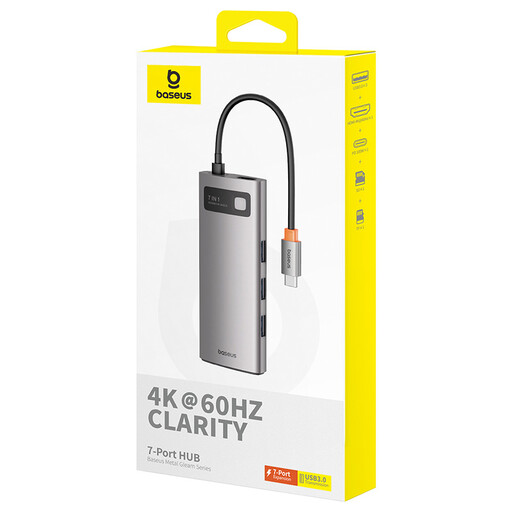
Why It's a Match: Ideal for users who need a versatile solution for the home office or on the go. It combines the most important ports in a compact design and is powerful enough for most everyday tasks.
This model explicitly delivers 4K at a smooth 60Hz, thus avoiding the 30Hz trap. The 100W PD port reliably powers even demanding laptops.
Three USB 3.0 ports at 5 Gbps for fast data transfer and integrated SD/TF card readers for direct access to photos and videos.
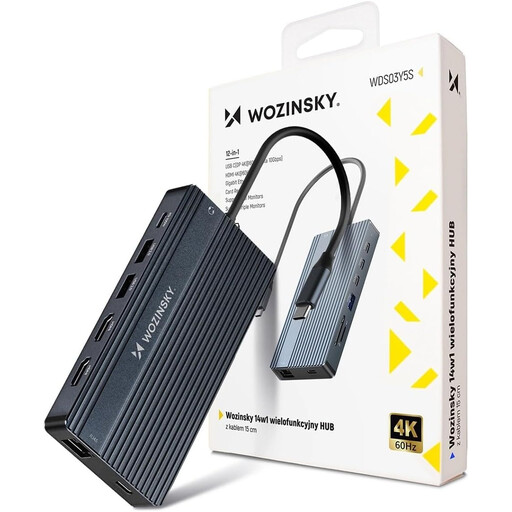
Why It's a Match: A fully-fledged laptop docking station for a permanent, high-productivity workspace. It transforms a laptop into a desktop workstation with support for up to three monitors.
Offers comprehensive video output with 2x HDMI (4K@60Hz) and 1x DisplayPort. The 100W PD port ensures a stable power supply for the hub and the laptop.
Extensive connectivity with 8 USB ports, Gigabit Ethernet (RJ45) for a stable internet connection, SD/TF card readers, and a robust aluminum housing for good heat dissipation.
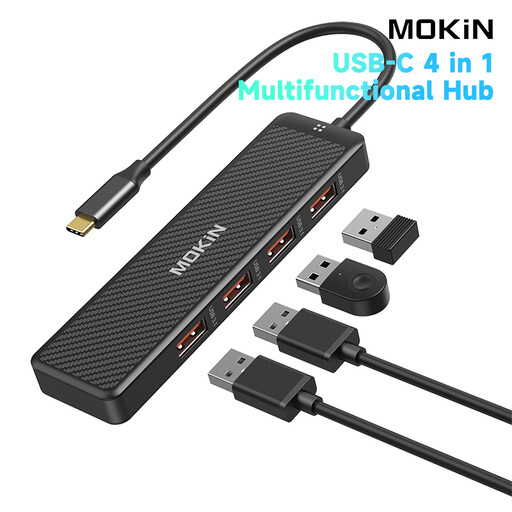
Why It's a Match: A simple and effective solution for users who only need to expand their number of USB-A ports to connect peripherals like a mouse, keyboard, or external hard drives.
This model focuses on one function and does it well: it avoids the slow data transfer trap by providing four USB 3.1 ports with up to 10 Gbps.
Supports UASP mode for optimised data transfer with compatible storage devices. Backwards compatible with USB 3.0 and 2.0 for maximum device compatibility.
We have compiled a complete, up-to-date list of products that fully meet these strict selection criteria and rigorous safety standards.
That depends on the type of hub. Simple, portable hubs are often powered by the laptop's USB-C port (bus-powered). For the stable operation of multiple devices, especially external hard drives, or for charging the laptop through the hub, a model with a Power Delivery (PD) input is required. You connect your laptop's power adapter to this port to supply power to both the hub and the laptop simultaneously.
No, and this is a crucial point. To transmit video signals (e.g., via HDMI), your laptop's USB-C port must support DisplayPort Alternate Mode (DP Alt Mode). To charge the laptop via the hub, the port must also be Power Delivery capable. Data-only USB-C ports cannot use these functions. Check your laptop's specifications before purchasing.
The terms are often used interchangeably, but there are functional differences. A USB-C hub is typically smaller, more portable, and powered directly by the laptop. It serves to provide a basic expansion of ports. A USB-C docking station is usually larger, designed for stationary use at a desk, and often has its own external power supply. It offers a greater number and variety of ports, such as multiple monitor outputs, and is intended for building a complete workstation.