
Lieferung heute & morgen

Qualitätsgarantie

Willkommens-Angebote freischalten: KOSTENLOSE Lieferung | Bis zu 80 % RABATT | Kostenlose 30-Tage-JoyPlus-Testphase
App herunterladen
A USB-C hub can turn a single port into a versatile workstation. However, not every model automatically makes life more convenient. Problems often arise because buyers focus only on the number of ports or a prominent 4K claim. What really matters is the standards supported, device compatibility and available power delivery.
This buying guide explains what users in the UK should look for when buying a hub and which models suit different usage profiles.
A USB-C port initially describes only the shape of the connector. Depending on the laptop, MacBook, smartphone or tablet, the port may support data transfer only, or additionally support DisplayPort Alt Mode, Thunderbolt, USB4 and Power Delivery.
For a USB-C hub with HDMI, the host device’s USB-C port must support video output. If it does not, the monitor will remain blank despite using the correct cable. You should therefore check the end device’s technical specifications before buying.
With a 4K USB-C hub, the refresh rate is important. 4K at 30 Hz is suitable for office applications and presentations, but fast-moving content may appear less fluid. 4K at 60 Hz places greater demands on the hub, host device and monitor.
You should also check whether the hub supports an extended desktop or only screen mirroring. Certain MacBook models and processor variants have limitations when connecting multiple external displays.
A USB-C hub with Power Delivery can power your laptop while you use it. However, the stated maximum output, such as 60 W or 100 W, is not automatically the charging power that reaches the end device. The hub, power supply and USB-C cable must work together.
With a multiport adapter, the available power is also distributed between the connected devices and the host. On many models, a USB-C PD port is intended solely for power pass-through and does not transfer data.
A USB-C hub with USB-A is useful for a mouse, keyboard, USB stick or printer. Pay attention to the USB standard used:
A USB-C to USB-A adapter is the space-saving solution for a single USB-A device. For several peripherals, a hub with multiple ports is more practical.
Photographers and content creators often need a USB-C hub with an SD card reader. It is important to check whether SD and TF or microSD cards can be used simultaneously, and what read and write speeds are stated. These figures are not guaranteed for every memory card, as the card type, file size and host device also play a role.
If you only copy photos occasionally, you do not necessarily need a docking station with numerous ports. For regular file transfers, a model with separate card readers and USB 3.x ports can simplify your workflow.
A USB-C to HDMI adapter normally connects a USB-C device to an HDMI monitor. A hub combines this function with additional ports. Before buying, check:
A USB-C audio adapter is available for wired headphones. Not every USB-C device supports analogue audio output, so many adapters use an integrated digital-to-analogue converter. The product description should explicitly state compatibility with the relevant device.
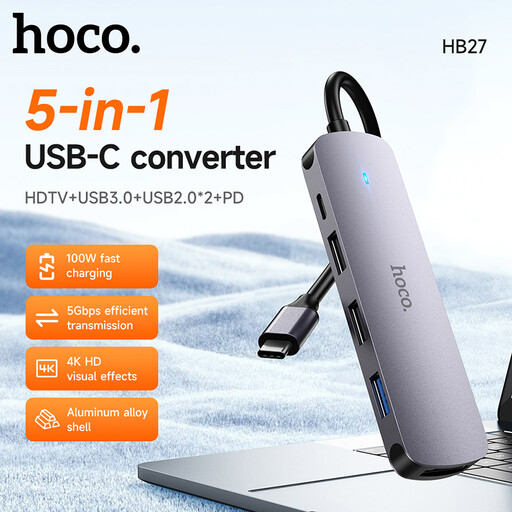
Why this product suits the profile: This 5-in-1 hub combines HDMI, USB-A ports and USB-C Power Delivery in a compact housing. It is suitable for users who occasionally want to connect a monitor, input devices and a charger in their home office.
The technical specifications state 4K at 30 Hz and up to 60 W PD. This makes it easier to check whether it is suitable for your monitor and power supply before buying.
One USB 3.0 port, two USB 2.0 ports, HDMI and a USB-C PD port cover basic office requirements.
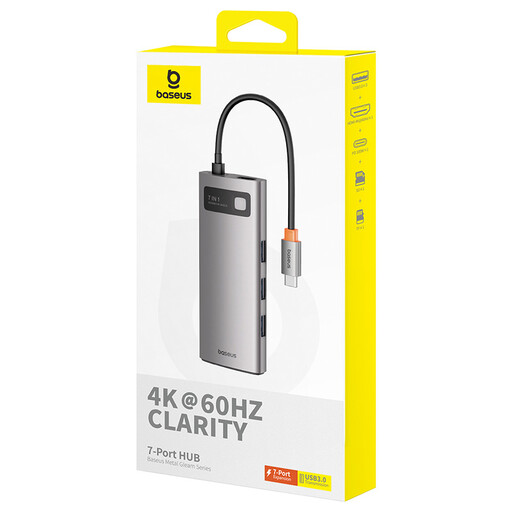
Why this product suits the profile: This multiport adapter is aimed at users with a monitor, several USB devices and SD or TF memory cards. It is suitable for a fixed laptop or MacBook workstation with one USB-C port.
The specifications distinguish between 4K at 60 Hz, USB data ports of up to 5 Gbit/s and a 100 W PD input. A separate power supply is required for the charging function.
HDMI with 4K at 60 Hz, three USB 3.0 ports and SD and TF card readers are clearly specified for productive setups.
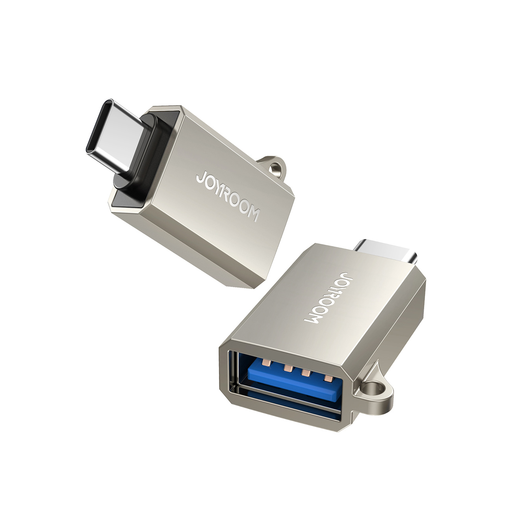
Why this product suits the profile: This compact USB-C adapter is designed for smartphones, tablets and laptops where you want to use a single USB-A device, such as a memory stick, mouse or keyboard.
The specifications state USB 3.2 Gen 1, OTG, data transfer and charging. Smartphones must also support USB OTG host mode.
USB-C to USB-A, OTG support, charging and a stated USB 5 Gbit/s profile in a compact adapter.
We have put together a complete, regularly updated list of products that fully meet these strict selection criteria and the safety regulations applicable in the EU.
No. For USB data and charging, a compatible USB-C port is often sufficient. For HDMI, however, the host device must support video output via USB-C. For MacBook, Windows laptop, tablet and smartphone, you should check the manufacturer’s specifications for the relevant model.
Its lifespan depends on connection cycles, cable strain, heat generation and the devices connected to it. A hub should not be pulled out of the port by its cable, left permanently covered or operated in a damp environment. Storage devices should be safely ejected before being disconnected to avoid data errors.
A passive USB-C hub generally draws its power from the host device. When using Power Delivery, a separate charger is connected. Additional consumption is usually low during normal office use, but depends on the charger, connected devices and length of use. In the long term, the more important factor is whether the existing power supply can provide the required output.