
Lieferung heute & morgen

Qualitätsgarantie

Willkommens-Angebote freischalten: KOSTENLOSE Lieferung | Bis zu 80 % RABATT | Kostenlose 30-Tage-JoyPlus-Testphase
App herunterladen
A USB-C hub can expand a laptop with HDMI, USB ports, card readers, Ethernet and charging functions. At the same time, many models look very similar at first glance. However, the key differences often lie in compatibility, actual transfer speeds and support for external monitors.
As a Joybuy Product Recommendation Officer, I therefore focus on clear technical specifications rather than general marketing claims. These points can help you avoid making the wrong purchase.
The USB-C connector initially describes only the physical design. Not every USB-C port on a laptop supports DisplayPort Alt Mode, Thunderbolt or charging via Power Delivery. A USB-C hub with HDMI can therefore only output a picture if the host port supports the required video signal transmission.
Before buying, check the laptop’s technical documentation to see whether the USB-C port:
The term USB-C hub 4K alone says little about the display performance. A model supporting 4K at 30 Hz is suitable for presentations and office work, while 4K at 60 Hz provides smoother visuals. For gaming or video-editing setups, the laptop’s HDMI version and graphics card may also impose limitations.
Further restrictions often apply when using multiple monitors. For example, depending on the operating system, processor and connection type, a USB-C hub with two HDMI ports may support only mirroring or a reduced resolution.
With a USB-C hub with 100 W Power Delivery, the figure usually refers to the maximum input power. Some of this power is used by the hub itself. A model with a 100 W PD input will therefore not necessarily deliver 100 W to the laptop.
The hub also requires a separate USB-C power supply. Without a connected charger, the PD port does not act as an independent power source for the laptop.
A USB-C hub with USB 3.0 often reaches speeds of up to 5 Gbit/s, according to the product specification. This is sufficient for a mouse, keyboard, USB sticks and many external drives. USB 2.0 ports offering up to 480 Mbit/s are more suitable for input devices or basic peripherals.
If you regularly transfer large photo and video files, check:
A USB-C hub with SD and TF card reader is practical for cameras, drones and mobile recording devices. The stated read and write speeds are important, as is whether the SD and TF cards can be used simultaneously. Actual performance also depends on the memory card being used and the size of the files being transferred.
Windows, macOS, Linux and iPadOS may have different restrictions when extending displays. With MacBook models featuring an Apple chip in particular, check how many external displays are supported natively. A hub cannot automatically remove this hardware limitation.
A USB-C hub with Ethernet should also be selected according to the specific network speed required. With an RJ45 port offering up to 1,000 Mbit/s, you will also need a suitable network cable and a compatible router or switch port.
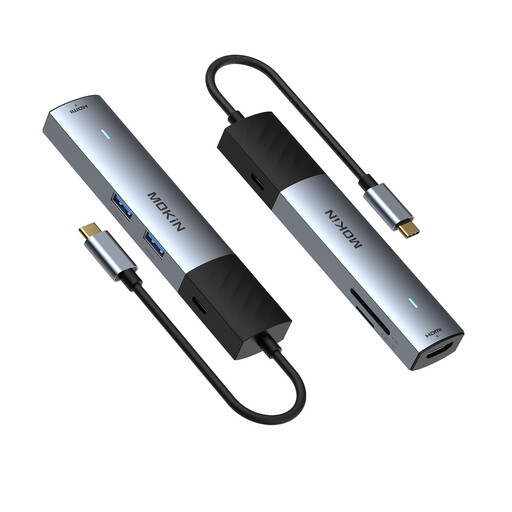
Why this product suits this profile: This 7-in-1 model combines HDMI, two USB-A 3.0 ports, USB-C 3.0, SD, TF and PD in a compact solution for study, working from home and use on the go.
The technical specifications list the individual ports and speeds of up to 5 Gbit/s for the USB 3.0 ports. HDMI is specified as supporting up to 4K at 60 Hz; device compatibility should nevertheless be checked in advance.
According to the product specification, SD and TF cards can be used simultaneously. The PD 3.0 port supports an input power of up to 100 W.
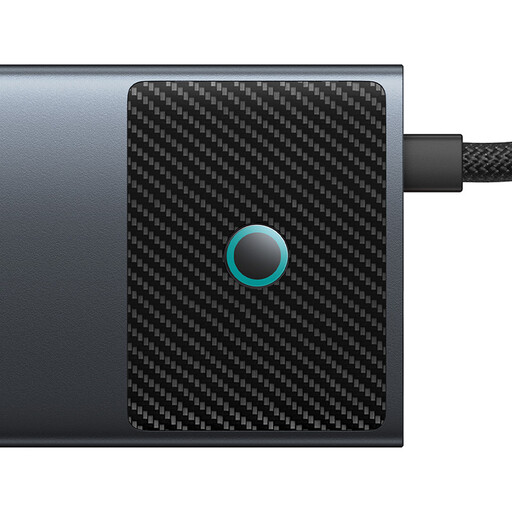
Why this product suits this profile: The combination of two HDMI ports, USB 3.2, Gigabit Ethernet, an SD/TF reader and PD is designed for permanent workstations with several connected devices.
The ports are listed with different data rates: USB-C and USB-A 3.2 offer up to 10 Gbit/s, USB-A 2.0 offers up to 480 Mbit/s, and RJ45 offers up to 1,000 Mbit/s.
One HDMI port is specified as supporting up to 4K at 120 Hz and the second up to 4K at 60 Hz. There is also a 100 W PD input and support for two card formats.
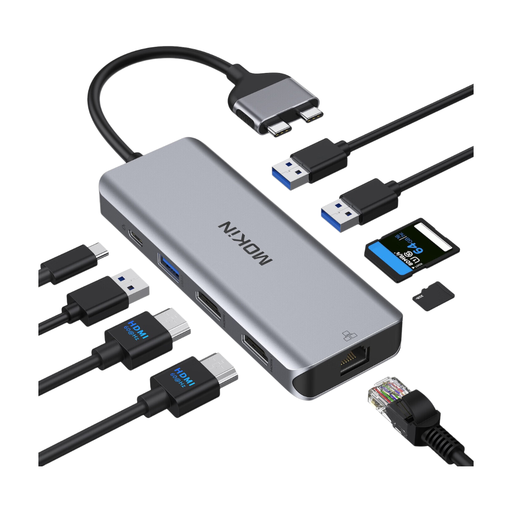
Why this product suits this profile: This dual-HDMI docking station is designed for users who want to connect several work essentials, such as monitors, network cables, memory cards and USB devices, to a MacBook.
Compatibility is clearly limited: according to the product specification, this model is not intended for MacBook models with an M1, M2 or M3 base chip. Checking this information helps prevent an unsuitable purchase.
According to the specification, one monitor can display up to 4K at 60 Hz, while two HDMI outputs support up to 4K at 30 Hz. Gigabit Ethernet and a 100 W PD input are also included.
We have put together a complete, regularly updated list of products that fully meet these strict selection criteria and the safety regulations applicable in the EU.
A 3-in-1 charging cable is not a replacement for a USB-C multiport adapter. It connects mobile devices with different types of connector, but normally does not offer HDMI, Ethernet or card-reader functionality. The VARTA cable features USB-A as well as interchangeable Micro-USB, USB-C and Lightning connectors, and is designed for charging and data synchronisation. According to the product description, the Lightning connection is MFi-certified.
The retractable JOYROOM models combine USB-A, USB-C, Lightning and Micro-USB in a single housing. They are suitable for compact charging solutions, but according to the product specifications, they are not designed for high data rates or video output. Before use, check the cables, connectors and power supply for signs of damage.
No. The key factors are the MacBook port, processor, supported number of monitors and operating system. With USB-C hubs featuring two HDMI outputs, Apple chips may restrict certain dual-monitor functions. Check the relevant product’s compatibility list before buying.
This is possible if the hub has a USB-C PD port and a suitable USB-C power supply is connected. The maximum charging capacity must be compatible with both the laptop and the power supply. The PD rating shown on the hub is not automatically the output power delivered to the laptop.
Its lifespan depends on the housing, connectors, heat generation and daily use. A hub should not be kept permanently covered or operated in a damp environment. When connecting several devices, make sure there is sufficient air circulation. If you notice visible damage, loose ports or unusual heating, stop using the accessory.