
Lieferung heute & morgen

Qualitätsgarantie

Willkommens-Angebote freischalten: KOSTENLOSE Lieferung | Bis zu 80 % RABATT | Kostenlose 30-Tage-JoyPlus-Testphase
App herunterladen
Modern laptops like the MacBook or Dell XPS are powerful and portable, but their minimalist port selection presents a challenge for many users. A USB-C hub is the go-to solution for connecting monitors, peripherals, and network cables. However, the market is flooded with products making misleading promises. This guide will help you identify the technical pitfalls and make an informed decision.
As your Joybuy Product Recommendation Officer, I filter out the noise and distill the essential information, helping you find a product that genuinely enhances your workday instead of complicating it with instability and compatibility issues.
Many buyers focus on the sheer number of ports or marketing buzzwords without examining the technical details. This often leads to frustration and a useless device. Pay close attention to these three points:
To avoid the issues mentioned above, you should carefully check three core technical specifications. These define the true performance and reliability of a USB C multiport adapter.
If you plan to connect an external monitor, the refresh rate is critical.
Therefore, check the specifications of the USB C to HDMI or DisplayPort connection carefully.
The charging function is one of the most practical features of a USB-C docking station. Pay attention to the maximum charging power the hub can pass through to your device (pass-through power).
The type and speed of the USB ports, as well as the presence of a LAN port, are crucial for a productive workflow.
Based on the criteria above, we have identified a few models that are particularly well-suited for specific user groups.
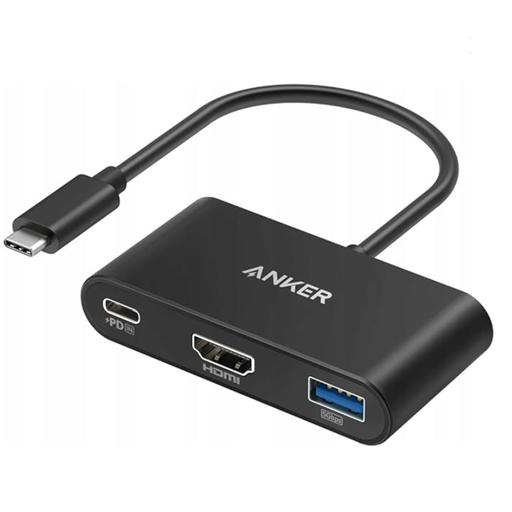
Why This Fits Their Persona: Ideal for users who need essential connectivity on the go. Its compact design fits into any laptop bag and covers the most critical use cases: connecting an external monitor for presentations, using a USB mouse or flash drive, and charging the laptop simultaneously.
Although the HDMI port delivers 4K at 30 Hz, this is sufficient for mobile use (e.g., presentations) and is clearly communicated. The Power Delivery function is designed for devices with moderate power consumption, such as ultrabooks or MacBooks.
Compact and lightweight design; Provides the three essential ports (HDMI, USB-A, USB-C PD) for a mobile workspace.
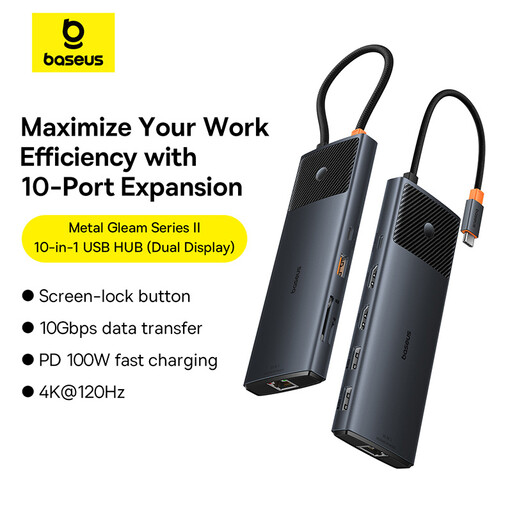
Why This Fits Their Persona: Designed for demanding users who want to set up a full-fledged workstation with a single cable. Ideal for developers, analysts, or creatives who need multiple monitors, fast data transfer, and a stable network connection. A true replacement for a traditional USB-C docking station.
This hub bypasses the "4K trap" with an HDMI port that supports up to 4K@120Hz, according to the manufacturer. With 100W PD input and fast 10 Gbps data ports, it addresses the performance and connectivity needs of power users. The metal casing aids in heat dissipation.
Dual monitor support; One HDMI port with a very high refresh rate (up to 120 Hz); Fast 10 Gbps USB ports and a Gigabit LAN port.
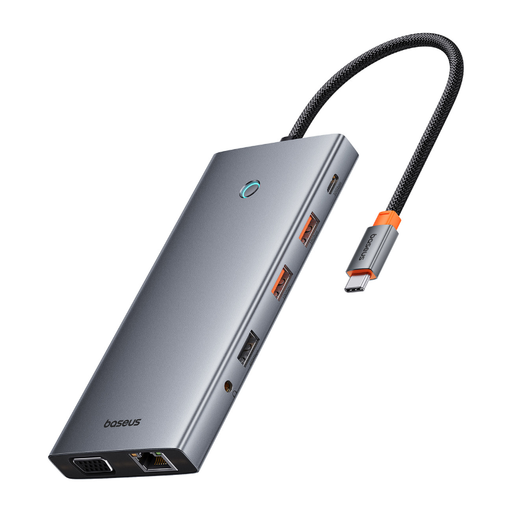
Why This Fits Their Persona: For video editors, designers, and anyone who needs maximum connectivity. According to the manufacturer, this hub supports up to four monitors simultaneously (via 2x HDMI, DP, VGA) and offers a vast array of ports, including SD/TF card readers and even an 8K-capable DisplayPort.
This model is engineered for maximum performance. It not only offers 4K@60Hz but also 8K support and 100W Power Delivery. The multitude of ports ensures users don't have to compromise on their setup. The aluminum housing is designed for better heat dissipation under heavy load.
Extreme port variety (13 ports); Support for up to four monitors; High-end video output (8K DP, 4K HDMI) and fast 10 Gbps data ports.
We have compiled a complete, up-to-date list of products that fully meet these strict selection criteria and relevant safety regulations.
Yes, for full functionality, especially video output, your laptop's USB-C port must support DisplayPort Alternate Mode (DP Alt Mode). Thunderbolt 3 or 4 ports, found on many MacBooks and high-end Windows laptops, are fully compatible. Video output will not work with basic USB-C ports that are only designed for data transfer. Check your laptop's specifications or look for a lightning bolt (Thunderbolt) or DP (DisplayPort) symbol next to the port.
It depends on your laptop and how you use it. Check the wattage of your laptop's original power adapter—this is a good benchmark. For a 13-inch ultrabook, 45-65 watts is often sufficient. For a 15- or 16-inch performance notebook, you should aim for 85-100 watts. Choose a hub and a power adapter that, combined, deliver at least this wattage minus the hub's own consumption (approx. 15W) to ensure your device charges even under load.
A certain amount of heat is normal, especially with aluminum models. The hub converts power and transfers data, which generates heat. The metal casing acts as a heat sink to dissipate warmth away from the internal components. Worrisome overheating occurs when the hub becomes too hot to touch or if it causes repeated connection drops. This is often a sign of a subpar design or an overload.