
Lieferung heute & morgen

Qualitätsgarantie

Willkommens-Angebote freischalten: KOSTENLOSE Lieferung | Bis zu 80 % RABATT | Kostenlose 30-Tage-JoyPlus-Testphase
App herunterladen
Modern laptops like the MacBook or Dell XPS are sleek and powerful, but their minimalist design comes at a cost: a drastically reduced number of ports. Often, only a single USB-C port is available. A USB-C hub or a USB-C multiport adapter is the obvious solution. However, the market is flooded with products making lofty claims that often disappoint in practice. Before you invest, you should know the most common pitfalls that lead to frustration and unnecessary expense.
The 3 Most Common Pitfalls When Buying a USB-C Hub:
To avoid these problems, it's essential to scrutinize the technical specifications. Focus on three core parameters that determine the functionality and longevity of your setup.
For many, a USB-C to HDMI port is the main reason for buying a hub. Don't just look at the resolution (e.g., 4K), but pay close attention to the refresh rate, measured in Hertz (Hz).
The Power Delivery feature allows you to charge your notebook through the hub while other devices are connected. The wattage (W) is the key figure here. Note that the hub itself consumes power (typically 10–15 W).
Therefore, a hub with a 100W PD port will deliver about 85–90 W to the notebook. Compare this value with the power rating of your laptop's original charger. If the hub's charging output is significantly lower, the battery may not charge under load.
The number of USB ports is less important than their speed. Look for the specified USB standard:
For photographers and videographers, an integrated USB-C hub with a card reader for SD and microSD cards is also a key feature. Those who need a stable internet connection should look for a USB-C hub with a LAN port (Gigabit Ethernet).
Instead of a one-size-fits-all recommendation, we have identified models tailored to specific use cases.
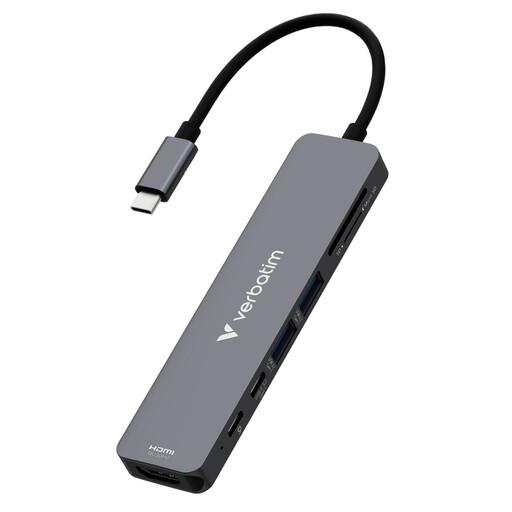
Why it's a good fit: This model is a compact all-rounder. It provides the essential ports for daily use—HDMI for an external monitor, USB-A for peripherals, an SD card reader for quick photo transfers, and powerful 100W charging. Ideal for use at university, in a café, or while travelling.
The 100W Power Delivery ensures that even demanding laptops are charged reliably. The USB 3.2 Gen 1 ports with 5 Gbps offer solid speed for external drives, avoiding the bottleneck of USB 2.0.
Offers a balanced mix of port variety (7-in-1) and portability. The integration of SD and microSD card readers makes separate adapters redundant.
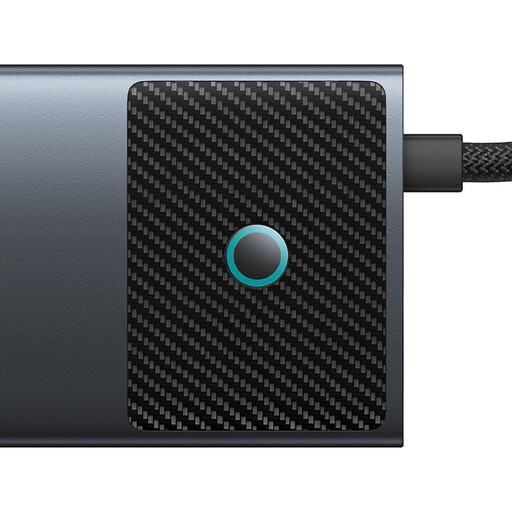
Why it's a good fit: This model is aimed at users with high demands for speed and image quality. It's designed for demanding workflows like video editing or graphic design, where fast data transfer and a smooth, high-resolution monitor connection are essential.
The 10 Gbps USB ports prevent bottlenecks when transferring large RAW photos or video files. According to the manufacturer, one HDMI port supports 4K at 120Hz, which bypasses the choppy 30Hz trap and enables extremely fluid video playback.
Offers a combination of very high data transfer rates (10 Gbps), powerful video outputs (including 4K@120Hz), and a stable LAN port. The dual-HDMI function is a plus for multi-monitor setups.
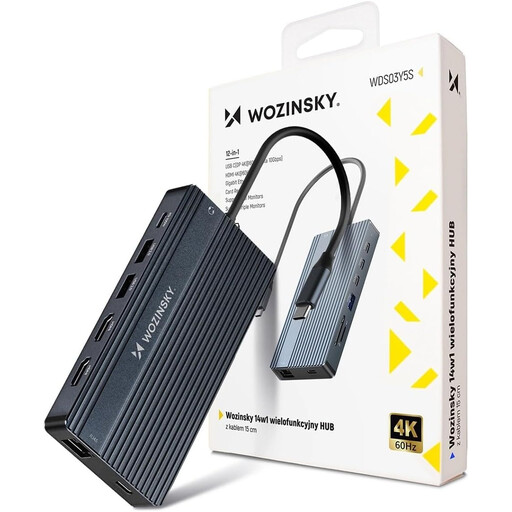
Why it's a good fit: This is less a hub and more a fully-fledged USB-C docking station. It's designed to transform a laptop into a complete desktop workstation with a single cable. Ideal for power users in a home office who use multiple monitors, a wired internet connection, and numerous peripherals simultaneously.
This model solves the connectivity problem comprehensively, rather than being just a stopgap solution. The dedicated Gigabit Ethernet port ensures a stable connection, which is crucial for video conferences. Support for up to three monitors (check system compatibility) makes separate video adapters unnecessary.
Maximum port variety with 14 ports, including 2x HDMI, 1x DisplayPort, Gigabit LAN, and a 3.5mm audio jack. The robust aluminum housing aids heat dissipation under full load.
We've compiled a complete, up-to-date list of products that fully meet these strict selection criteria and relevant safety regulations.
1. How do I know if my laptop supports a USB-C hub with 4K@60Hz? Check your laptop's technical specifications. You need a USB-C port that supports "DisplayPort Alternate Mode" (DP Alt Mode). For a 4K resolution at 60 Hz, DisplayPort 1.4 is typically required. Older ports with DisplayPort 1.2 often only support 4K at 30 Hz. You can find this information on the manufacturer's website or in your device's technical manual.
2. Can a USB-C hub damage my laptop? A high-quality hub from an established manufacturer is safe when used correctly. Risks mainly arise from using cheap, uncertified products or incompatible power adapters. For the Power Delivery function, always use a PD charger that meets or exceeds your laptop's power requirements to prevent overheating or damage.
3. Does a USB-C hub draw power even when nothing is connected? Yes, the hub itself requires a small amount of power for its internal electronics, typically between 5 and 15 watts. This is why slightly less power reaches the laptop during pass-through charging than the power adapter supplies. If you are not using the hub for an extended period, it is advisable to disconnect it from the laptop to preserve battery life.