
Lieferung heute & morgen

Qualitätsgarantie

Willkommens-Angebote freischalten: KOSTENLOSE Lieferung | Bis zu 80 % RABATT | Kostenlose 30-Tage-JoyPlus-Testphase
App herunterladen
Modern laptops like the MacBook or Dell XPS are powerful and slim, but this elegance comes at a cost: a severely limited number of ports. A USB-C hub or docking station seems like the obvious solution. However, before you invest, you should be aware of three common pitfalls that often lead to frustration and unnecessary expense. As your Joybuy Product Recommendation Officer, I'll help you separate marketing promises from facts.
Many products on the market advertise impressive specs, but the devil is in the details. These three points are crucial to avoid making a bad purchase.
A common marketing promise is a "4K HDMI output." What's often not prominently mentioned is the refresh rate. Many budget-friendly hubs only support 4K resolution at 30 Hz. For video playback, gaming, or even just smooth mouse movement on the screen, this is inadequate and results in a choppy or stuttering image. For a smooth display, you need a hub that explicitly supports 4K at 60 Hz. This typically requires an HDMI 2.0 port or DisplayPort 1.2 (or higher).
A USB-C hub with Power Delivery promises to charge your laptop through the hub itself. However, a spec like "100W Power Delivery" can be misleading. The hub itself consumes energy for its own operation—often between 10 and 15 watts. This means that of the 100 watts your power adapter supplies, only 85 watts might actually reach your laptop. For power-intensive notebooks, this can cause the battery to slowly drain even while plugged in under load. Therefore, always check the actual charging output (pass-through power) specified by the manufacturer.
Nothing is more disruptive than an external hard drive that disconnects mid-transfer or a monitor that randomly goes black. The cause is often low-quality chipsets and inadequate heat dissipation within the hub. Poorly designed hubs are prone to overheating, especially when multiple ports are used simultaneously (e.g., data transfer, video output, and charging), which compromises performance and stability. An aluminum casing can dissipate heat more effectively than a plastic one.
To avoid the pitfalls mentioned above, focus on these objective parameters.
Not every USB port is the same. Pay close attention to the specifications:
USB Hub 3.0.For connecting displays, compatibility is key. A docking station for 2 monitors requires support for MST (Multi-Stream Transport) on Windows laptops. A USB hub for MacBook Pro can often only output one extended display via a single USB-C port (SST - Single-Stream Transport), while additional monitors will only be mirrored.
As mentioned, the net charging power is what counts. A good benchmark for modern laptops is a hub that delivers at least 60 watts to the device. For more powerful 15- or 16-inch models, it should be 85 watts or more. This requires a correspondingly powerful external USB-C power adapter, which is usually not included with the hub.
Here are some recommendations tailored to specific user profiles that meet the criteria discussed.
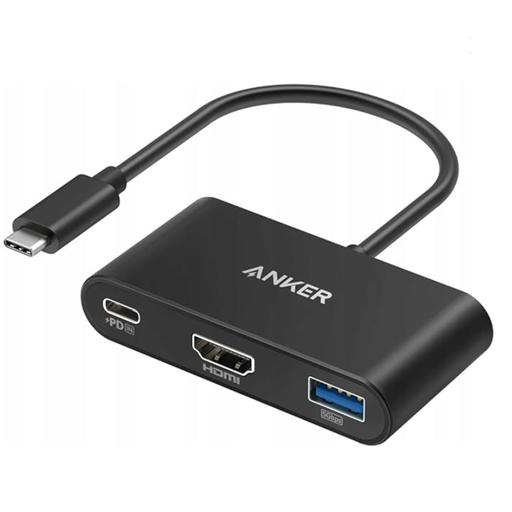
Why it's a good fit: Ideal for users who are often on the go or appreciate a clutter-free home office setup. It's extremely compact and covers the three most essential functions: connecting an external monitor, a fast hard drive, and charging the laptop.
The manufacturer clearly states the video performance as 4K@30Hz, setting realistic expectations. Anker is also known for reliable power management, which minimises the risk of instability.
Combines the most important ports (HDMI, USB-A 3.0, USB-C PD) in a very lightweight and portable form factor.
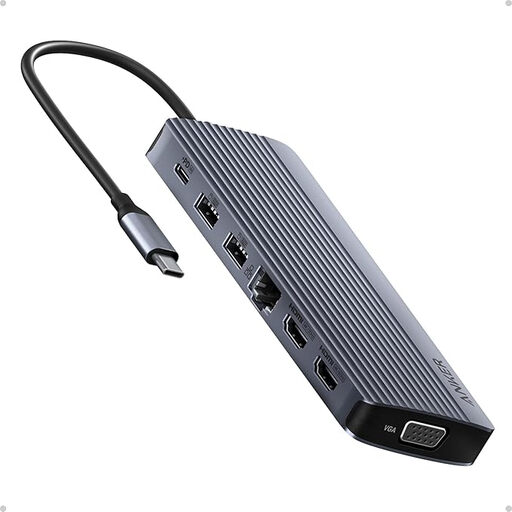
Why it's a good fit: This fully-fledged laptop docking station transforms a notebook into a complete workstation. With 14 ports, including support for three monitors, it's designed for creative professionals and demanding users who refuse to compromise on connectivity.
The hub clearly specifies its video outputs (2x 4K HDMI, 1x 1080p VGA) and provides a realistic charging output of 80W. The vast number of ports is supported by a stable power supply and a robust chassis.
An enormous variety of ports that leaves little to be desired, including Ethernet, an SD card reader, and support for three monitors (MST-compatible).
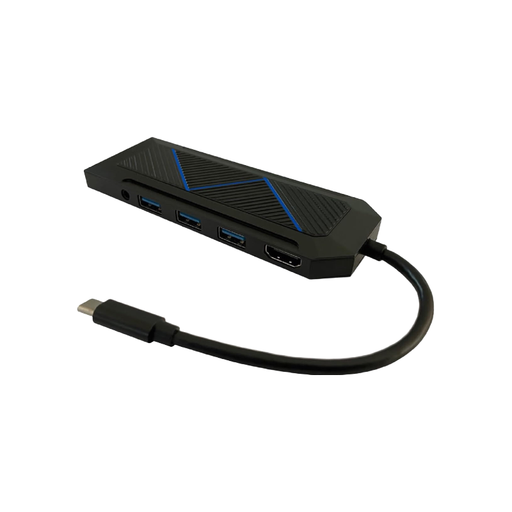
Why it's a good fit: This hub is aimed at users for whom the aesthetics of their setup are just as important as functionality. It expands connectivity for peripherals and adds a visual flair to the desk with its RGB lighting.
This model is purely a data hub without complex video or charging functions. By focusing on its core function—providing stable USB ports—it bypasses the most common failure points of more complex docking stations.
The integrated RGB lighting allows for visual customisation to match gaming PCs and other illuminated peripherals. Plug-and-play functionality ensures effortless setup.
In addition to classic multiport adapters, there are also specialised devices. For example, some monitors now integrate a monitor with a USB hub, which keeps the desk tidy and reduces cable clutter. For entirely different use cases, multifunctional devices exist, such as a car jump starter power bank, which, in addition to its primary function, often includes USB ports for charging devices, serving as a mobile hub in an emergency.
We've compiled a complete, up-to-date list of products that fully meet these strict selection criteria and UK safety regulations.
It depends on the type. Simple, bus-powered hubs draw their power directly from the laptop and are suitable for low-power devices like mice or USB sticks. Active hubs or docking stations with their own power supply (often via an external adapter) are necessary if you want to run multiple power-hungry devices like external hard drives or charge your laptop through the hub.
There could be several reasons for this:
No. macOS generally does not support MST (Multi-Stream Transport) over a single USB-C/Thunderbolt port. This means that most standard hubs can only display one extended desktop on a MacBook; any additional connected monitors will simply mirror that display. To run two or more extended monitors from a MacBook, you need special, often more expensive, Thunderbolt docking stations or hubs that use DisplayLink technology.