
Lieferung heute & morgen

Qualitätsgarantie

Willkommens-Angebote freischalten: KOSTENLOSE Lieferung | Bis zu 80 % RABATT | Kostenlose 30-Tage-JoyPlus-Testphase
App herunterladen
Modern laptops and tablets like the MacBook Pro or iPad Pro embrace a minimalist design, often at the expense of port variety. A USB-C hub or a USB-C docking station is therefore an essential accessory for many users. But the market is confusing and full of technical pitfalls. False promises about video resolution or insufficient power delivery can quickly lead to frustration and a useless product.
This guide will help you understand the crucial features and avoid the typical mistakes when buying. We'll show you what to look for to make an informed decision that meets your specific needs.
Many products advertise impressive performance specs, but the reality is often different. Pay close attention to these three points to avoid falling for empty marketing promises.
To find the right hub, you should match your requirements against the following technical specifications.
For many users, the most important port is the USB-C to HDMI port. Check the supported resolution and frequency carefully.
A hub with Power Delivery (PD) passes power from your USB-C power adapter through to the laptop. Pay attention to the maximum passthrough power. A good hub should be able to deliver at least 85 watts to the device to reliably power even high-performance laptops and their MacBook Pro accessories. The "100W PD" spec often refers to the power input, not the actual charging output to the laptop.
The number and type of ports determine the hub's versatility.
Instead of making a one-size-fits-all recommendation, we have identified products tailored to specific use cases.
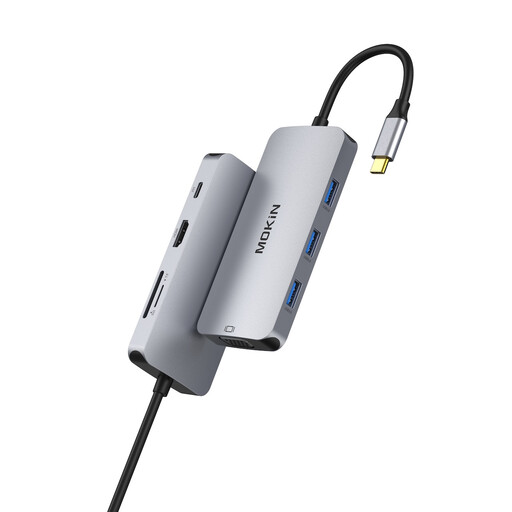
Why This Fits Their Persona: Ideal for users who need maximum compatibility on the go. The additional VGA port is a crucial advantage in universities or conference rooms with older projectors, while HDMI, USB 3.0, and card readers cover all everyday needs.
The manufacturer clearly communicates that the HDMI port delivers 4K at 30 Hz and that when using HDMI and VGA simultaneously, both outputs will only display a mirrored 1080p signal. This prevents false expectations for a dual-monitor setup.
The combination of modern HDMI and legacy VGA in a compact body offers great flexibility for presentations in various environments. Three USB 3.0 ports provide ample space for peripherals.
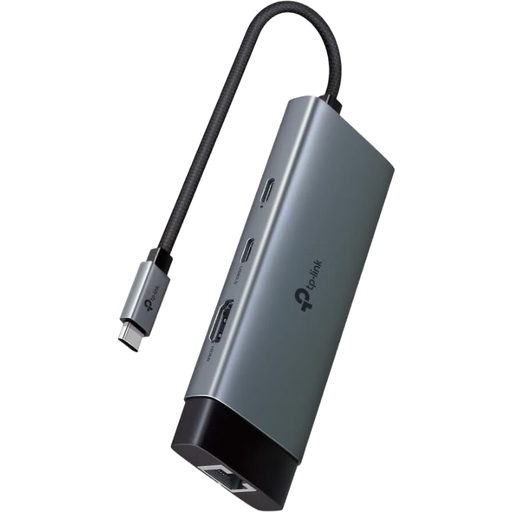
Why This Fits Their Persona: For users who rely on smooth, high-resolution video playback, such as for video editing or graphic design. The stable performance from a reputable networking brand and the fast data ports are crucial here.
This model solves the "30 Hz trap" by explicitly supporting 4K at 60 Hz. Additionally, the 100W PD passthrough port ensures adequate power for the laptop, addressing the second major pitfall.
The combination of 4K@60Hz video output, Gigabit Ethernet, and fast 5 Gbps data ports (USB-A and USB-C) makes this hub a powerful tool for demanding tasks.
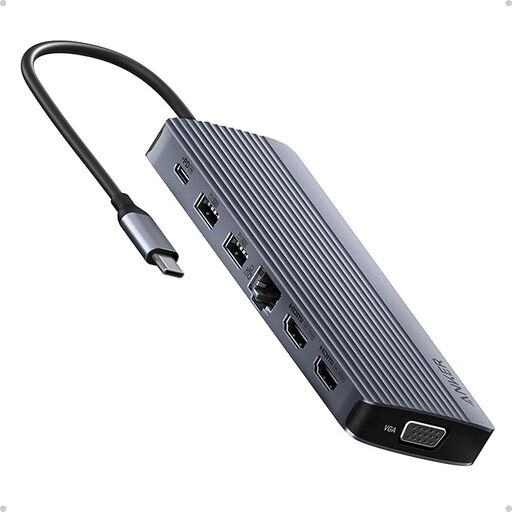
Why This Fits Their Persona: Perfect for users who want to transform their laptop into a full-fledged desktop workstation. With 14 ports, including options for three monitors, this docking station covers nearly every conceivable use case in a home office.
This docking station addresses the multi-monitor pitfall by providing clear specifications for its triple-display functionality and the different resolutions (2x 4K HDMI, 1x 1080p VGA). The note that a power adapter is not included ensures transparency regarding power supply.
The sheer number of 14 ports is its biggest advantage. It offers a comprehensive solution that allows for connecting monitors, high-speed internet, multiple USB devices, and memory cards without compromise.
We have compiled a complete, real-time updated list of products that fully meet these strict selection criteria and safety regulations.
It depends on the type of hub. Smaller, portable hubs are typically bus-powered, drawing energy from the laptop's USB-C port. This is sufficient for low-power devices like mice or USB flash drives. Larger docking stations or hubs with power delivery passthrough require an external USB-C power adapter (often the one that came with your laptop) to reliably supply power to the hub itself, the connected laptop, and other peripherals.
This issue typically affects MacBooks with standard chips (e.g., M1, M2, M3). These chips natively support only a single external monitor. Even if a USB-C hub has two HDMI ports, it cannot bypass this hardware limitation. The result is that both external monitors will display the same image (mirror mode) instead of extending the desktop. For a true extended setup with two or more monitors, special docking stations with DisplayLink technology, which have their own integrated graphics solution, are required.
Yes, a USB-C hub is fully compatible with a Thunderbolt 3 or Thunderbolt 4 port. Thunderbolt ports are a "superset" of USB-C and support all USB-C functions. Therefore, you can use any USB-C adapter with a Thunderbolt port without any issues. Conversely, a Thunderbolt-only device will not work on a standard USB-C port that does not support Thunderbolt.