
Lieferung heute & morgen

Qualitätsgarantie

Willkommens-Angebote freischalten: KOSTENLOSE Lieferung | Bis zu 80 % RABATT | Kostenlose 30-Tage-JoyPlus-Testphase
App herunterladen
A USB-C hub expands a single port on your laptop, MacBook, tablet or smartphone with additional connections. Depending on the model, you may get HDMI, USB-A, USB-C, an SD card reader, Ethernet or charging functionality. However, product names often sound more similar than the technical differences actually are.
If you only look at the number of ports or terms such as “4K” and “100 W”, you could end up buying an unsuitable model. What matters is whether the USB-C hub is compatible with your device, your chosen monitor and the connected peripherals.
A USB-C port can support different functions depending on the device. For video output, for example, the port must provide DisplayPort Alt Mode or Thunderbolt. A USB-C hub with HDMI therefore will not necessarily work with every USB-C port.
Before buying, check the laptop, tablet or smartphone’s technical documentation:
If the host device does not support video output, a USB-C hub with HDMI may only be able to use its data ports.
For monitors, the combination of resolution and refresh rate is important. A 4K 60Hz USB-C hub transmits 3,840 × 2,160 pixels at up to 60 Hz, provided that the laptop, cable and monitor also support this output. Other models may only achieve 4K at 30 Hz.
30 Hz may be sufficient for presentations and office applications. For moving images, gaming or smooth mouse movement, 60 Hz is usually more suitable. When using multiple screens, the resolution and refresh rate may be reduced further.
According to the product specification, a USB-C hub with 100W PD may support up to 100 W Power Delivery input. The actual power reaching the host device may be lower because of the hub’s own power consumption and the laptop’s limitations. A separate USB-C charger is also required.
The charger should match the device’s power requirements and be certified. A hub does not automatically replace the laptop’s power adapter.
A USB-C hub with USB-A is suitable for older keyboards, mice, USB sticks or external hard drives. A USB-C hub with USB-C is useful if you want to connect modern SSDs, smartphones or other devices with USB-C connectors. It is important to distinguish between a USB-C data port and a USB-C PD port: on many models, the PD port is used exclusively for power input and not for data transfer.
For photographers and video users, a USB-C hub with an SD card reader or SD/TF card reader is practical. Check the stated read and write speeds, as well as whether SD and TF cards can be used at the same time.
USB 3.0 or USB 3.2 Gen 1 can reach up to 5 Gbit/s according to the specification. USB 3.2 Gen 2 can enable speeds of up to 10 Gbit/s. These figures are theoretical maximums; the storage medium, cable and file system all affect actual transfer speeds.
Several hard drives or power-hungry devices can reach the power limit of a single host port. For demanding use, a USB-C multiport adapter with separate PD power input is more practical.
A compact USB-C hub is designed for mobile use and is usually connected directly or via a short cable. A USB-C docking station often provides more ports, its own power adapter and a permanent desktop setup.
If you need two monitors, networking, storage devices and charging at the same time, check the display support carefully. A USB-C docking station with dual HDMI may offer different display modes depending on the operating system. MacBook models may also have restrictions depending on the chip and model.
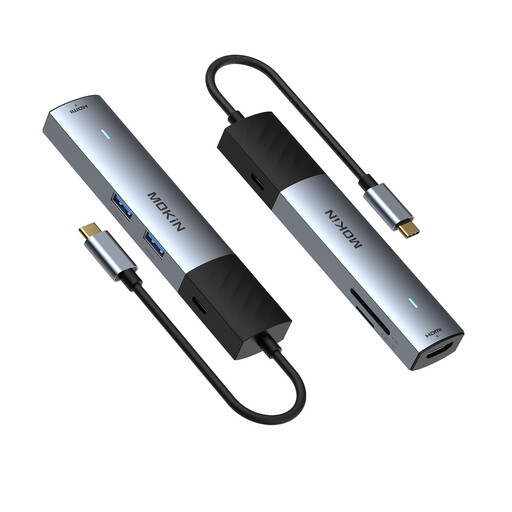
Why this product suits the profile: This 7-in-1 model combines HDMI, one USB-C data port, two USB-A ports, SD, TF and PD in a compact adapter for home working and mobile use.
The specifications state HDMI at up to 4K at 60 Hz, along with separate data ports. According to the description, SD and TF can be used simultaneously.
Up to 5 Gbit/s on the USB-3.0 data ports and USB-C PD with up to 100 W input.
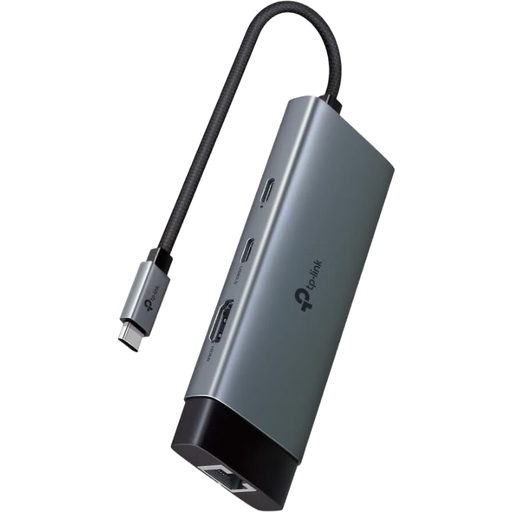
Why this product suits the profile: This hub is aimed at users who need a wired network connection alongside video output and USB data ports.
The technical specifications clearly distinguish between HDMI, Gigabit Ethernet, PD and data ports.
HDMI with 4K at 60 Hz, Gigabit Ethernet and a USB-C PD input of up to 100 W.
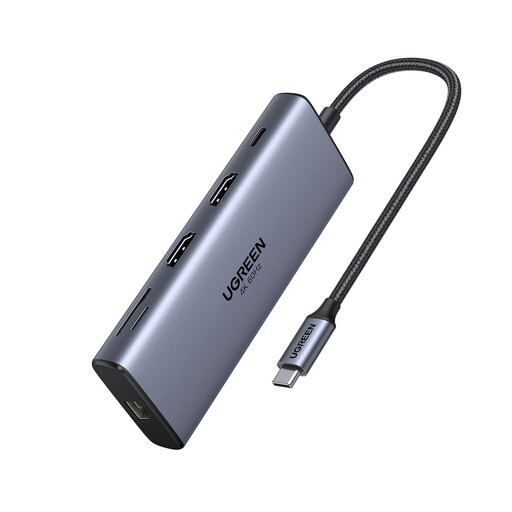
Why this product suits the profile: This 10-in-1 dock is designed for permanent workstations with multiple monitors, memory cards, networking and high-speed USB devices.
The description lists separate HDMI, USB, card reader, RJ45 and PD connections, as well as operating systems such as Windows and macOS.
Two HDMI ports with 4K at 60 Hz, USB-C and USB-A ports with speeds of up to 10 Gbit/s, plus Gigabit Ethernet.
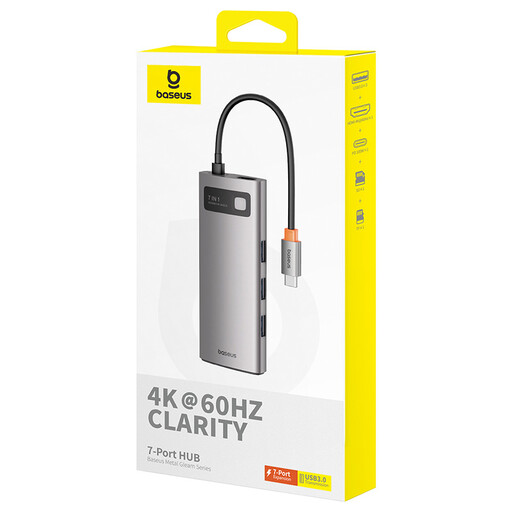
Why this product suits the profile: Photographers and users with SD and TF cards get connections for displays, three USB-A devices and memory cards.
The connections and power limits are clearly specified: HDMI up to 4K at 60 Hz, USB-A up to 5 Gbit/s and PD up to 100 W.
SD and TF card readers, three USB-3.0 ports and HDMI output with 4K at 60 Hz.
We have put together a complete, regularly updated list of products that fully meet these strict selection criteria and the safety regulations applicable in the EU.
No. The MacBook must provide the required USB-C, Thunderbolt or DisplayPort functions. Dual-monitor docks may also be subject to restrictions caused by the Apple chip installed. Check the relevant product’s compatibility information before buying.
This is possible with a model featuring a USB-C PD input, provided that a suitable charger is connected. The maximum input power, the hub’s own power consumption and the laptop’s power limit determine how much power actually reaches the device.
Its lifespan depends on the number of connection cycles, heat generation, cable strain and the connected devices. A dry environment, good ventilation and avoiding mechanical stress can help extend its service life. If you notice unusual heat, damaged cables or connection dropouts, disconnect the hub from both the power supply and the host device.