
Lieferung heute & morgen

Qualitätsgarantie

Willkommens-Angebote freischalten: KOSTENLOSE Lieferung | Bis zu 80 % RABATT | Kostenlose 30-Tage-JoyPlus-Testphase
App herunterladen
A USB-C hub can turn a single port on your laptop, MacBook or tablet into a versatile interface for a monitor, hard drive, memory card, network connection and charger. However, product descriptions can vary considerably: a compact USB-C multiport adapter is not automatically a fully featured USB-C docking station.
That is why three common pitfalls are important to consider before buying:
First, consider which devices you want to keep connected permanently. USB 2.0 is often sufficient for a mouse, keyboard and printer. For external SSDs, video files or large photo libraries, USB 3.0 with up to 5 Gbit/s or USB 3.2 Gen 2 with up to 10 Gbit/s is more suitable.
Also pay attention to the port type:
A USB-C hub with an SD card reader should also state whether SD and microSD or TF cards can be used simultaneously. The actual transfer rate depends not only on the hub, but also on the memory card, cable and host device.
When choosing a USB-C hub with HDMI, you should look beyond ‘4K’. The combination of resolution and refresh rate is what matters:
A USB-C hub supporting 4K 60Hz requires a suitably compatible USB-C or Thunderbolt port on the laptop. Additional restrictions apply when using multiple monitors, depending on the operating system, graphics hardware and MST support. Depending on the hardware, Windows often supports advanced multi-monitor setups; with macOS, the model and chip generation may limit the number and operating mode of displays.
With a USB-C hub featuring 100W Power Delivery, the specification should be understood as the maximum input or pass-through power. Check the following:
Compatibility information is also important. A USB-C dock for laptops is not automatically suitable for every tablet or smartphone. With Thunderbolt 3 adapters, functionality may be explicitly limited to Thunderbolt ports. Therefore, read the product descriptions for both your device and the hub before buying.
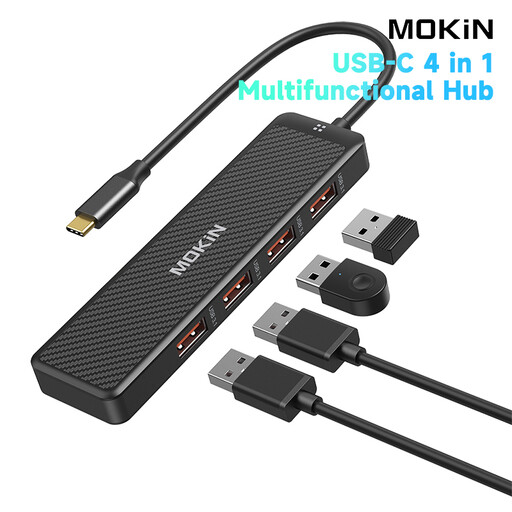
Why this product suits this profile: This hub focuses on four USB-A ports, making it suitable for users who mainly want to connect a keyboard, mouse, memory sticks or external drives.
The stated USB 3.1 support of up to 10 Gbit/s is clearly specified; however, the hub is primarily designed for data and does not offer HDMI or PD charging functionality.
Four USB-A ports, UASP support and backward compatibility with USB 3.0, USB 2.0 and USB 1.1.
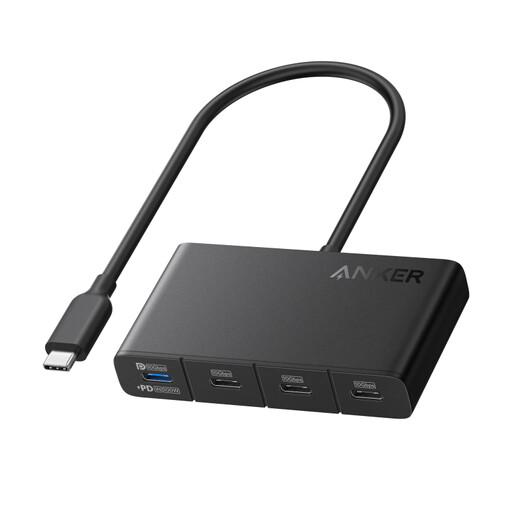
Why this product suits this profile: For a tidy home office with one monitor, fast USB devices and charging functionality, this model combines a small number of clearly defined ports.
The specification lists 4K at 60 Hz, up to 100 W PD input and 10 Gbit/s separately. This makes it easier to compare the relevant specifications before buying.
HDMI with 4K@60Hz, USB data transfer of up to 10 Gbit/s and USB-C PD input of up to 100 W.
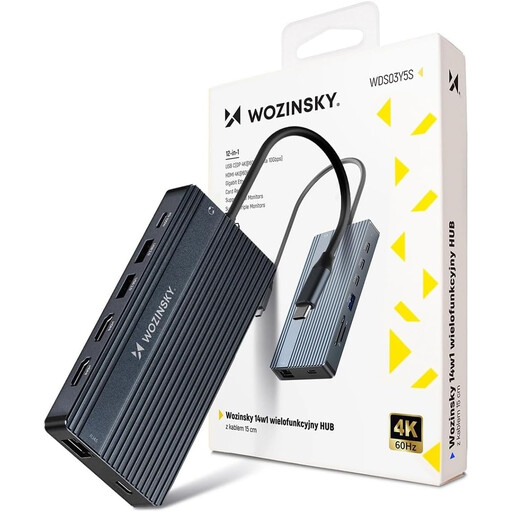
Why this product suits this profile: For workstation setups with monitors, networking, memory cards, audio and multiple USB devices, this hub offers a wide range of interfaces.
The product data lists resolutions, ports and operating systems separately. For multiple screens, you must still check whether your system supports MST or the stated display configuration.
Two HDMI ports, DisplayPort, VGA, Gigabit Ethernet, SD/TF reader, audio and USB-C PD of up to 100 W.
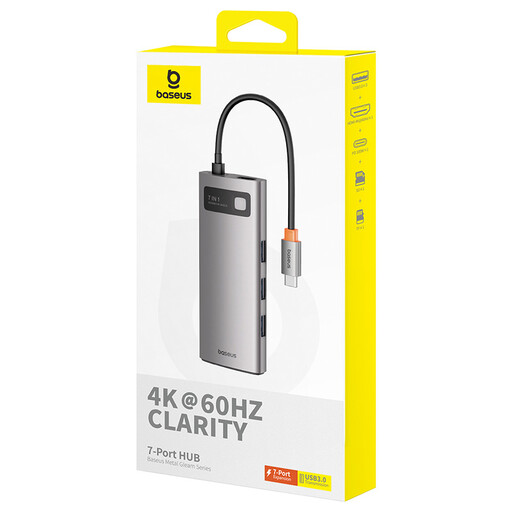
Why this product suits this profile: Photographers, video producers and users with camera equipment get HDMI, USB ports and SD and TF slots in one compact device.
The specifications separate HDMI resolution, USB 3.0 speed and PD input. To charge the laptop, a separate power supply must be connected to the PD port.
4K output at 60 Hz, three USB 3.0 data ports, SD/TF card reader and PD input of up to 100 W.
We have put together a complete, regularly updated list of products that fully meet these strict selection criteria and the safety regulations applicable in the EU.
First connect the hub to a fully featured USB-C or Thunderbolt port. You can then connect the monitor, network and peripherals. For charging, connect the USB-C power supply to the hub’s PD input. If external drives are being used, they should be properly ejected from the operating system before being unplugged.
Good ventilation is important if the hub becomes warm. Several power-hungry devices can limit the available power from the host port or cause temporary connection drops.
No. For display output, the laptop’s USB-C port must support the appropriate DisplayPort Alt Mode or Thunderbolt. For charging, the port must support USB Power Delivery. The laptop manufacturer’s specifications are decisive before buying.
Its service life depends on the number of connection cycles, cable strain, heat and connected devices. A stable position, sufficient ventilation and the use of suitable cables help reduce typical stresses. If there is visible damage or unusual heat, stop using the hub.
A passive hub draws power through the host port. With a model featuring PD pass-through, the connected charger is primarily used to charge the laptop and power connected functions. The actual energy requirement depends on the model, peripherals and usage.