
Lieferung heute & morgen

Qualitätsgarantie

Willkommens-Angebote freischalten: KOSTENLOSE Lieferung | Bis zu 80 % RABATT | Kostenlose 30-Tage-JoyPlus-Testphase
App herunterladen
A USB-C hub expands a single USB-C port with additional connections for a monitor, keyboard, storage, network or charger. For laptop and tablet users, this can make the workspace considerably tidier. However, devices vary significantly in terms of data rates, display output, power delivery and compatibility.
Anyone who only looks at the number of ports may overlook important technical details. The following points will help you avoid common purchasing mistakes and choose a USB-C hub for a laptop, MacBook or tablet that suits your needs.
A USB-C hub with multiple ports can be useful, but overall performance is limited by the host port and the internal chipset. When several external hard drives, memory cards and monitors are used at the same time, the devices share the available bandwidth.
A model with 10 Gbit/s ports therefore cannot necessarily deliver this speed on every port simultaneously. Check the exact specification, such as USB 3.2 Gen 2 with up to 10 Gbit/s or USB 3.2 Gen 1 with up to 5 Gbit/s.
With a USB-C hub with HDMI, the refresh rate is just as important as the resolution. Some models support 4K at 30 Hz, while others support 4K at 60 Hz. For presentations and office software, 30 Hz may be sufficient. For smooth movement, video editing or gaming, 60 Hz is generally more suitable.
The laptop’s USB-C port must also support DisplayPort Alt Mode. A USB-C port designed solely for charging or data transfer cannot output a video signal.
A USB-C hub with Power Delivery receives power through a separate charger and passes it on to the connected device. Some of the power is used to operate the hub. The charger itself must also support the required power output and the appropriate USB-PD standard.
So check the following:
A USB-C hub for MacBook or a Windows laptop needs more than just a compatible connector. The supported protocols are also important. For monitors, check for USB-C Alt Mode or Thunderbolt compatibility. With multiple displays, Windows devices may support MST depending on the model, while macOS may have limitations when driving external monitors.
The manufacturer’s information on Windows, macOS, Linux, iPadOS, Android or ChromeOS should therefore be treated as a starting point. The specific laptop or tablet model may also limit the available functions.
For external SSDs, video files and large photo libraries, a USB-C hub with multiple ports and a high data rate is a sensible choice. According to the product specification, USB 3.2 Gen 2 offers up to 10 Gbit/s, while USB 3.0 or USB 3.2 Gen 1 offers up to 5 Gbit/s. USB 2.0, at up to 480 Mbit/s, is considerably slower and is better suited to keyboards, mice or printers.
Photographers and creative professionals should also look for a USB-C hub with an SD card reader and a microSD or TF slot. For a stable network connection, a USB-C hub with Ethernet and a Gigabit RJ45 port is a practical alternative to Wi-Fi.
With a 4K USB-C hub, the resolution and refresh rate should be stated explicitly. The number of HDMI, DisplayPort or VGA outputs is also relevant. VGA, for example, can connect older monitors, but does not support modern 4K signals.
An aluminium casing may dissipate heat more effectively than a fully enclosed plastic casing. Even so, the hub should not be covered, particularly when PD charging, 4K output and fast data transfers are being used at the same time. A cable length of around 15 to 25 cm is suitable for many laptop workstations; longer cables provide more distance, but can make the setup less tidy.
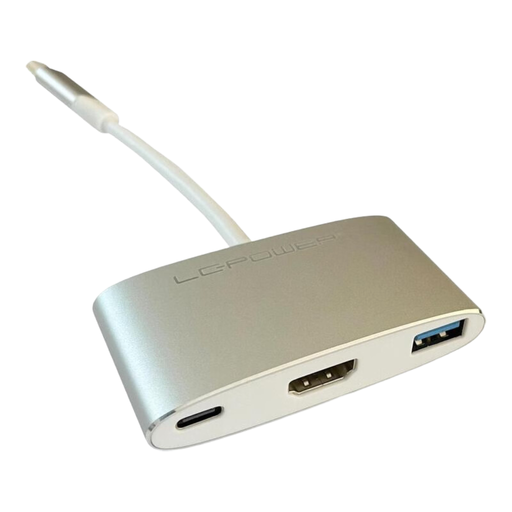
Why this product suits this profile: This compact solution combines a USB-A 3.0 port, HDMI and a USB-C PD port for essential home-office and travel tasks.
The functions are clearly defined rather than presenting a large number of ports with connections you do not need. The HDMI output is designed for one external monitor.
USB 3.0 with up to 5,000 Mbit/s, HDMI and up to 100 W Power Delivery; integrated 0.85 m cable.
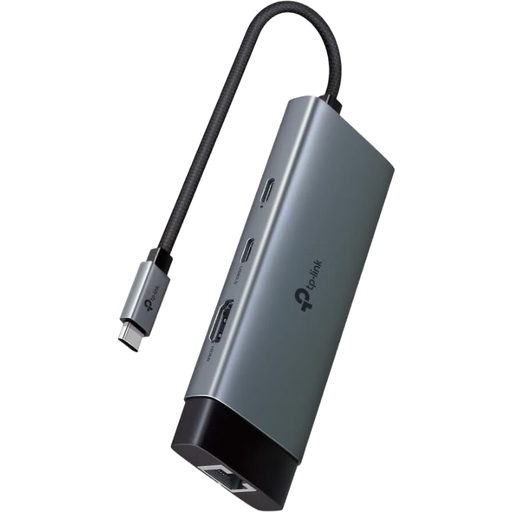
Why this product suits this profile: Ideal for laptop, tablet and smartphone users who want to combine HDMI, a wired network connection, data ports and charging in one compact device.
The video output is specified precisely as 4K at 60 Hz. Ethernet operates at Gigabit speed rather than being described merely as a network port.
One HDMI output with 4K/60 Hz, Gigabit Ethernet, USB ports with up to 5 Gbit/s and PD pass-through up to 100 W.

Why this product suits this profile: Suitable for workstations with two HDMI monitors, older VGA displays, Ethernet, audio and memory card readers.
The outputs are listed separately by signal type and resolution: HDMI up to 4K/30 Hz and VGA up to 1080p/60 Hz. This makes it easier to check the specifications against your existing monitors.
Two HDMI ports, VGA, Gigabit Ethernet, SD and TF card readers, plus USB-C PD up to 100 W.
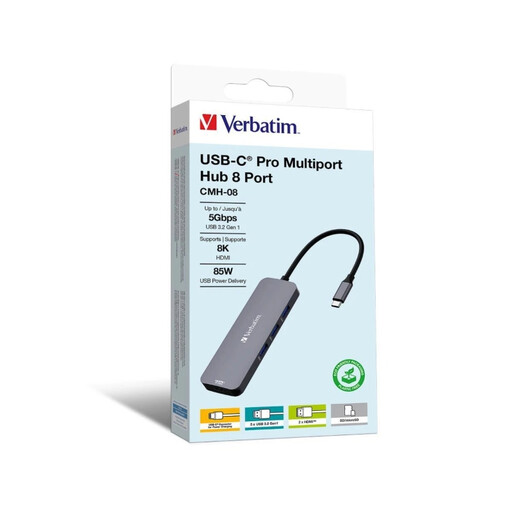
Why this product suits this profile: Practical for changing workstations when you need HDMI, Ethernet, SD and microSD card readers, as well as several USB ports.
The USB ports are differentiated as USB 3.0 and USB 2.0. For full functionality with charging and multiple devices, a separate PD charger is required.
HDMI up to 4K/30 Hz, Gigabit Ethernet, SD and microSD readers, plus PD pass-through up to 100 W in an aluminium casing.
We have put together a complete, regularly updated list of products that fully meet these strict selection criteria and the safety regulations applicable in the EU.
No. The laptop’s USB-C port must support video output via DisplayPort Alt Mode or Thunderbolt. A USB-C hub with HDMI can only output a video signal if this requirement is met.
Its lifespan depends on the casing, connectors, heat generation and usage. Avoid moisture, excessive strain on the cable and covering the hub while it is operating. Adequate ventilation is important when several high-load ports are being used at the same time.
A basic bus-powered hub normally draws its power from the laptop. Models with Ethernet, multiple displays or Power Delivery may require more power. In everyday use, consumption is usually lower than that of the connected devices; however, you should choose a PD charger that matches the laptop’s power requirements.