
Lieferung heute & morgen

Qualitätsgarantie

Willkommens-Angebote freischalten: KOSTENLOSE Lieferung | Bis zu 80 % RABATT | Kostenlose 30-Tage-JoyPlus-Testphase
App herunterladen
A USB-C hub can turn a single laptop port into a versatile interface for monitors, storage, networks and peripherals. At first glance, however, many models look very similar. The key differences often lie in the maximum refresh rate, actual data speed or compatibility of the USB-C port.
That is why private users, home-office workers, students, photographers and gamers should take a close look at the technical specifications. This helps prevent a situation where your new USB-C multiport adapter has plenty of sockets but cannot drive the desired monitor at the expected resolution.
Not every USB-C port supports a video signal. For HDMI output, the host port generally needs to support DisplayPort Alternate Mode, commonly known as DP Alt Mode. Thunderbolt ports have additional technical requirements.
Before buying, you should therefore check the user manual for your laptop, MacBook, tablet or smartphone. A USB-C hub with HDMI may be able to transfer data and power without DP Alt Mode, but it will not be able to send an image to an external monitor.
A USB-C hub with Power Delivery can pass power through to the host device. The “up to 100 W” figure usually describes the hub’s maximum input power. Some of this power may be required to operate the hub itself.
The actual stated output power is therefore crucial. For example, the MOKiN docking hub specifies 100 W PD input and a limited output power. The power ratings of the charger, USB-C cable and laptop being used must also be compatible.
Multiple USB ports may share the available bandwidth. A USB-C hub with several 5-Gbit/s ports will not necessarily achieve this speed on all sockets at the same time. With card readers, there is an additional factor: write speed also depends on the SD or TF card being used.
For large photo and video files, USB 3.0, USB 3.2 Gen 1 or Gen 2 and specific speed figures are therefore more important than simply having as many ports as possible.
A USB-C hub 4K should specify more than just “4K”; the refresh rate is also important. Typical specifications include:
A single HDMI port with 4K at 60 Hz is sufficient for many workstations. If you want to connect two monitors, check the details on MST, display expansion and supported operating systems carefully.
USB 3.0 and USB 3.2 Gen 1 are often specified as offering up to 5 Gbit/s. Depending on the port, USB 3.2 Gen 2 can support up to 10 Gbit/s. USB 2.0 is considerably slower and is better suited to a keyboard, mouse or basic wireless receiver.
When choosing a USB-C hub for a laptop or MacBook, you should also check whether the USB-C port is actually a data port or supports Power Delivery only.
A USB-C hub with Ethernet is useful for video conferences, online gaming and large downloads when a wired connection to the router is available. A Gigabit Ethernet port is usually specified as 10/100/1000 Mbit/s. The actual speed depends on factors including the router, cable and internet connection.
A USB-C hub with an SD card reader is practical for photographers and video users. Read and write speeds should be considered separately. Some models support SD and TF, or microSD, cards simultaneously, while others switch between the slots internally.
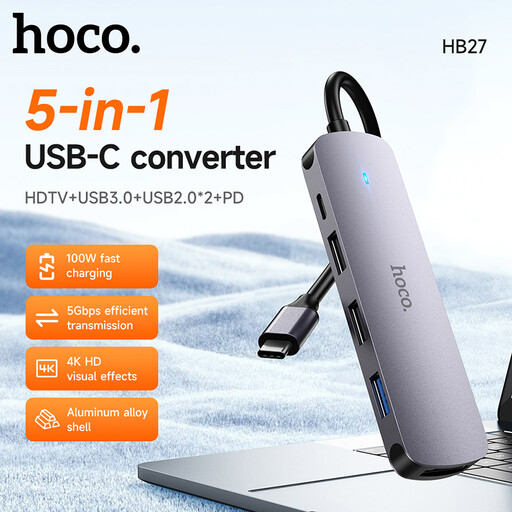
Why this product suits the profile: This 5-in-1 model combines HDMI, USB-A ports and a USB-C PD port for everyday tasks on a laptop or tablet.
The specifications explicitly state 4K at 30 Hz and up to 60 W PD. This makes the limitations clear before purchase.
USB 3.0, two USB 2.0 ports, HDMI and OTG support; compact aluminium-alloy and ABS housing.
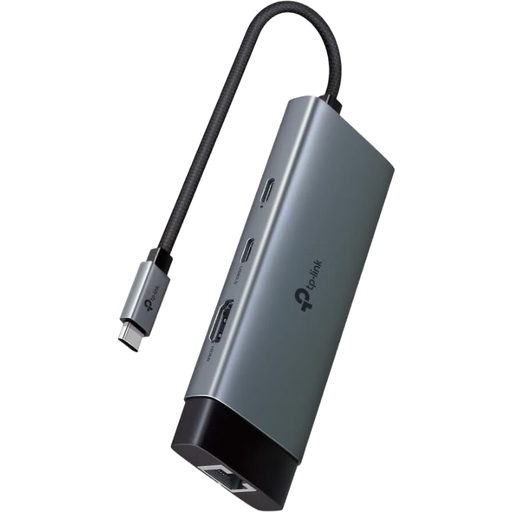
Why this product suits the profile: Designed for an organised workstation, this model combines HDMI, Gigabit Ethernet, USB data ports and Power Delivery.
The product specification distinguishes between 4K at 60 Hz on the HDMI port, 5-Gbit/s data ports and the separate PD input.
Gigabit Ethernet, one USB-C and two USB-A data ports offering up to 5 Gbit/s, plus PD up to 100 W according to the product specifications.
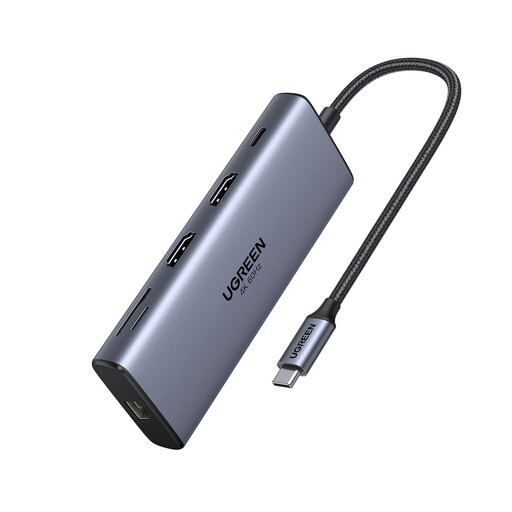
Why this product suits the profile: Two HDMI outputs, fast USB ports, card readers and Ethernet are designed for users with several peripherals and monitors.
The specifications state the distribution of USB speeds, the HDMI values and support for Windows MST and macOS.
Two HDMI ports supporting up to 4K at 60 Hz, two USB-C 3.2 ports supporting up to 10 Gbit/s, SD/TF and Gigabit Ethernet.
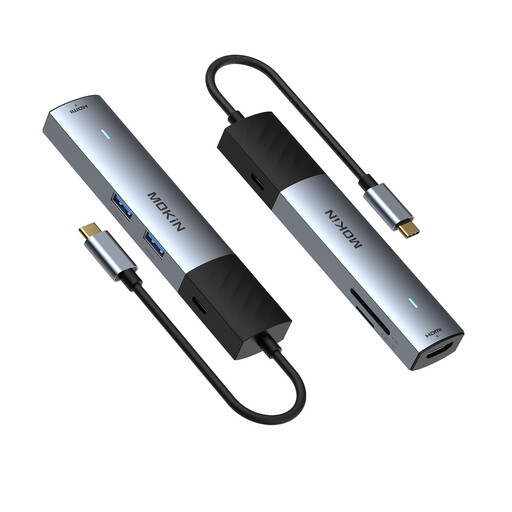
Why this product suits the profile: The combination of HDMI, USB ports and SD and TF readers is ideal for direct access to memory cards.
The product data provides separate read and write specifications for SD and TF and states that both card readers can work simultaneously.
HDMI with 4K at 60 Hz, two USB-A 3.0 ports supporting up to 5 Gbit/s and PD input up to 100 W according to the manufacturer’s specifications.
We have put together a complete, regularly updated list of products that fully meet these strict selection criteria and the safety regulations applicable in the EU.
A USB-C hub usually does not require separate software. With multiple monitors, high data rates or special business features, however, a manufacturer’s driver or display technology may be required.
No. The MacBook must support the required functions through its USB-C or Thunderbolt port. DP Alt Mode is required for HDMI. The options for connecting multiple external displays may also vary depending on the MacBook model and chip.
A USB-C hub 100W model can support up to 100 W PD input. The power reaching the laptop may be lower because the hub itself requires power. The charger, cable and laptop must also be suitable for the desired power level.
Its lifespan depends on the number of connection cycles, heat generation, cable strain and operating environment. A well-ventilated location, certified cables and avoiding mechanical stress on the port can help extend its service life. If you notice unusual heat, connection dropouts or damaged cables, stop using the device.