
Lieferung heute & morgen

Qualitätsgarantie

Willkommens-Angebote freischalten: KOSTENLOSE Lieferung | Bis zu 80 % RABATT | Kostenlose 30-Tage-JoyPlus-Testphase
App herunterladen
A USB-C hub expands a single port on your laptop, MacBook or tablet with HDMI, USB, Ethernet, an SD card reader and other interfaces. This is practical for working from home, travelling or creating a mobile workstation. However, models can vary considerably in terms of data rates, video output and compatibility.
Many disappointing purchases are not caused by the number of ports, but by unclear product specifications. If you only look for “10-in-1” or “4K”, you may overlook important limitations. The following criteria will help you choose a suitable USB-C multiport adapter or a USB-C docking station for a laptop.
USB-C initially only describes the shape of the connector. Not every USB-C port on a laptop supports DisplayPort Alt Mode or Thunderbolt. If this function is missing, a USB-C hub with HDMI cannot transmit an image, even if the connector fits.
Before buying, you should therefore check your laptop, MacBook or tablet’s technical specifications. Look for details such as:
The designation USB-C 4K hub alone says little about how the device can actually be used. 4K at 30 Hz is suitable for presentations and static office work, while 4K at 60 Hz provides smoother display performance. With two monitors, the resolution or refresh rate may change depending on the host device, operating system and ports being used.
A USB-C hub with dual HDMI is therefore not automatically suitable for two independent monitors. On Windows, MST can enable multiple displays. macOS handles external monitors differently depending on the chip and model. The hub manufacturer’s specifications should be checked against those of your computer.
A USB-C hub with Power Delivery passes power from the mains adapter through to the host device. A specification such as “up to 100 W” generally refers to the maximum input power of the PD port. Some of this power is required by the hub itself, so less may reach the laptop.
You will also need a compatible USB-C PD power adapter and a suitable cable. With a 60 W hub such as the HOCO HB27, the possible charging power is correspondingly limited. For more powerful laptops, you should check how much charging power the computer actually requires.
Before buying, make a quick list of the devices you want to connect at the same time:
For photos and videos, a USB-C hub with an SD card reader or an SD/TF combination is useful. If you regularly copy large files, look for USB 3.0, USB 3.2 Gen 1 or USB 3.2 Gen 2. The stated 5 or 10 Gbit/s are theoretical interface speeds; the storage device, cable and computer can limit the actual speed.
For a single monitor, specifications such as HDMI 4K at 60 Hz provide a clear indication of performance. With two or three monitors, you should also check:
A hub without its own power supply can also reach its power limit more quickly when several devices are connected. For a permanent workstation with multiple monitors, a docking station with clearly documented power delivery is often more practical than an especially compact travel device.
Aluminium casings can dissipate heat more effectively than basic plastic casings, but they cannot replace adequate ventilation. A USB-C hub may become warm when outputting 4K video, operating over a network and connecting several storage devices. It should not be placed under paper, fabric or other heat-insulating materials.
Also pay attention to the cable length. A short integrated cable is convenient for mobile use, but if the port is awkwardly positioned on the side of your device, it can put strain on the USB-C port. A longer cable offers greater flexibility at your desk.
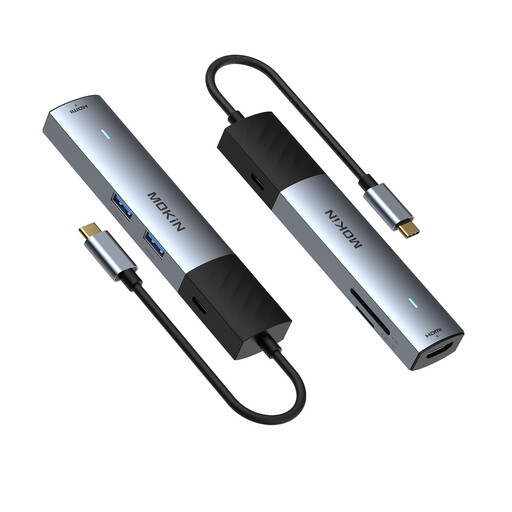
Why this product suits this profile: This 7-in-1 hub combines HDMI, two USB-A ports, a USB-C data port, SD, TF and USB-C PD in one compact device.
The specifications state HDMI with 4K at 60 Hz, along with specific USB and card-reader performance figures. This makes it easier to assess the range of functions before buying.
Up to 5 Gbit/s on the USB 3.0 ports, simultaneous use of SD and TF, plus USB-C PD up to 100 W.
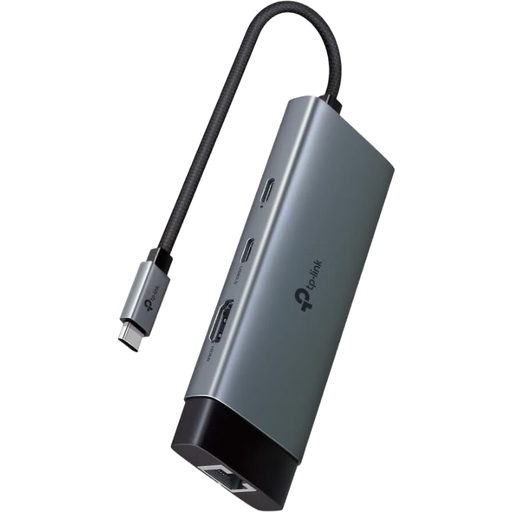
Why this product suits this profile: For office workstations with a wired network, one monitor and several peripheral devices, the ports are clearly designed around these requirements.
The hub specifies 4K at 60 Hz, Gigabit Ethernet and support for Windows, macOS, Linux, iPadOS, iOS, Android and ChromeOS.
USB-C and two USB-A data ports with speeds of up to 5 Gbit/s, RJ45 at 10/100/1000 Mbit/s and a PD input of up to 100 W.
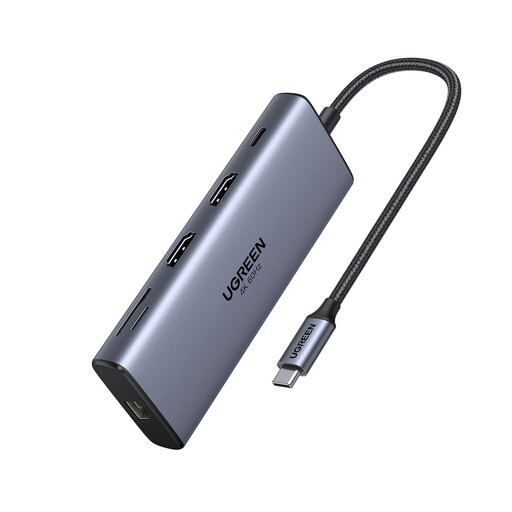
Why this product suits this profile: This 10-in-1 hub is designed for users with multiple monitors, fast storage devices, network cables and memory cards.
The product specifications distinguish between two HDMI outputs with 4K at 60 Hz, 10 Gbit/s USB-C and Gigabit Ethernet. Compatibility with MST and macOS should nevertheless be checked on your own device.
Two HDMI ports, two USB-C 3.2 ports with speeds of up to 10 Gbit/s, SD/TF, RJ45 and USB-C PD up to 100 W.
We have put together a complete, regularly updated list of products that fully meet these strict selection criteria and the safety regulations applicable in the EU.
Not every USB-C port supports video output. When using a MacBook, check the installed chip, the number of supported external monitors and the hub’s specifications. Dual-HDMI models in particular may have limitations depending on the MacBook version.
Its lifespan depends on the number of connection cycles, cable strain, heat generation and connected devices. A dry, well-ventilated environment, along with careful plugging and unplugging, reduces mechanical stress. If the connection is unstable, check the cable, power adapter and host port individually.
A passive hub draws power from the host device while in use. If a USB-C PD power adapter is also connected, the laptop can be charged during use. With a docking station that has its own power adapter, consumption depends on the model and the connected devices.