Users with different wildlife camera cards
Reolink DE lists microSD as a local storage option for wildlife cameras. Match your camera’s card format to the slot specifically listed for the reader.


Choose a USB-C card reader with a slot that explicitly matches your wildlife camera’s card format. Then check that your computer, smartphone or tablet supports the connection and the file import. A reader with UHS-I support may be sufficient for occasional viewing; a UHS-II model is mainly worth considering if your card and destination device support it too, and you regularly transfer large batches of recordings. Back up your images before reusing or formatting the card.
Reolink DE lists microSD as a local storage option for wildlife cameras. Match your camera’s card format to the slot specifically listed for the reader.
If you want to view recordings on a smartphone or tablet, check not only the connection but also the import process and support for your specific device. Apple Support explains how to access external storage using compatible apps.
If you regularly copy large batches of recordings, check that the card, reader and destination device have compatible interfaces. The SD Association explains that UHS-II host devices are best suited to cards that also support UHS-II.
Start by checking the card format and your destination device. Then decide whether a higher transfer standard or extra hub ports will be useful for your set-up at the kitchen table.
| Priority | What to check when buying | Who should pay particular attention? |
|---|---|---|
| Compatible card format | Check whether the reader supports SD or microSD, and match the standard of your card, such as SDHC or SDXC, to the details for the slot. | If I want to insert my wildlife camera’s card directly, the format and card standard must be explicitly supported. Around 36% of consumers put card format first. |
| Connection and import | Check your destination device’s connection, support for external storage, and the intended file or photo import process. | If you want to open images on your existing USB-C computer, smartphone or tablet, you should also consider how to import them. For around 29% of consumers, the destination device and connection are the main priority. |
| Viewing and backing up images | After copying, check that the files open in their destination; only then reuse or format the card. | If I want to keep my recordings, I need to make sure they are safely backed up and readable before using the card again. Around 21% of consumers prioritise safely importing their images. |
| Speed for large batches | Check the UHS standard supported by both the card and reader. The SD Association explains how UHS-II cards and host devices work together; manufacturers’ figures are not a guaranteed copy speed. | If you regularly transfer lots of large files, pay particular attention to the data path from card to destination device. Around 14% of consumers say transfer speed is their top priority. |
USB-C is the connection to your destination device, not the format of your wildlife camera’s card. A reader can only take the card if its slot supports the card format and standard.
Check whether your card is SD or microSD and match its standard to the reader’s stated specifications.
Real-world transfer speeds also depend on the card and destination device. Lexar notes that results depend on factors including system configuration and card speed.
Check your card’s UHS rating and prioritise speed especially if you regularly transfer large amounts of data.
Having multiple slots does not automatically mean you can use two cards at the same time. Transcend explicitly rules this out for the RDC3; UGREEN says simultaneous use is supported for model 50706.
If you want to use two cards at once, check this feature for the exact model.
Apple notes that reformatting deletes all the images on the card.
First, try importing the files or using another compatible destination device. Back up any readable recordings before considering formatting.
The 50706 USB-C/USB-A reader is worth considering if you need SD and microSD support as well as both connector types.
The RDC3 is designed for users with a USB-C destination device who want to read SD or microSD cards.
The Professional USB-C Dual-Slot Reader is suited to regular transfers using compatible UHS-II SD or microSD cards.
The 553 USB-C Hub is an alternative if you need extra connections alongside a card reader at your desk.
The PRO-READER SD Express Dual Card is a specialist option for compatible SD or microSD Express cards.
These products include card readers in USB-C adapters and hubs. Before buying, check that they support your wildlife camera’s SD or microSD card, and consider whether you need extra connections.
 No image available
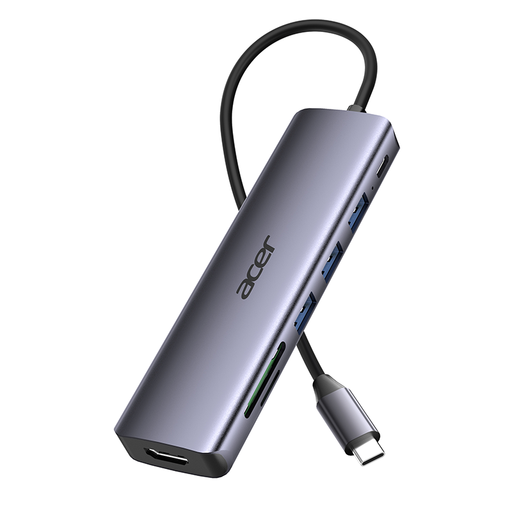
For importing cards via a USB-C hub when you also need other connections alongside the card reader.
The product title lists HDMI, USB 3.0 and 100 W PD charging.
 No image available
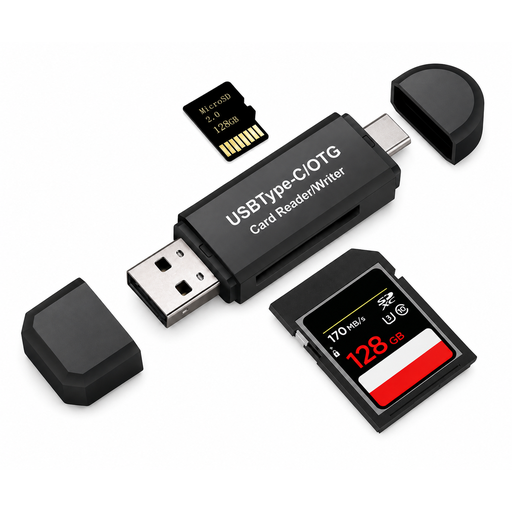
An option if you’re looking for a USB-C card reader with an additional USB-A connection.
The product title lists SD, MicroSD, TF and SDHC card formats.
 No image available
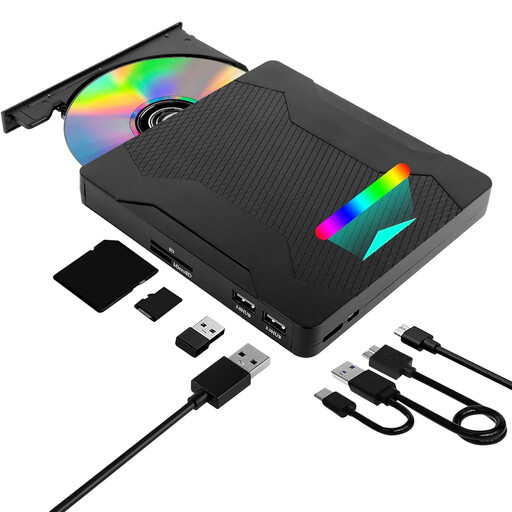
The card reader is built into an external DVD drive; this extra feature is only useful if you also need a DVD drive.
The product title lists USB 3.0, USB-C and SD and TF card readers.
 No image available
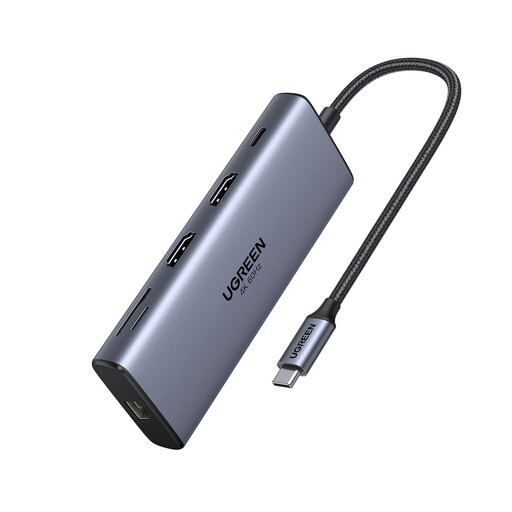
For importing cards at your desk if you also want to use the other connections on a USB-C hub.
The product title lists SD, USB-A, HDMI and Ethernet; the stated dimensions are 22 × 11 × 3 cm.
 No image available
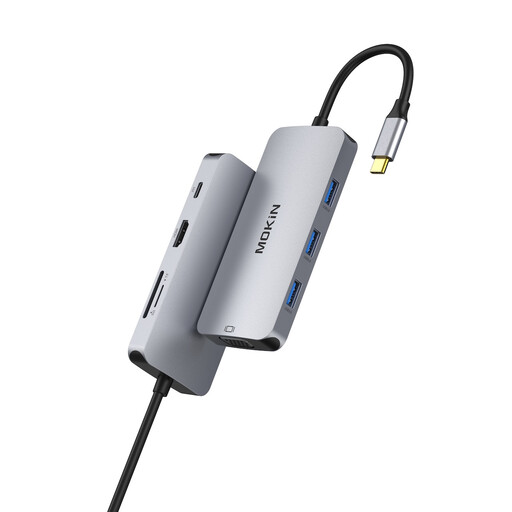
For importing cards alongside using other connections, provided your laptop supports the required USB-C functionality.
The description limits compatibility to laptops with fully featured USB-C or Thunderbolt 3 and excludes MHL devices.
Check your card’s format and the reader’s specified slot. Models with separate SD and microSD slots can take both formats; whether you can insert both cards at the same time depends on the model.
Apple Support explains how to access connected SD cards using the Files app and import compatible photos and videos into Photos. Check the connection or adapter and the file system supported by your device; the guide does not guarantee compatibility with every third-party reader or wildlife camera file format.
Copy the images you need and check that you can read them in their destination. Apple notes that formatting deletes all the images on the card; follow your camera’s manual for guidance on using the card again.