
Lieferung heute & morgen

Qualitätsgarantie

Willkommens-Angebote freischalten: KOSTENLOSE Lieferung | Bis zu 80 % RABATT | Kostenlose 30-Tage-JoyPlus-Testphase
App herunterladen
A USB cable might look like a straightforward accessory at first glance. In practice, however, the connector type, charging power, data speed and cable length all determine whether a smartphone actually charges, a laptop gets enough power, or a monitor receives a video signal.
Typical buying mistakes don't just happen because of the wrong plug. High wattage ratings without compatible charging electronics, USB-C cables with limited data speeds, or overly long cables without adequate shielding can all restrict how well they work. This buying guide explains which specifications matter before you make a purchase, and which cable types suit different everyday situations.
USB-C describes the connector shape, not necessarily the transfer standard. A USB-C to USB-C cable, for example, might only support USB 2.0 at up to 480 Mbit/s. That's often enough for charging a smartphone. However, if you want to connect an external SSD, a dock or a monitor, you should also look for USB 3.x, USB4 or Thunderbolt 4.
A 100 W cable or 240 W cable doesn't automatically deliver that power. What matters is the combination of cable, power adapter and device. For higher USB Power Delivery ratings, an E-Marker chip is usually required. If your smartphone or laptop supports less power, it won't be forced through. The actual power delivered is negotiated between the devices.
A 2 m cable gives you more freedom of movement at your desk or on the sofa. A 3 m cable can be handy for a games console or a distant power adapter. As length increases, signal quality, charging speed and handling can depend more on the cable's construction and standard. For short data runs, a 1 m cable is often enough; for power-hungry applications, make sure the manufacturer's data speed rating applies at the length you want.
First, check the ports on both devices:
With Apple devices, you should also check whether the model still uses Lightning or has already switched to USB-C.
A PD charging cable supports USB Power Delivery, provided the cable, charger and device are all compatible. Ratings like 3 A, 5 A, 60 W, 100 W or 240 W should always be read in the context of the whole system.
Examples:
For syncing and simple file transfers, USB 2.0 at up to 480 Mbit/s is enough for many devices. For large files, external SSDs or docking stations, higher standards matter.
A Thunderbolt 4 cable can, according to the product specs, support data speeds of up to 40 Gbit/s and video output up to 8K or multiple 4K signals. However, both connected devices must support the required standards and DisplayPort Alt Mode.
An HDMI 2.1 cable isn't a USB cable; it's used for video and audio transmission between a console, TV, monitor or AV receiver. Ratings like 48 Gbit/s, 4K at 120 Hz or 8K at 60 Hz require compatible devices and correct settings.
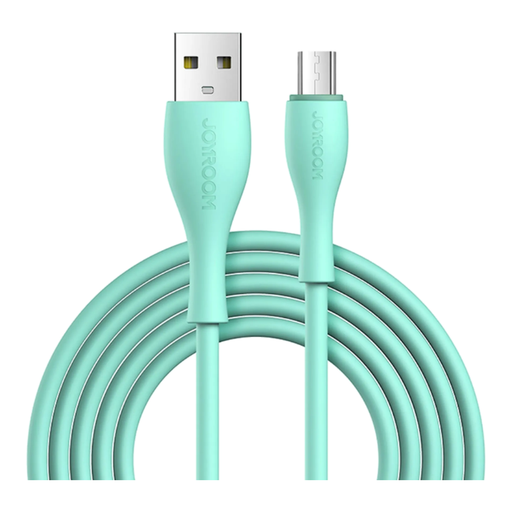
Why it fits the profile: This 2 m cable connects USB-A to Micro-USB and is suitable for older smartphones, speakers, controllers or other Micro-USB devices around the home.
The connector combination is clearly stated. This stops you accidentally buying a Micro-USB cable for a USB-C device.
2 m length, USB-A to Micro-USB connector, rated current up to 3 A and built-in charging indicator.
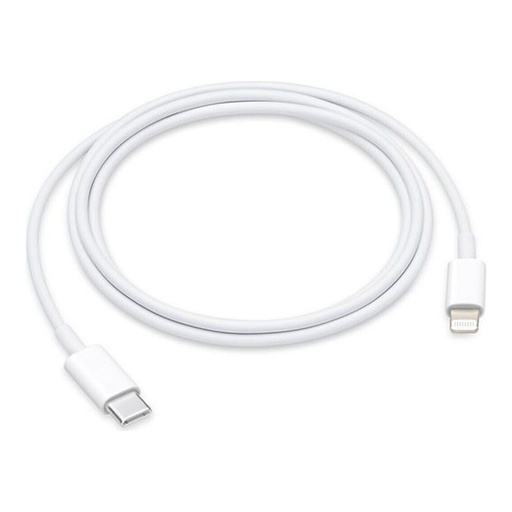
Why it fits the profile: This 1 m cable is designed for iPhone, iPad and iPod models with a Lightning connector, and USB-C or Thunderbolt 3 ports.
The connection direction USB-C to Lightning is clearly stated. This reduces the risk of choosing a USB-A to Lightning cable for a USB-C charger.
1 m length, charging and data syncing, plus support for fast charging with compatible devices and power adapters.
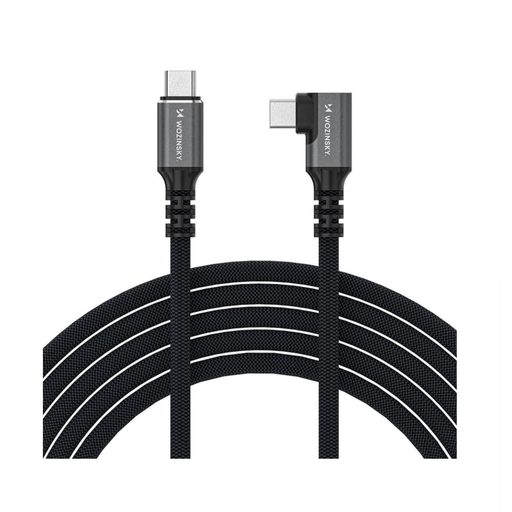
Why it fits the profile: For compatible laptops, external SSDs, monitors and docking stations, this 1.5 m cable offers a performance-oriented USB-C connection.
Data speed, charging power and video specs are listed separately. This makes it easier to check whether your devices support Thunderbolt 4 or USB4.
Up to 40 Gbit/s, up to 240 W Power Delivery and support for high-resolution video signals as per the product specs.
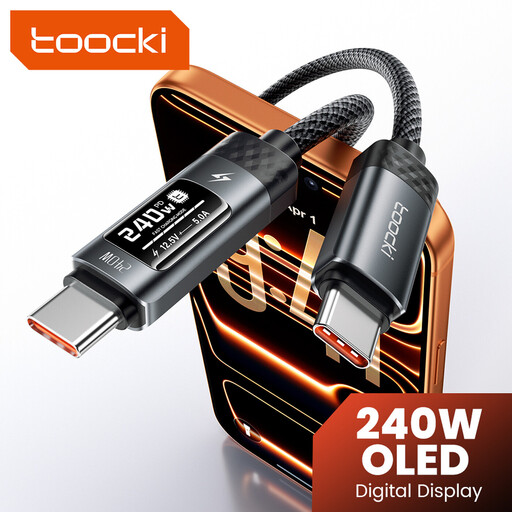
Why it fits the profile: This 1 m cable is aimed at users of USB-C laptops, tablets and smartphones who need a high PD power reserve.
The maximum power and E-Marker chip are specified. For actual use, a compatible PD 3.1 power adapter and supporting devices are still required.
Up to 240 W PD 3.1, display of power, voltage and current, plus data transfer up to 480 Mbit/s.
In the category you'll find a regularly updated selection of data cables for different connectors, lengths and uses.
That depends on the device, power adapter and charging standard. For many modern USB-C devices, a USB-C to USB-C PD charging cable is the right choice. The maximum power must match across all three components. A 100 W cable won't automatically charge a device at 100 W.
It's not possible to give a reliable lifespan. It depends on bending cycles, strain, moisture, heat and storage. When unplugging, pull the connector housing, not the cable itself. Visibly damaged cables should be replaced.
No. USB-C is just the connector shape. For video transmission, the computer or smartphone port must support the appropriate DisplayPort Alt Mode, USB4 or Thunderbolt standard. For TVs and games consoles, an HDMI 2.1 cable is usually the intended connection.