
Lieferung heute & morgen

Qualitätsgarantie

Willkommens-Angebote freischalten: KOSTENLOSE Lieferung | Bis zu 80 % RABATT | Kostenlose 30-Tage-JoyPlus-Testphase
App herunterladen
A USB drive is an indispensable tool for quickly transporting data and backing up important files. But the market is overwhelming, and many buyers invest in products that don't meet their needs. Misleading speed claims, incompatible connectors, or a lack of security often lead to frustration. This guide will help you correctly interpret technical specifications and find a flash drive that precisely fits your use case.
Marketing promises can be misleading. Watch out for these three common issues to make an informed decision.
To avoid these pitfalls, you should carefully examine three technical features. These define the performance and utility of a USB drive in daily life.
The USB standard designation provides information about the theoretical maximum speed. Pay attention to the following standards:
Pro Tip: Look specifically for the write speed in the product's data sheet. A fast USB drive for general use should have a write speed of at least 50–70 MB/s. For power users, speeds over 200 MB/s are recommended.
Choosing the right connector is crucial for compatibility with your devices.
The required capacity depends directly on your usage patterns.
For protecting sensitive data, you should choose a model with integrated hardware or software encryption. AES 256-bit encryption is considered the industry standard and reliably protects your files from unauthorized access.
Here are some recommendations tailored to specific user profiles and the criteria mentioned above.
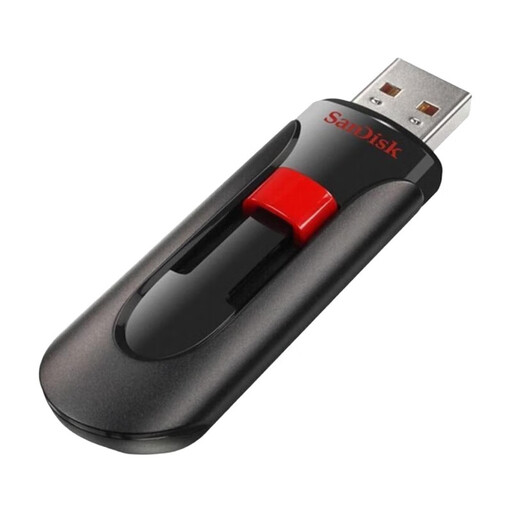
Why This Fits Their Persona: Ideal for users who need multiple reliable flash drives for everyday tasks like sharing documents, homework, or photos. The 3-pack offers excellent value for families or a home office.
With SanDisk SecureAccess software, it provides basic password protection (128-bit AES encryption), thus avoiding the pitfall of completely unsecured data transport.
An economical 3-pack for various purposes. The sliding mechanism protects the USB-A connector without a separate cap that can be lost.
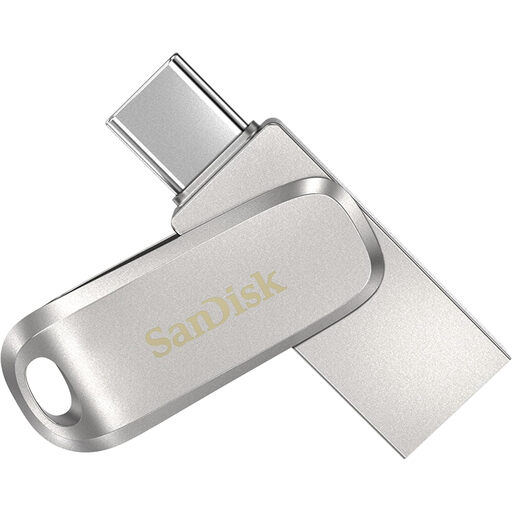
Why This Fits Their Persona: Perfect for users who need to seamlessly transfer data between their USB-C smartphone, tablet, or MacBook and a PC with a classic USB-A port. The durable metal casing is ideal for mobile use.
Solves the incompatibility trap with its dual interface. The USB 3.2 Gen 1 standard also ensures solid transfer rates, avoiding the frustration of slow write processes.
Features both a USB-A and a USB-C connector in one device. The swivel design protects the connector not in use. Manufacturer claims read speeds of up to 400 MB/s.
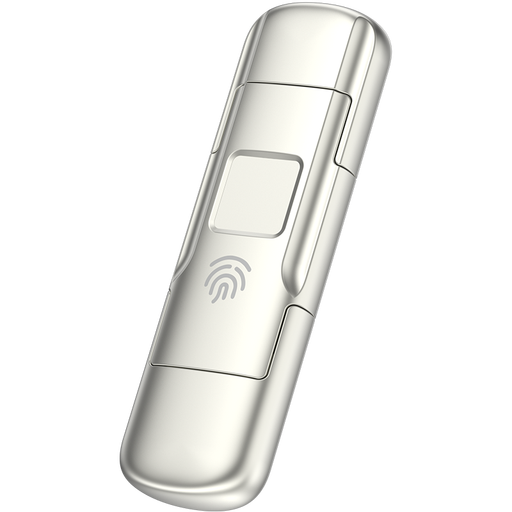
Why This Fits Their Persona: Designed for professionals, creatives, and anyone transporting sensitive business or personal data. The combination of high speed and biometric security is ideal for large files and confidential information.
Directly addresses the security and speed pitfalls. The AES-256 encryption, combined with fingerprint authentication, offers high-level protection. Its SSD-like speeds (up to 500 MB/s write, according to the manufacturer) prevent long waits.
Combines biometric security with hardware encryption. The dual interface (USB-A/C) and robust zinc alloy casing make it a versatile and durable tool.
We have compiled a complete, up-to-date list of products that fully meet these strict selection criteria and security standards.
1. How do I choose the right storage capacity for my USB drive? This depends on your intended use. For text documents and a few photos, 32 GB is often enough. If you regularly save music, high-resolution images, or short videos, a 64GB or 128GB USB drive is a good choice. For backing up large amounts of data, extensive video projects, or as a portable game library, 256 GB or more is recommended.
2. What is the difference between USB 3.0, 3.1, and 3.2? The naming can be confusing. Essentially, older standards have been consolidated under the new name. USB 3.2 Gen 1 is technically identical to USB 3.1 Gen 1 and the original USB 3.0. All offer a maximum data rate of 5 Gbit/s. USB 3.2 Gen 2 doubles this rate to 10 Gbit/s. For most users, a drive with USB 3.2 Gen 1 (or labeled as a USB 3.0 drive) is perfectly sufficient.
3. Do I need to "safely eject" a USB drive before removing it? Yes, this is strongly recommended. Operating systems often use a write cache to improve performance. This means that data may not have been fully written to the drive, even if the copy process appears finished on screen. "Safely ejecting" ensures that all write operations are complete, thus preventing data loss or file system corruption.