Teams with multiple consoles
If recordings from a PS5, Xbox or Switch need to get to the studio, the export or recording route must be right for each console. PlayStation Support, Xbox Support and Nintendo describe different processes.


Choose your USB drive based first on how clips will be transferred from the console or computer. For PS5 recordings, PlayStation Support specifies FAT or exFAT; Xbox Support specifies USB 3.0 and NTFS for recording directly to external storage. With Nintendo Switch, the transfer route described goes via a computer. For clips moved between studio PCs, you’ll also need suitable connections, enough storage space and a good write speed.
If recordings from a PS5, Xbox or Switch need to get to the studio, the export or recording route must be right for each console. PlayStation Support, Xbox Support and Nintendo describe different processes.
If you move large video files between workstations, check the connections on both computers and the write speed of the specific USB drive variant. Manufacturer figures aren’t a measure of performance on your own studio set-up.
For shared recordings, clear access rules and a separate backup are essential. The German Federal Office for Information Security (BSI) describes encryption as a way to protect portable storage devices if they’re lost or stolen.
Suitable if: You want to transfer clips from the Media Gallery to a studio computer.
Bear in mind: PlayStation Support specifies FAT or exFAT for a compatible off-the-shelf drive. It isn’t extended USB storage for games.
Suitable if: You want the Xbox to save clips directly to external storage.
Bear in mind: Xbox Support specifies USB 3.0 and NTFS. A drive formatted for Xbox games won’t serve this recording purpose.
Suitable if: You’re exporting screenshots or videos from a Nintendo Switch.
Bear in mind: Nintendo describes transferring files to a computer using a USB cable that supports data transfer. MTP support is relevant for the PC function described.
Suitable if: Recordings are already on computers and regularly need to be moved between workstations.
Bear in mind: Check both connections and, for large transfers, the write speed too. A shared USB drive is no substitute for a separate backup.
| What you need | What to check when buying | Who is it important to? |
|---|---|---|
| Suitable recording and export route | Source device, direct recording or copying afterwards, and the required file system. | When I transfer clips from different consoles, I want to know the right process before formatting a USB drive. Around 33% of consumers put device compatibility first. |
| Time needed to transfer clips | Check read and write speeds separately, and take the computer’s USB port into account. | When I’m repeatedly copying large video files, the actual write speed of the USB drive matters to me. Around 27% of consumers prioritise short transfer times. |
| Space for clips | Compare the size of your current projects and planned storage period with the usable capacity. | If several recordings need to remain available in the studio at once, I choose a capacity that suits my collection. Around 20% of consumers put available storage space first. |
| Protection and keeping files easy to find | Decide who needs access, set rules for sharing and plan for a separate backup. | For shared clips, I want to limit unauthorised access and be able to recover important files. Around 20% of consumers prioritise protection and backups. |
Xbox Support distinguishes between storage for games and USB 3.0/NTFS storage for recording clips directly.
Decide where you’ll record and which format you need in advance. Back up any existing files elsewhere before reformatting a drive.
Depending on your set-up, you may need a second storage device, or you may have to move files before reformatting and copy them back afterwards.
Manufacturers list read and write speeds separately. The computer’s connection may also limit transfer speeds.
Check the write speed for the specific variant and the USB standard of the studio port you’ll use.
Frequent transfers can take longer and slow down your workflow.
A USB drive used for transfers won’t protect important clips from accidental deletion, device failure or loss. The BSI recommends keeping backups; encryption can help prevent unauthorised access to files on portable devices if they’re lost.
Keep a separate copy, and for clips that need protection, decide who should have access and whether to use encryption.
The JetFlash 930C is designed for switching between devices with USB-A and USB-C ports.
The DataTraveler range includes models for transferring files, while IronKey models are designed for higher security requirements.
The Ultra Dual Drive Go is designed for switching between computers with USB-A and USB-C ports.
The Classic 00181053 is a USB-A drive for smaller collections of files that you move occasionally.
The USB Flash Drive Type-C MUF-256DA/APC is designed for editing workstations with a compatible USB-C port.
This selection is for gaming clips already saved to a device and being transferred between studio PCs. Compare the capacity, specified connections and transfer speeds with your workflow.
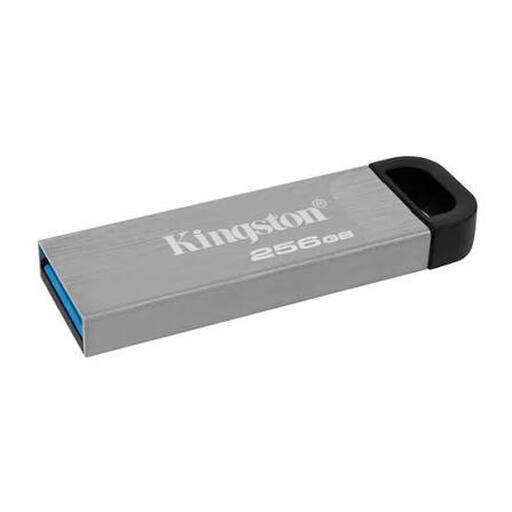 No image available
If you’re transferring clips between studio PCs, compare the stated capacity with the storage needs of your archive.
Capacity: 256 GB.
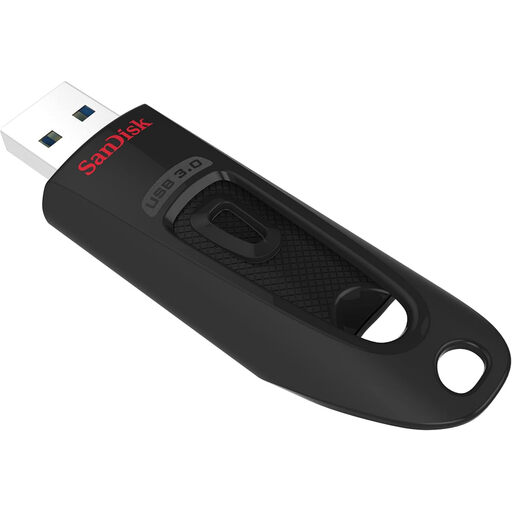 No image available
For transferring clips between workstations, compare the capacity and USB standard with the ports available in your studio.
Capacity: 256 GB. Connection standard: USB 3.0.
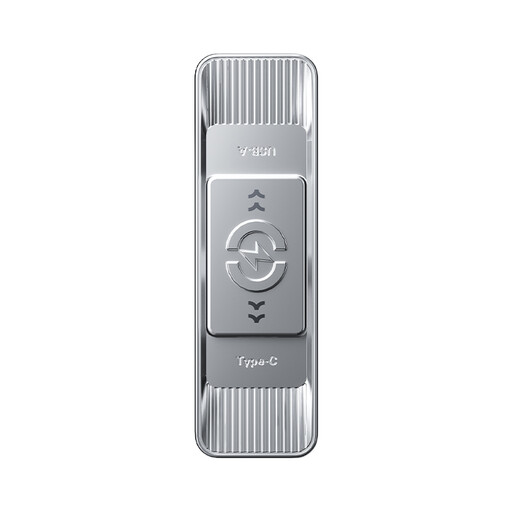 No image available
If the studio PCs have different USB-A and USB-C ports, check that the listed connector types suit both workstations.
Capacity: 128 GB. USB-A and USB-C. Stated read speed: up to 570 MB/s.
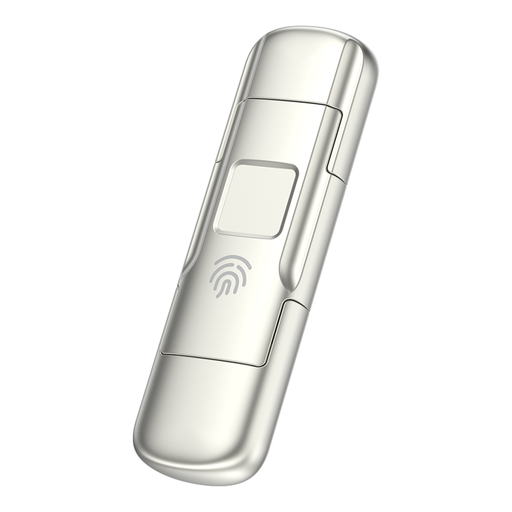 No image available
If you transfer clips between devices with USB-A and USB-C ports and need access protection, check that the sign-in method described suits your studio’s workflow.
Capacity: 256 GB. Stated speeds of up to 550 MB/s for reading and 500 MB/s for writing, plus fingerprint access and AES-256 encryption. According to the product description, encrypted data can’t be recovered if you lose access to both your password and fingerprint.
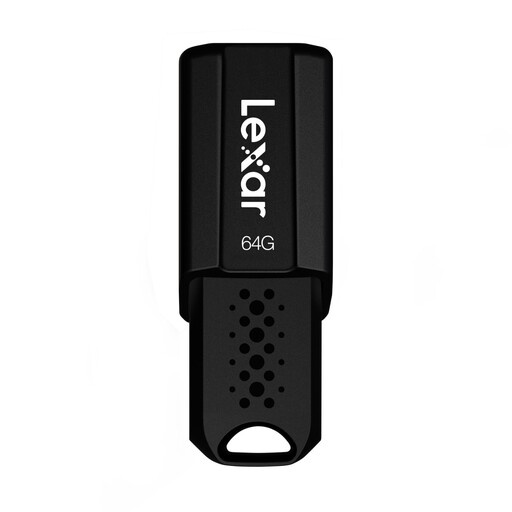 No image available
For smaller clip collections, compare the stated capacity and USB standard with your storage needs and studio ports.
Capacity: 64 GB. USB 3.1 Gen 1.
Don’t assume it can without checking first: PlayStation Support specifies FAT or exFAT for an off-the-shelf drive used to copy PS5 recordings; Xbox Support specifies USB 3.0 and NTFS for recording directly to external storage. Back up your files before reformatting, as this will erase the drive’s contents.
Nintendo describes transferring files from the console to a computer using a USB cable that supports data transfer. You can then copy the files to the USB drive. MTP support on the computer is relevant for the PC function described.
For important recordings, keep another backup separate from the USB drive you use for transfers. The German Federal Office for Information Security describes backups as a way to recover files after loss, deletion or device failure.
If clips contain personal data, the GDPR applies to how that data is processed; the obligations depend, among other things, on the content, purpose and who is responsible. The BSI lists encryption as a possible safeguard for portable storage devices, not as a blanket requirement for every gaming clip.