Laptop without an Ethernet port
If you want to access your own server over a cable, choose between USB-A and USB-C to match an available port on your laptop. Also check that the adapter supports your operating system version.


First, choose an adapter with the right USB connector and check that it supports your operating system. For a connection to a Gigabit port, a Gigabit adapter is sufficient; 2.5 Gbit/s is only an option if your server and the rest of the connection support that speed too. If you’re short on USB-C ports, a model with pass-through charging could be a good fit. The adapter alone won’t configure the IP connection to your server.
If you want to access your own server over a cable, choose between USB-A and USB-C to match an available port on your laptop. Also check that the adapter supports your operating system version.
If you regularly move large files around your local network, check that your server and the rest of the connection support 2.5 Gbit/s as well as the adapter. An adapter’s stated speed alone doesn’t guarantee a particular file transfer rate.
If you need to use the same port for charging and LAN, an adapter with pass-through charging could be an option. Make sure its charging capabilities meet your laptop’s requirements.
| What matters to you | What to check before buying | Who is this important to? |
|---|---|---|
| Connector and operating system | Check that the USB-A or USB-C connector and USB port version match, and that the adapter supports your installed operating system version. | If I want to connect a laptop without an Ethernet port, the plug needs to fit and the adapter needs to work with my system. Around 33% of consumers prioritise connector type and operating system compatibility. |
| File transfer speeds | Check the Ethernet ports on your server and, if applicable, switch, as well as your laptop port and cable connection. | If I regularly transfer large files to my local server, I check whether the entire connection supports speeds above Gigabit. Around 25% of consumers prioritise potential transfer speeds. |
| Set-up and drivers | Check your operating system version and any required drivers, and find out whether the IP configuration will be automatic via DHCP or needs to be set up manually. | If I’m connecting to a server in my student accommodation, I want to know which network and driver settings are needed. Around 25% of consumers prioritise a straightforward set-up. |
| LAN and charging | Check that USB-C Power Delivery support and your laptop’s charging requirements match the adapter’s stated pass-through charging capacity. | If I only have one suitable USB-C port and need it for charging too, I look for a solution that can do both. Around 17% of consumers prioritise this combination of port and charging needs. |
This figure describes the Ethernet capability of the adapter, not the measured transfer rate between your laptop and server. A Gigabit port on the server or switch could limit the connection.
Before buying, check the ports on your server and, if applicable, switch, as well as the USB port and cable connection.
Driver requirements vary by model and operating system. Even if your adapter is recognised, you’ll still need the right IP settings for your laptop and server to communicate.
Check your operating system version and find out whether the local network provides DHCP or requires manual configuration.
A basic adapter could block the port you need for charging. A model with pass-through charging may solve the problem, but it could still be limited to Gigabit Ethernet.
Choose pass-through charging only if you genuinely need to free up a port, and check that the power rating matches your laptop and power supply.
If the adapter, laptop and power supply aren’t compatible, you may also need a suitable charging or connection solution.
According to TP-Link, the UE300C and UE300 offer Gigabit Ethernet over USB-C and USB-A respectively, making them potential options depending on your laptop’s port.
According to StarTech.com, the C22G-USB-ETHERNET USB-C adapter is designed for a 2.5 Gbit/s Ethernet connection.
According to Belkin, the Connect INC019btBK combines Gigabit Ethernet with USB-C pass-through charging.
Anker describes the A8341 USB-C Ethernet Adapter as having a single Gigabit Ethernet port.
This selection includes USB Ethernet adapters for wired laptop network connections. Check the connector type, operating system compatibility and Ethernet speed for each model.
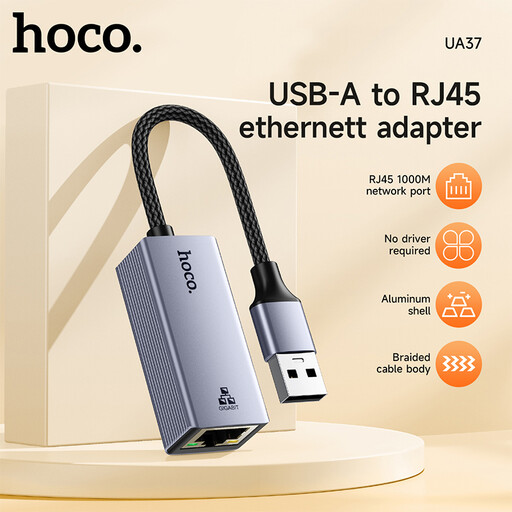 No image available
A potential option if you need a wired Gigabit connection and your laptop has a compatible USB port.
According to the product name, compatible with Windows 98/ME/2000/XP/Vista/Win7/8/9/10, Linux and Mac OS.
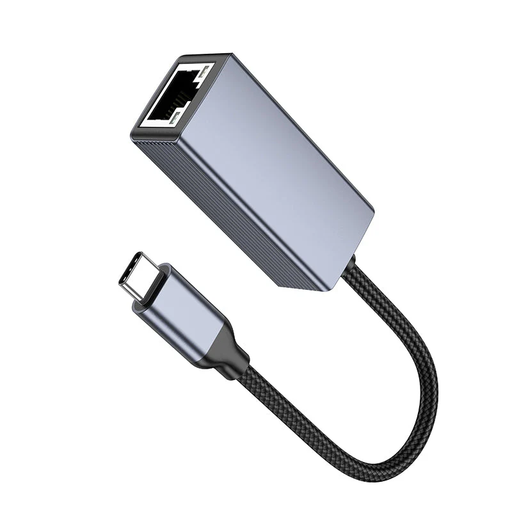 No image available
A suitable option if your laptop has a free USB-C port and you’re looking for an Ethernet connection at the speed stated in the product name.
USB-C; 1000 Mbps according to the product name.
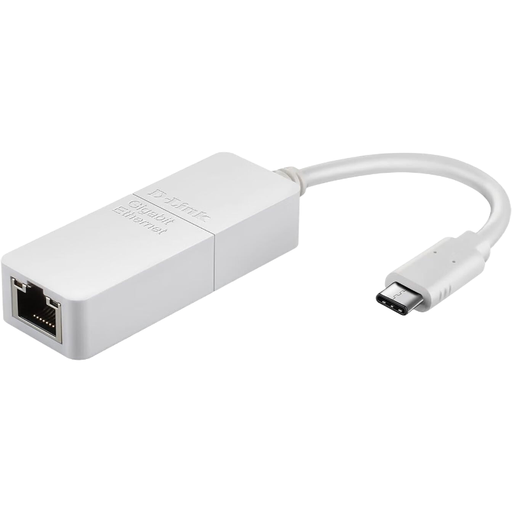 No image available
A potential option for a laptop with a compatible USB-C port if you need a Gigabit Ethernet connection.
USB 3.0; RJ45 with 10/100/1000 Mbps; compatible with Windows and MacOS according to the product name.
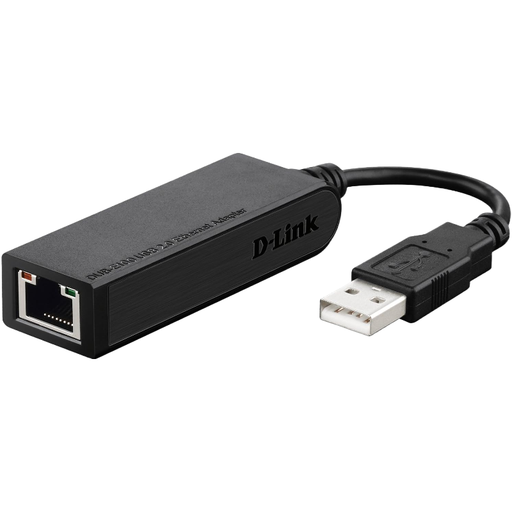 No image available
The Ethernet link speed stated in the product name is limited to 100 Mbps. Check whether that’s fast enough for your planned connection to the server.
Ethernet: 100 Mbps according to the product name.
Not because of the USB adapter itself. What matters is how your laptop and server get their IP settings: Microsoft Support explains that Windows can be configured automatically via DHCP or manually. Before setting things up, check which configuration your server network uses.
Check the Ethernet service under ‘System Settings’ > ‘Network’. Apple Support notes that a USB adapter may appear there under the manufacturer’s name, the adapter type or the model number. You can find the TCP/IP settings in the details.
First, check that the Ethernet cable is plugged in properly; try another cable if necessary. Then check whether the adapter is recognised, whether the model has any driver requirements, and whether the IP settings on your laptop and server match. Microsoft Support also recommends trying another available cable when troubleshooting Ethernet problems.