
Lieferung heute & morgen

Qualitätsgarantie

Willkommens-Angebote freischalten: KOSTENLOSE Lieferung | Bis zu 80 % RABATT | Kostenlose 30-Tage-JoyPlus-Testphase
App herunterladen
A new USB flash drive seems like a simple purchase. But reality often looks different: painfully slow transfers, a broken connector after just a few weeks, or the frustrating discovery that the new drive doesn't fit your modern laptop or smartphone. Many buyers fall into well-disguised marketing traps that lead to unnecessary expense and frustration.
This guide will help you separate the wheat from the chaff. We'll show you the three most common pitfalls when buying a flash drive and explain which technical features really matter so you can make an informed decision.
The 3 most common pitfalls when buying a USB flash drive:
To avoid these traps, it's important to understand the core specifications of a USB flash drive. Focus on the following three parameters to find a model that meets your needs.
The USB version is the deciding factor for speed. While USB 2.0 is sufficient for small documents, the standard is often too slow for today's data volumes. A high-speed USB drive should support at least USB 3.1 (also known as USB 3.2 Gen 1) or a newer standard.
Pay attention to the read and write speeds in MB/s specified by the manufacturer. A high read speed is important for quick access to files, while a high write speed accelerates copying data onto the drive.
The physical shape of the connector determines compatibility with your devices.
The required storage capacity depends on your use case. A 64GB USB drive is a good all-rounder for documents, presentations, and a moderate number of photos. For extensive backups, videos, or game installations, capacities of 128 GB, 256 GB, or more are recommended.
For confidential data, an encrypted flash drive is a sensible choice. Many models, like some from SanDisk, offer software-based AES (Advanced Encryption Standard) encryption to protect your files from unauthorized access with a password.
Based on the criteria mentioned, we have compiled a few models for typical user profiles.
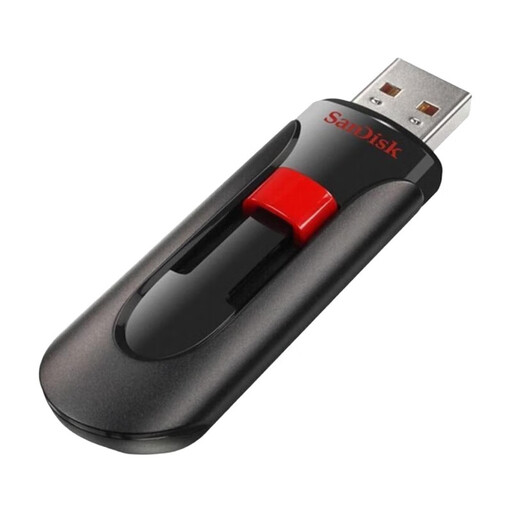
Why This Fits Their Persona: Ideal for storing documents, music, and occasional backups where maximum speed isn't a priority. The 3-pack offers excellent value for students and families.
Offers clear, honest USB 2.0 performance without exaggerated speed promises. The proven SanDisk quality and sliding mechanism protect the connector from rapid wear and tear during normal use.
Reliable storage and password protection through the included SanDisk SecureAccess software with 128-bit AES encryption.
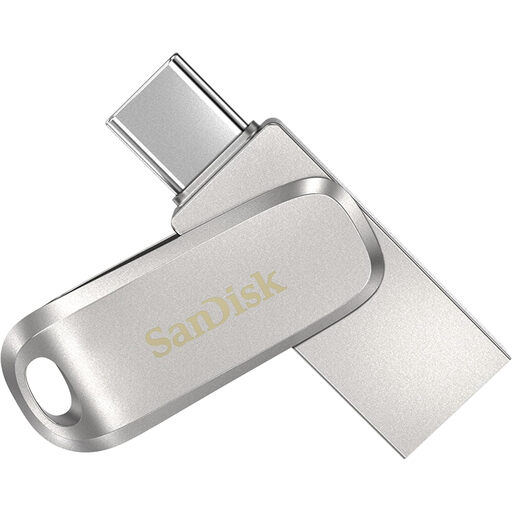
Why This Fits Their Persona: Perfect for seamless data exchange between modern laptops (USB-C), older devices (USB-A), and smartphones. The robust all-metal casing is ideal for daily transport in a bag or pocket.
Solves the compatibility problem with its dual USB drive design. The high-quality metal housing with a swivel mechanism is significantly more durable than cheap plastic alternatives and reliably protects the connectors.
A flexible USB-C drive and USB-A drive in one. According to SanDisk, it offers high read speeds of up to 400 MB/s for fast data access via the USB 3.2 Gen 1 interface.
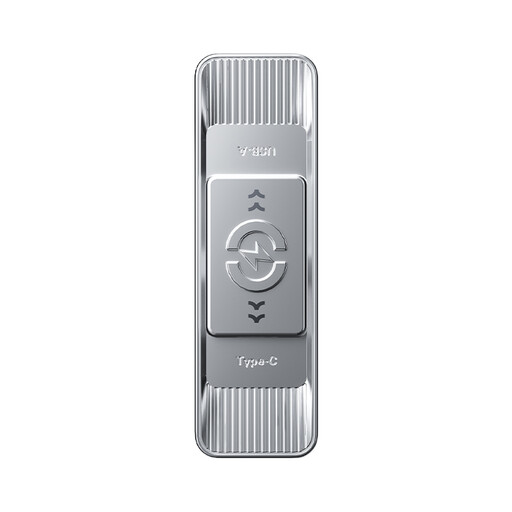
Why This Fits Their Persona: Designed for users who regularly move large files (4K videos, high-resolution photos, games) and require maximum speed. The high capacity and performance are ideal for creative professionals and gamers.
Delivers extremely high transfer speeds that fully utilize the USB 3.2 standard, minimizing wait times. The robust zinc alloy housing offers superior protection against physical damage.
Very high-speed USB drive with read speeds of up to 570 MB/s (according to the manufacturer). The dual connector (USB-A & USB-C) ensures maximum compatibility with a wide range of devices.
We've compiled a complete, up-to-date list of products that fully meet these strict selection criteria.
1. How long does a USB drive last? The lifespan of a USB drive is measured in write and read cycles and depends heavily on the quality of the flash memory and the frequency of use. With normal use, a high-quality drive can last for many years. However, physical damage, such as a broken connector, is a more common cause of failure than the wear and tear of the memory itself.
2. Do I need to format a USB drive before its first use? Most USB drives come pre-formatted (usually with FAT32 or exFAT) and are ready to use out of the box. However, formatting can be useful if you need a different file system (e.g., NTFS for files larger than 4 GB on Windows) or want to ensure the drive is completely empty and error-free.
3. What's the difference between USB 3.0, 3.1, and 3.2? The naming of USB standards can be confusing. Essentially, USB 3.0, USB 3.1 Gen 1, and USB 3.2 Gen 1 all refer to the same standard with a speed of up to 5 Gbps. USB 3.1 Gen 2 and USB 3.2 Gen 2 offer a higher speed of up to 10 Gbps. When buying, pay less attention to the version number and more to the specified transfer rate in Gbps or MB/s.