Frequent folder copiers
You regularly write large image and project folders and want to assess the write speed of the specific flash drive option.


If you regularly copy large image and project folders, compare the write speed for the specific capacity option with the connections on your devices. A quoted read speed won’t tell you how long it will take to write your folder. Also check your total storage needs, the file system for transferring files between devices and, if you’re handling confidential files, the level of access protection you need. Manufacturer figures are maximum speeds, not guaranteed copy times for your files.
You regularly write large image and project folders and want to assess the write speed of the specific flash drive option.
You carry several projects or versions with you, so first check their total storage requirements against the available space on the flash drive option.
You transfer files between devices with different connections, or between Mac and Windows. Connector types and file systems are important factors in your choice.
For frequent copying, check write speed and the storage you need first. Then consider the connections and, if necessary, access protection.
| Consideration | What to check when buying | Who it matters most to |
|---|---|---|
| Write speed | Check the write speed for the capacity option you want, as well as the USB connection and any hub. | If you regularly write large folders to your flash drive, the write speed of the specific option matters. Around 36% of consumers make this their main consideration. |
| Space for projects | Compare the size of all the folders and versions you’ll be taking with you against the available storage on the option you’ve chosen. | If you need to carry several projects or working versions, you’ll want to make sure there’s room for everything. Around 29% of consumers prioritise storage capacity. |
| Connections and file system | Check for USB-A or USB-C connections on the devices involved, and make sure the file system can be read by them. | If you switch between devices with different connections or between Mac and Windows, you’ll want to transfer files without unnecessary workarounds. Around 21% of consumers pay particular attention to device compatibility. |
| Confidential files | If you need extra protection, check the encryption and unlocking process for the specific model. | If you carry confidential project files, you’ll want to know who can access them if the drive is lost. Around 14% of consumers prioritise access protection. |
When filling a flash drive, write speed is what matters. A high read speed or USB rating alone won’t tell you how quickly large folders will copy; the host connection can also limit the speed you get.
Compare the write speed for the exact capacity you want, and check the connection on your computer or hub.
For very large individual files, the file system can matter too. Microsoft describes exFAT as a file system for very large files. Formatting erases existing files.
Check the file system on the devices you plan to use, and back up any existing files before formatting a drive.
Access protection and data backup solve different problems: encryption protects against unauthorised access, but it doesn’t provide a copy in case your data is lost.
Keep a separate backup and occasionally check that you can open the files from it.
Similar model names can refer to different options. The SanDisk Extreme Pro USB 3.1 Gen1 and the Extreme PRO Dual Drive aren’t confirmed to be the same model just because their names are similar. JetFlash 890 and JetFlash 920 are different model names too.
Check the full model name, capacity, connections and specifications for the specific option.
The product ranges listed here offer different points of comparison; manufacturer specifications aren’t guaranteed copy results.
The DataTraveler Kyson and DataTraveler Max are different USB-A and USB-C options, respectively, for different capacity and write-speed needs.
According to the manufacturer, the Extreme PRO Dual Drive is designed for switching between USB-A and USB-C devices.
The JetFlash 920 range is a USB-A option for frequent write operations.
The BAR Plus range includes documented 256 GB model codes.
The 128 GB Keypad Secure USB-A is an option if you need built-in access protection.
These products include USB-A options with stated capacities and a flash drive with USB-A and USB-C connections. Compare storage and connections with your devices; quoted read speeds aren’t write speeds.
 No image available
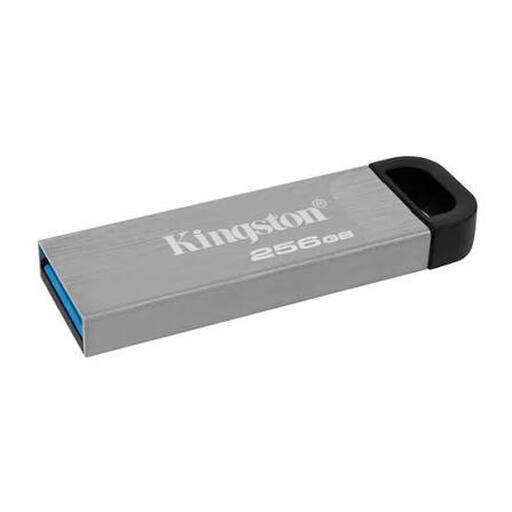
A suitable option if you regularly write large folders and 256 GB meets your storage needs.
Kingston quotes write speeds of up to 60 MB/s for the 256 GB Kyson; actual copying speeds may vary.
 No image available
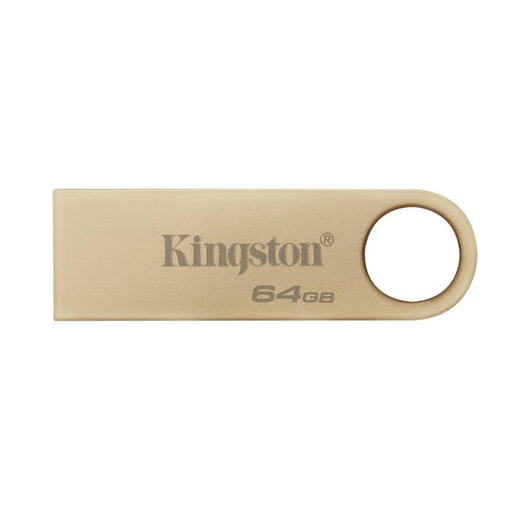
The 64 GB option could work for you if it has enough space for the folders and versions you want to take with you.
The product name specifies 64 GB, USB 3.2 Gen 1 and a metal casing.
 No image available
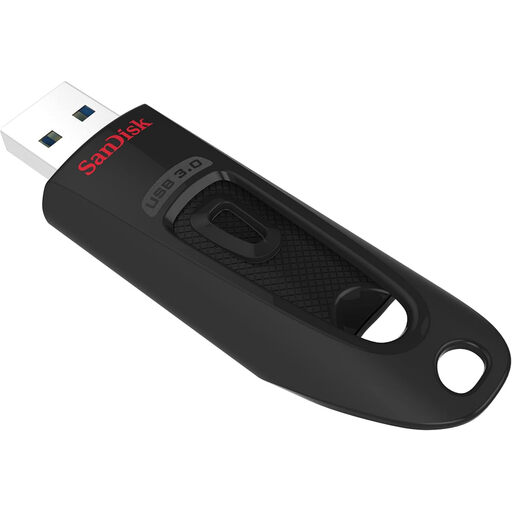
A 256 GB option for several image or project folders, provided their combined size fits in the available storage.
The product name specifies USB 3.0. If you regularly copy large folders, check the write speed for this specific option.
 No image available
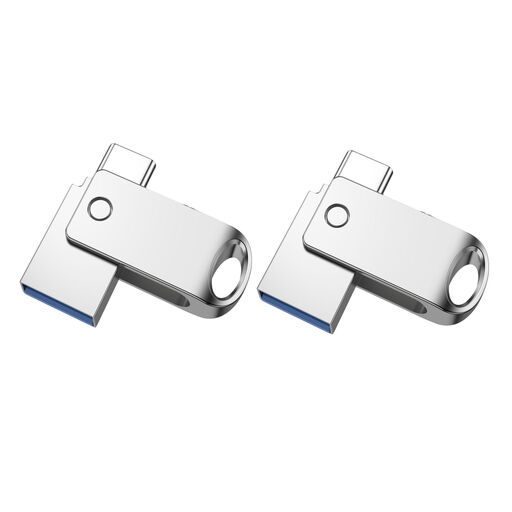
The pack of 2 mentioned in the product name could suit you if two flash drives fit your plans.
The title specifies USB-A and USB-C, OTG, USB 2.0 and 32 GB. Check that the connections suit the devices you’ll be using.
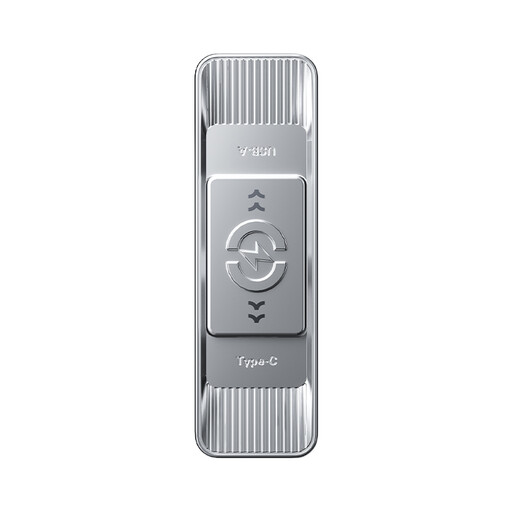 No image available
The 128 GB option could suit you if that capacity is enough for the folders and versions you want to take with you.
The product name specifies USB 3.2 Gen 1, Type-C and read speeds of up to 570 MB/s. This read speed isn’t a write-speed figure.
Add up the size of all the folders you’ll need at the same time, including any extra project versions, and compare the total with the available space on the specific flash drive option. The capacity shown on your device may differ from the advertised figure.
Apple lists exFAT as a Windows-compatible format for larger storage devices. Check that the file system can be read on the devices you plan to use, and back up any existing files elsewhere first: formatting will erase them.
No. Encryption protects your files from unauthorised access if the drive is lost; to protect against losing the files themselves, you need a separate backup that you check regularly. They serve different purposes.
The European Commission explains that information about identified or identifiable people may be personal data, and that the exception for purely personal activities doesn’t apply when there’s a connection to professional or commercial activity. Whether specific images count as personal data and what obligations apply to their use depends on the circumstances; buying an encrypted flash drive doesn’t resolve this.