Choose a USB flash drive based on the actual size of your scans, the ports on your devices and how much protection your files need. Write speed also matters if you regularly copy large amounts of data. Don’t rely on it as your only archive copy: the Library of Congress recommends keeping copies on at least two different storage media in separate locations, and the Federal Office for Information Security warns that the lifespan of a storage medium cannot be predicted precisely.
Who this guide is for
People responsible for a local history archive
If you store scans locally, plan for a suitable flash drive as well as a backup routine and regular checks to make sure your files remain readable. The Library of Congress recommends keeping copies on different storage media in separate locations.
People with lots of large-format scans
For large or regularly growing scan collections, usable storage space and write speed matter. Choose a capacity that suits the size of your own collection.
Community archives containing personal information
If scans show identifiable living people or contain other personal information, consider access controls and protection suited to your collection. The Rhineland-Palatinate data protection authority notes that images showing identifiable living people may contain personal data.
What to consider when buying
| Buying priority |
What to check |
Who it matters most to |
| Protection against loss |
Plan to keep a second copy on a different storage medium and store it separately. The Library of Congress recommends at least two different storage media in separate locations; the Federal Office for Information Security warns that the lifespan of storage media cannot be predicted precisely. |
If I want to keep my scans even if a flash drive fails or goes missing, a separate backup matters more to me than relying on a single device. Around 33% of consumers put protection against loss first. |
| Space for scans |
Check the size of your scan folder, allow for additional material and compare it with the capacity of the specific version. Also check how much storage space is available after formatting. |
With a growing collection, I want to be sure the flash drive can hold both my existing and new scans. Around 27% of consumers prioritise available storage space. |
| Ports and transfer time |
Check whether USB-A or USB-C is compatible with your devices. If you regularly transfer large files, compare the write speed of the specific version and check the requirements of your computer’s port. |
If I transfer scans between devices with different ports, I check that the connectors are compatible. When copying large amounts, I also look at write speed. Around 20% of consumers prioritise switching between devices and fast transfers. |
| Confidential documents |
Decide which files need protection, then check the encryption, recovery options and key access for the specific model. |
If my documents show identifiable people or contain other sensitive information, I want to limit unauthorised access if the flash drive is lost and be able to regain access myself. Around 20% of consumers prioritise keeping their scans confidential. |
Common buying mistakes
-
Assuming one copy on a flash drive is a complete archive
A single flash drive can fail or go missing. The Library of Congress recommends keeping copies on different media in separate locations; the Federal Office for Information Security warns that the lifespan of a storage medium cannot be predicted precisely.
Plan to keep another copy on a different medium, and check regularly that you can open and restore your files.
An extra copy means buying another storage medium and setting aside time to store and check it separately.
-
Confusing read speed with write speed
Read speed doesn’t tell you how quickly scans will be written to the flash drive. F.A.Z. Kaufkompass also notes that read and write speeds can vary between capacities within the same product range.
Check the write speed for the exact capacity you’re considering, and make sure it’s compatible with your computer’s USB port.
-
Assuming a sturdy case protects your data
A metal case alone won’t stop someone from viewing unencrypted files if the flash drive is lost. If you use encrypted storage, you’ll also need to keep the unlock details safe and accessible.
For scans that need protection, check the encryption and store the necessary access details separately and securely.
Encryption and key management take extra effort. Without the necessary unlock details, you may not be able to access your own files.
Brands to consider
Transcend
According to Transcend, the JetFlash 930C is designed for switching between USB-A and USB-C devices.
- Transcend lists peak speeds of up to 420 MB/s for reading and 400 MB/s for writing for the JetFlash 930C.
- These are manufacturer figures, not guaranteed speeds on your computer. The accompanying software includes cloud backup features, which aren’t needed for a local archive copy.
Kingston
The DataTraveler Duo has USB-A and USB-C connectors, while the Kyson is a USB-A option.
- Kingston offers the DataTraveler Duo in 128 and 256 GB capacities. The Kyson range is available in capacities of up to 512 GB.
- The read speed advertised for the Kyson isn’t its write speed. Encryption features found in the IronKey range don’t apply to these DataTraveler models.
Samsung
The BAR Plus is a USB-A option if you’re looking for a metal case and a loop for attaching it.
- For the listed 256-GB version, MUF-256BE3/APC, Samsung quotes sequential read speeds of up to 400 MB/s and describes the case’s protective features.
- The quoted read speed tells you nothing about write speed, and a protective case is no substitute for a second archive copy.
Verbatim
The Dual QuickStick 256 GB is designed for transfers between USB-A and USB-C devices.
- Verbatim advertises read speeds of up to 530 MB/s and write speeds of up to 470 MB/s for this version.
- The Nero backup software included by the manufacturer is compatible with Windows only. Check that it works with your computer and that the backup has actually been created.
USB flash drives for local scan storage
This Joybuy selection includes USB flash drives for storing and transferring scans locally. Compare their capacities and connectors with your collection and devices. A flash drive is no substitute for a separately stored backup copy.
 No image available
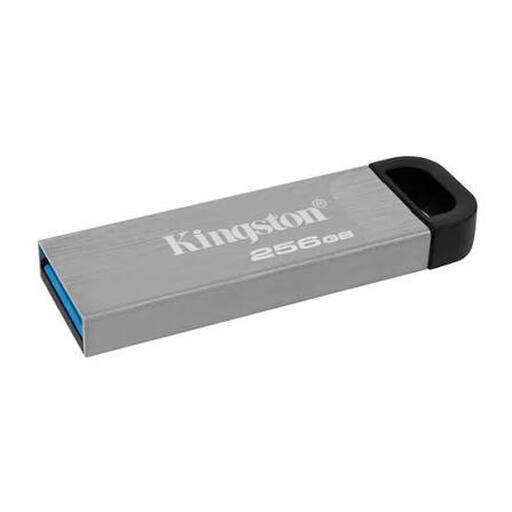
Kingston Technology DataTraveler Kyson 256 GB USB flash drive
A USB-A option for scan collections that fit within the 256-GB capacity.
Kingston lists the Kyson as a USB-A model.
View at Joybuy
 No image available
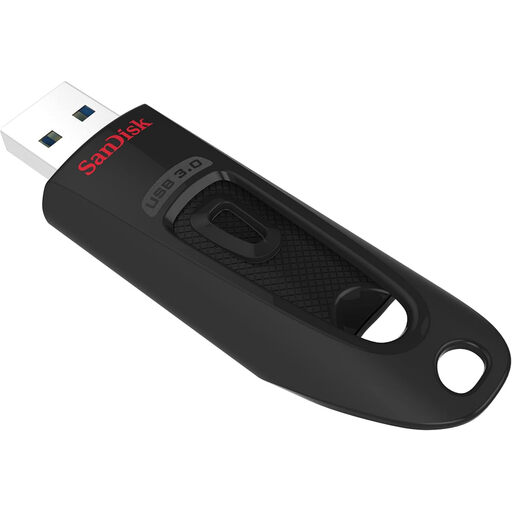
SanDisk Ultra 256 GB USB 3.0 flash drive
The 256-GB version is an option if your scan collection fits within this capacity.
Before using it for sensitive documents, check the encryption and recovery features of the specific model.
View at Joybuy
 No image available
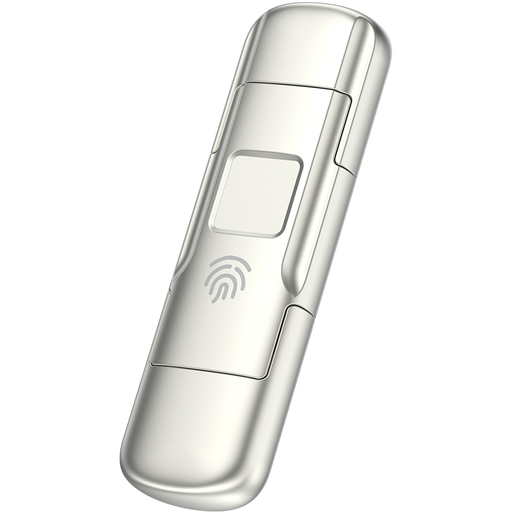
MOVESPEED YSUYC-256GSN 256 GB dual-interface flash drive, silver
An option for switching between devices with USB-A and USB-C ports, provided your scan collection fits within the 256-GB capacity.
For the listed fingerprint and encryption features, access is important: according to the product warning, data in the secure partition may become inaccessible if both the administrator password and fingerprint access fail.
View at Joybuy
 No image available
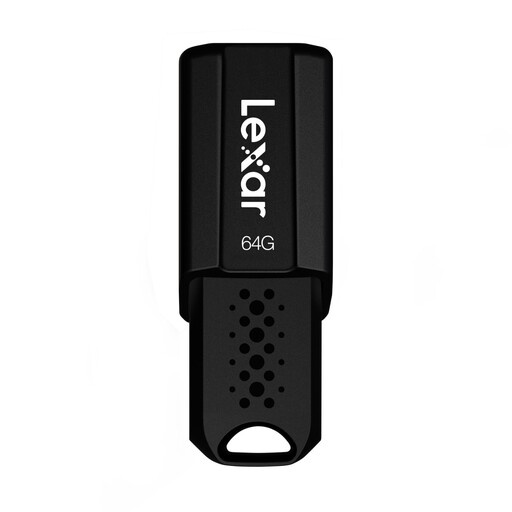
Lexar JumpDrive S80 64 GB USB 3.1 flash drive
The 64-GB version may suit a collection that fits within this capacity.
The product title states read speeds of up to 150 MB/s; it doesn’t give a write speed. The description also mentions software encryption. Check its compatibility and recovery options before storing important scans.
View at Joybuy
 No image available
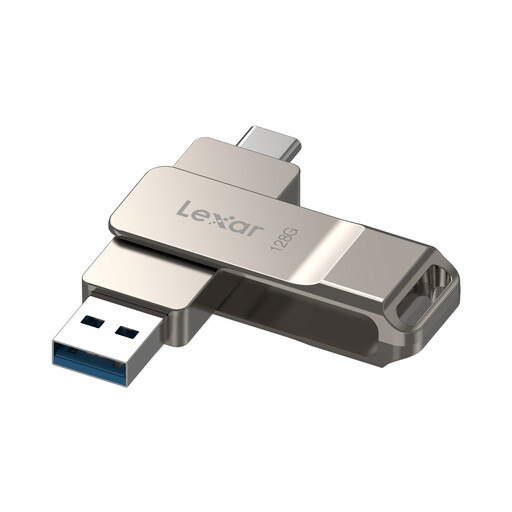
Lexar D40E 128 GB Dual USB 3.2 Gen 1 Type-C Jump Drive
The 128-GB version is designed for switching between USB-A and USB-C devices, as long as your scan collection fits within this capacity.
The description quotes transfer speeds of up to 100 MB/s and 256-bit AES software encryption. Before use, check how to open and recover the encrypted area on your devices.
View at Joybuy
Frequently asked questions
Is one large USB flash drive enough as my only archive?
No, not if you want to keep your collection safe if the drive fails or goes missing. The Library of Congress recommends keeping copies on at least two different storage media in separate locations; the Federal Office for Information Security warns that the lifespan of a storage medium cannot be predicted precisely.
How can I check that my scans are intact after copying?
Try opening some files and check that you can restore the backup. For a more systematic integrity check, record checksums when you transfer the files and compare them later. The Library of Congress describes comparing this kind of integrity data for its digital collections.
Do I need two flash drives for USB-A and USB-C devices?
Not necessarily: a model with both connectors can be used with devices that support them. Also check file system compatibility and device support. For mobile devices, Transcend specifically notes that the JetFlash 930C requires USB OTG support.
What ongoing costs and software requirements should I consider?
Allow for another storage medium to keep a separate copy, and check that the software for your specific model is compatible. Verbatim says that the Nero backup software included with the Dual QuickStick is compatible with Windows only.
Do scans of local history in Germany always require consent?
There’s no reliable answer that applies to every scan. For each item, check whether it shows identifiable living people or contains other personal information, and which legal basis applies to your intended storage or publication. The Rhineland-Palatinate data protection authority notes that images showing identifiable living people may contain personal data; the specific assessment depends on the collection and how you plan to use it.


