If you’ll be doing most of the talking, a wired USB headset with an adjustable microphone boom and easy-to-reach mute control is a good choice. Pick USB-A or USB-C to match your computer, then test the microphone and headphones in the app you’ll be using. If other people in the room need to be heard online, you’ll need to plan their audio separately: Zoom warns that several devices with computer audio enabled in the same meeting room can cause echo.
Who is a USB headset suitable for?
Presenters teaching on their own
If you’ll be doing most of the explaining yourself, clear voice transmission and an easy-to-reach mute button are important. Logitech and HP Poly describe USB headsets with microphone booms and controls designed for this kind of use.
Presenters with other participants in the room
If you want other people in the room to be heard online, you’ll need to plan the audio set-up for the whole room. Zoom warns that several devices with computer audio enabled in the same meeting room can cause echo.
Presenters running longer tutorials
For longer sessions, it’s worth comparing fit, mono or stereo sound, and how the specific model is operated. HP Poly and Jabra describe different wearing styles and ways to mute the microphone.
What should you look for when buying?
First decide whether you want only your own voice, or other people in the room too, to be heard online. This will determine whether a headset is enough on its own or whether you also need to plan the room’s audio set-up.
| Requirement |
What to check before buying |
Who should pay particular attention |
| Clear transmission of your voice |
Check the microphone boom and mute control on the specific model, then make a test call with typical room noise in the background. |
If I’m teaching on my own, I want to be clearly understood online and be able to mute quickly; around 29% of consumers prioritise clear transmission of their own voice. |
| Contributions from people in the room |
Decide in advance which audio device will pick up the voices of other people; if using several devices, test the audio settings. |
As soon as other people join in around the table, their contributions need to be transmitted too, without causing echo; around 29% of consumers prioritise the voices of other people. |
| Connection and meeting app |
Check whether the USB-A or USB-C connection on the specific model matches your computer, then select and test the microphone and headphones in the app. |
I want to connect the headset to my computer and select it correctly in the meeting app; around 21% of consumers focus on connectivity and set-up. |
| Comfort and controls |
Compare mono or stereo sound, ear cushions, and the position and operation of the mute control. |
For longer sessions, I look for a good fit, a suitable design and an easy-to-reach mute control; around 21% of consumers prioritise comfort and controls. |
Avoiding buying and set-up mistakes
-
Confusing microphone noise cancellation with room audio capture
A headset microphone is designed to pick up the person wearing it. That doesn’t mean it will reliably pick up contributions from other people around the table.
Before buying, decide who needs to be heard online and test the voices you want to pick up in the actual room.
If you need to transmit other people’s voices, you may need additional room audio equipment and time to set it up.
-
Using several computers with meeting audio enabled in a small room
Zoom lists several devices with computer audio enabled in the same meeting room as a possible cause of echo. Muting only the microphone on another computer may not be enough.
If you’re using additional devices, make sure to disable their computer audio and test the final set-up before the tutorial.
-
Assuming USB and platform variants are interchangeable
Specific headset models can differ in their USB connections and platform variants. A certification label doesn’t replace checking that the connector is right for you and that the app settings are correct.
Check the exact model against your computer’s ports, then test the microphone and headphones in the meeting app you’ll be using.
Key headset brands at a glance
Logitech
The H390 is a USB headset with a microphone boom and inline controls. Logitech offers it in separate USB-A and USB-C versions.
- According to Logitech, you can adjust the volume and mute the microphone using the controls on the cable.
- Noise cancellation is a manufacturer claim, not independent proof of how well voices are transmitted in a small meeting room. Check the connection on the specific model.
HP Poly
According to HP Poly, the Blackwire 5200 series includes the mono Blackwire 5210 and the stereo Blackwire 5220.
- HP Poly lists inline controls and a padded headband; one connection option is specified as USB-C with a USB-A adaptor.
- Check the connection, features and fit of the exact model. Comfort and microphone performance have not been independently assessed here.
Jabra
Jabra positions the Evolve2 40 SE for focused work; the product family also includes a separate Teams-certified version.
- Jabra lists three microphones, passive noise isolation from the ear cushions, and a flip-to-mute microphone boom.
- The stated noise reduction is the manufacturer’s description, not proof of performance in a tutorial room. Certification and USB connection depend on the model.
EPOS
The IMPACT 100 UC Stereo USB-C+A, part number 1001420, is a wired stereo model with two USB connection options.
- EPOS provides technical documents and information about replacement ear cushions for this model.
- The descriptions of this as an entry-level headset and of its comfort come from the manufacturer and don’t demonstrate superior quality in a meeting room.
Trust
Trust describes the Ayda USB ENC as an on-ear option for PC meetings.
- According to Trust, it features a flip-to-mute function and an adjustable headband.
- Claims about voice clarity and comfort come from the manufacturer. Check the connection on the specific model and test voice transmission in the room.
USB headsets for the presenter
The wired USB headsets below are intended for situations where the presenter does most of the talking online and wants to be able to mute the microphone when needed.
 No image available
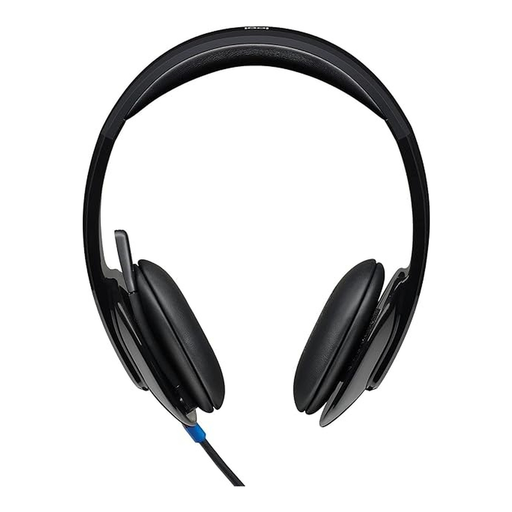
Logitech H540 stereo USB headset
For tutorials where you want your voice to come through clearly and need quick access to the mute control, this headset has controls on the ear cup.
Features listed include USB connectivity, an adjustable microphone boom, and volume and mute controls with an indicator.
View at Joybuy
 No image available
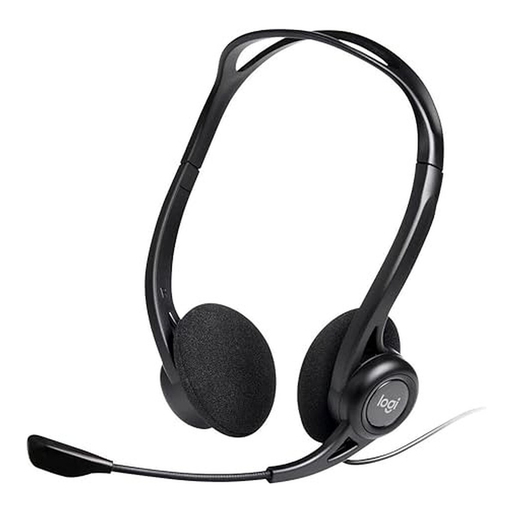
Logitech 960 stereo USB headset
This wired stereo headset is worth considering for online tutorials if you want to control the microphone and volume using the built-in controls.
The product details specify a 2.4 m cable and an adjustable microphone boom.
View at Joybuy
 No image available
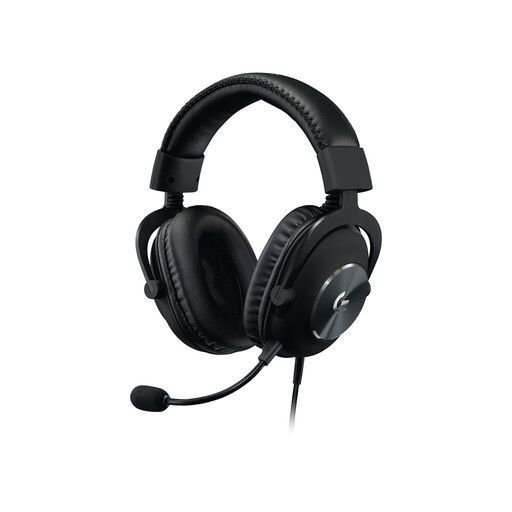
Logitech G PRO X gaming headset, USB
If you want to remove the microphone during breaks in your presentation or conversation, the product description lists a detachable microphone and a mute button on the cable.
The headset is described as coming with an external USB sound card; Logitech G HUB is listed for advanced features.
View at Joybuy
 No image available
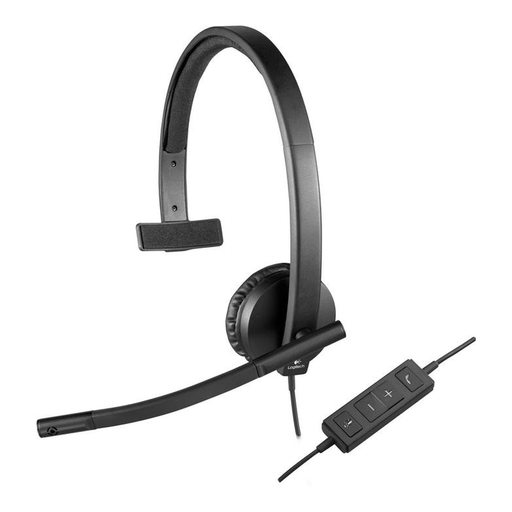
Logitech H570e mono USB headset
The mono version is worth considering if you want to keep one ear free during your tutorial.
Features listed include USB-A, replaceable ear cushions, and an in-line control with mute and an LED indicator.
View at Joybuy
 No image available
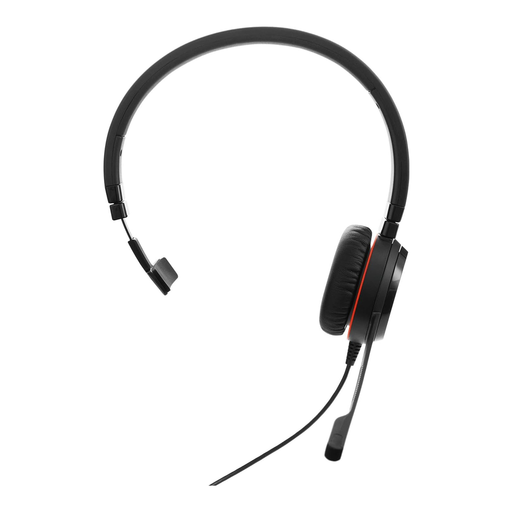
Jabra Evolve 20 SE mono headset, USB-C/A
This wired mono headset suits situations where you want to keep one ear free and have call controls to hand during your tutorial.
The description lists USB-C and USB-A, as well as an external controller for answering, muting and ending calls.
View at Joybuy
Frequently asked questions
How do I test the headset before my first tutorial?
In Teams, select your microphone and speakers in the device settings and use the test call. Zoom also offers a speaker and microphone test. Check that the mute function works as expected too.
Is a headset enough if other people in the meeting room will be speaking?
Not necessarily. A headset worn by the presenter isn’t guaranteed to pick up everyone’s voice in the room. Plan separately how you’ll capture the other people’s audio and test it; Zoom says computer audio enabled on several devices in the same room can cause echo.
Do I have a right to cancel an online purchase, and what happens if an item is faulty?
For a distance purchase from a business seller, you generally have 14 days from delivery to cancel; exceptions and possible return costs may apply. According to consumer information from the European Union, faulty goods are covered by a statutory guarantee of at least two years from receipt, with the seller responsible. Don’t assume these rules apply to a business purchase or a private sale without checking first.
How should I dispose of a faulty USB headset in Germany?
A USB headset is waste electrical equipment and must not go in household rubbish. The German Environment Agency lists options including local recycling centres and retailer take-back schemes; check your local collection point.


