What should you look for when buying?
First, check whether the microphone can connect directly to your recording computer via USB. Then consider where it will sit on your desk and whether you want to edit your voice and software audio separately.
| Buying priority |
What to check before buying |
Who is this important to? |
| Clear speech despite fan noise |
Check for USB audio output, the microphone’s polar pattern and your speaking position, then make a test recording with the fan running. |
If I’m speaking on my own and can position the microphone close to me and appropriately in relation to the fan, my main priority is recording a clear voice. Around 40% of consumers put speech clarity in the presence of fan noise first. |
| Edit voice and software audio separately |
Check USB compatibility and, if needed, for a headphone output; make a test recording with both microphone and software audio. |
If my tutorial includes program sounds, I want to be able to adjust their volume independently of my voice later. Around 30% of consumers prioritise editing audio separately. |
| Practical microphone positioning |
Check what’s included, the mounting options and the available space around your screen, keyboard and mouse. |
If my desk is busy, I need to position the microphone close to me without blocking the screen or input devices. Around 20% of consumers focus mainly on the setup. |
| A straightforward overall setup |
Check the USB cable, mount, controls and any required software for the specific offer. |
If I want to avoid extra hardware and complicated editing, I want to know before buying exactly what I’ll need for the connection I have in mind. Around 10% of consumers prioritise keeping the overall setup simple. |
Microphones for direct USB recording
This Joybuy selection includes dynamic USB microphones and USB condenser microphones for recording speech on a computer. Check that the connections and setup of each model suit your workspace; a product claim about noise reduction is no substitute for a test recording with your own fan running.
 No image available
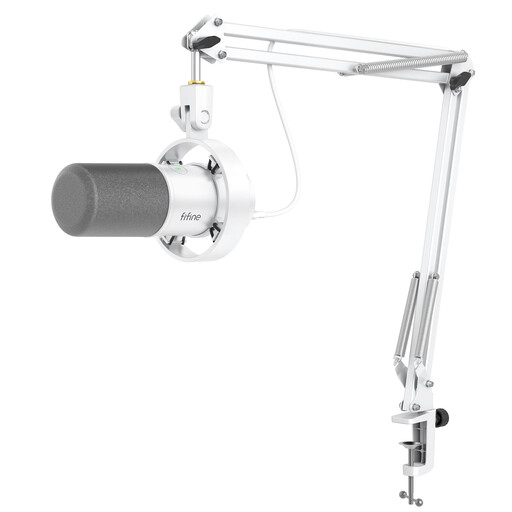
FIFINE K688CTW dynamic USB/XLR microphone with boom arm
The dynamic design and included boom arm make it easy to position the microphone close to you when recording speech on a computer.
USB and XLR connections, plus a mute button, volume control and headphone socket. According to the product description, the clamp is designed for desks less than 2 inches thick.
View at Joybuy
 No image available
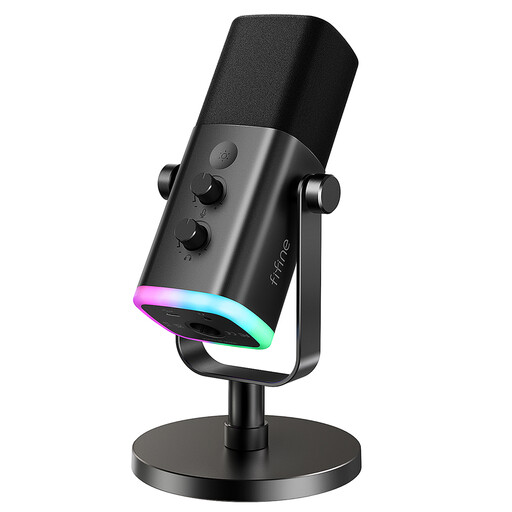
FIFINE AM8 dynamic USB/XLR microphone
The headphone socket and monitoring volume are useful for listening directly to your audio while recording speech.
Dynamic microphone with USB/XLR connection, mute button, headphone socket and desktop tripod.
View at Joybuy
 No image available
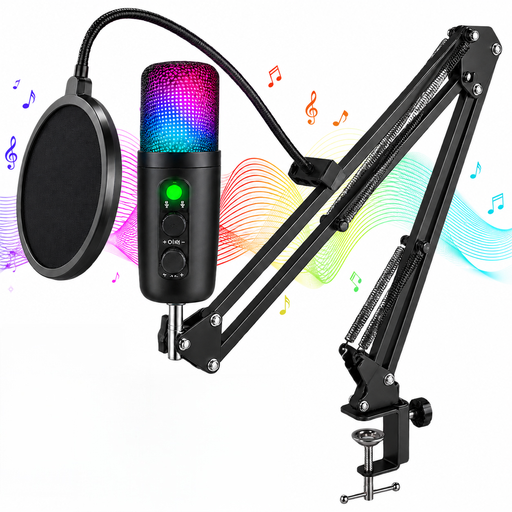
USB condenser microphone for gaming and streaming, 7-piece set
The set is designed for direct USB recording on a computer; check the specific offer to see exactly what’s included.
The description lists a USB cable, Type-C adapter, mute button and headphone socket. Noise reduction is a product claim, not proof that fan noise will be eliminated.
View at Joybuy
 No image available
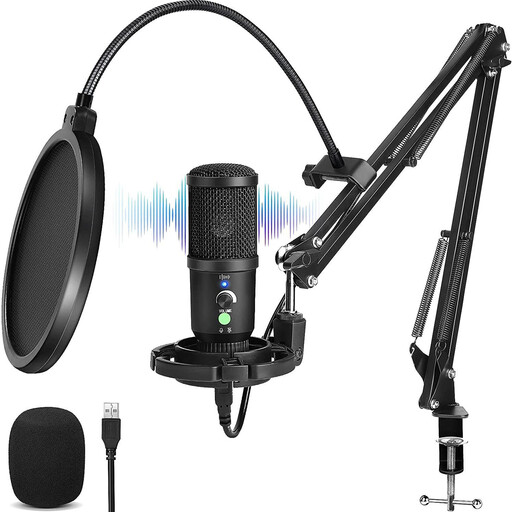
USB condenser microphone with cardioid polar pattern and scissor arm
The cardioid polar pattern and scissor arm are useful features if you want to position the microphone at your desk.
The description lists a gain control, mute button, headphone socket and monitoring. Adaptive noise cancellation is a product claim; make a test recording to see how well it handles your fan noise.
View at Joybuy
Frequently asked questions
How should I position the microphone if the fan is running while I speak?
With a dynamic microphone designed for this purpose, speak consistently into its intended pickup side and position it to suit your speaking position. RØDE recommends a distance of around 5–10 cm for the PodMic USB; for other models, follow the relevant manufacturer’s guidance. Listen to a test recording with the fan running.
Can I remove fan noise after recording my screen?
Audacity explains how to reduce noise using a noise profile taken from a section without speech. A satisfactory result isn’t guaranteed if the noise is loud or varies; listen to the edited voice and check for artefacts.
How can I edit software audio and voice separately?
OBS explains how to assign desktop audio and microphone audio to separate tracks in the advanced recording settings. Before recording for real, make a short test file to check that your editing software picks up the tracks you need.
How can I avoid confusion between similar microphone models?
Check the full model name and connections of the specific variant against your requirements. In particular, make sure it has a USB audio output and check which mount or accessories are included in the offer.
Who is responsible if a microphone is faulty, and can I cancel an online purchase?
If you buy from a business seller, your statutory rights for faulty goods are against the seller; a manufacturer’s warranty is separate. In Germany, distance contracts with consumers generally come with a right to cancel, usually within 14 days of receiving the goods ordered. Exceptions and the terms of the specific contract should be checked.


