What should you consider when buying?
First, check that you can connect your backup to the devices you plan to use and open the files again. Then consider how much storage you actually need, how to protect confidential files and – if you regularly copy large files – the write speed.
| What matters |
What to look for when buying |
Who should pay particular attention? |
| Restoring your files |
Allow enough space for your files and the backup versions you want to keep. After copying, try opening some files on the device you’d use to restore them. |
I don’t want to discover only after a device failure that my backup can’t be read; that’s why around 36% of consumers prioritise being able to restore their files. |
| Connection and file access |
Make a note of the ports on every device you actually use, and test access to your files on each device you’d use to restore them. If you switch between USB-A and USB-C, a stick with both connectors could be an option. |
If I need to open teaching files on devices with different ports, the right connector is essential; around 29% of consumers put device compatibility first. |
| Confidentiality |
First, check which data you’re allowed to store on the stick and what your school requires. For the exact model, check what its encryption covers, which devices it supports and how you can recover access if you lose the password. |
If my backup contains confidential or personal data, I want to prevent unauthorised access and meet the required security standards; around 21% of consumers prioritise confidentiality. |
| Copying time |
For regular, large backups, write speed matters more than a headline read speed alone. Compare figures for the exact capacity you’re considering, and distinguish between manufacturer claims and measured results. |
If I regularly copy large collections of teaching materials, I don’t want to wait unnecessarily long for the transfer to finish; around 14% of consumers put copying time first. |
USB sticks at Joybuy
The selection below includes standard USB sticks for local file copies, as well as a model with USB-A and USB-C connectors for switching between devices. Before buying, check that the capacity and connector suit your backup plan.
 No image available
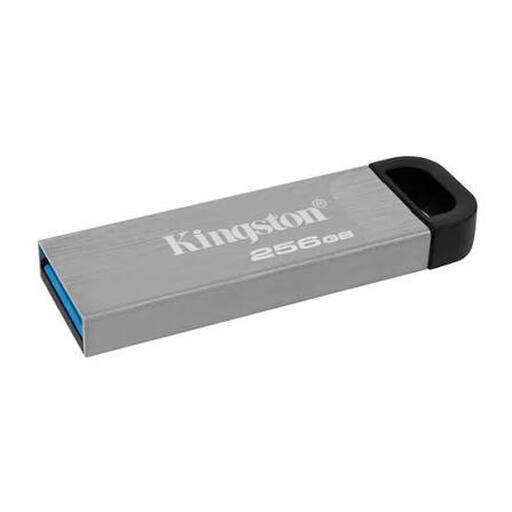
Kingston DataTraveler Kyson 256 GB
For a local copy of teaching files if you’re looking for a USB stick with the stated capacity.
Capacity: 256 GB.
View at Joybuy
 No image available
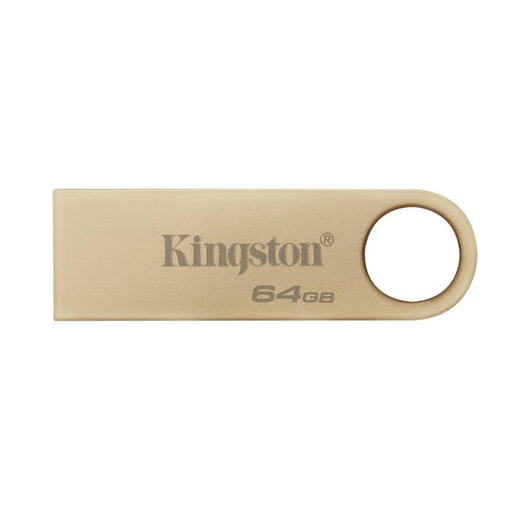
Kingston DataTraveler SE9 G3 64 GB
For teaching materials stored locally, if 64 GB is enough for your files and the backup versions you plan to keep.
Capacity: 64 GB. Figure stated in the product details: 220 MB/s.
View at Joybuy
 No image available
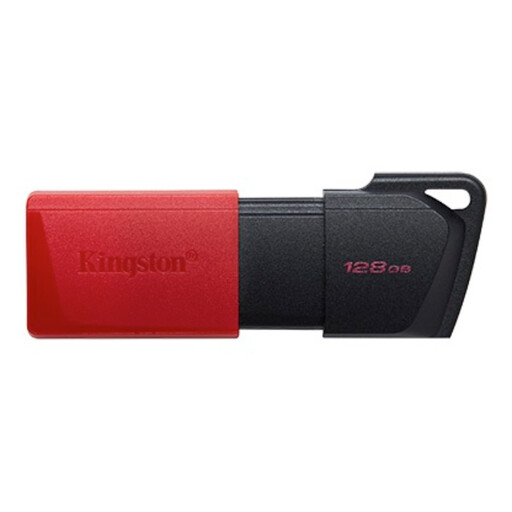
Kingston DataTraveler Exodia M 128 GB
For a local file copy on a device with a USB-A port, provided the stated capacity suits your backup plan.
Capacity: 128 GB. Interface according to the product name: USB 3.2 Gen 1. Colour option: Black + Red.
View at Joybuy
 No image available
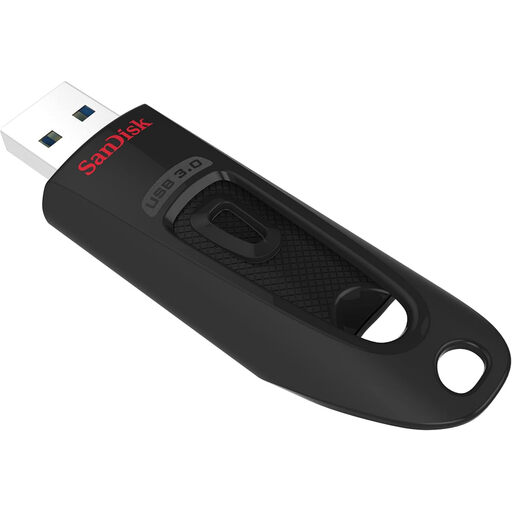
SanDisk Ultra 256 GB USB 3.0
For teaching files stored locally on a device with a USB-A port, if 256 GB is enough for your backup.
Capacity: 256 GB. Interface according to the product name: USB 3.0.
View at Joybuy
 No image available
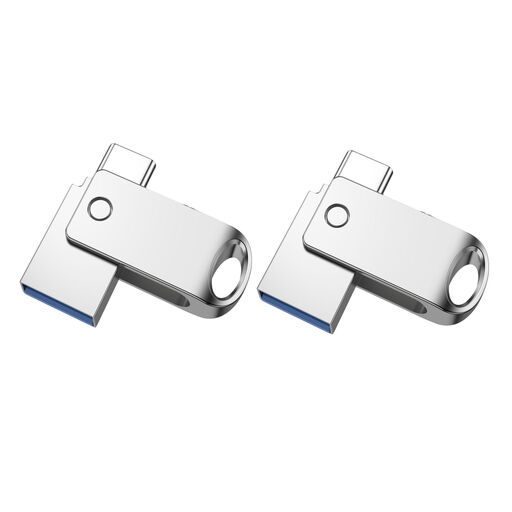
Kexin 2-in-1 USB stick 32 GB, USB-A and USB-C
For accessing files on devices with USB-A and USB-C, if you want to use a local copy across devices with different ports.
Capacity according to the product name: 32 GB. Interface: USB 2.0. Pack: 2 Pack.
View at Joybuy
Frequently asked questions
Is a USB stick on its own enough for a backup?
Not necessarily. Keep another copy separately and test that you can restore the files. The Federal Office for Information Security stresses that you should check your ability to restore files. The Bavarian school guidance also makes clear that synchronisation alone is no substitute for a backup.
Is there anything I should check if I’m using Windows and Mac computers?
Yes. Check the connection and file access on both devices before relying on your backup. Kingston lists exFAT as an option for using its DataTraveler with macOS and Windows, and warns that reformatting will delete existing data.
What ongoing costs or service details should I consider?
If needed, budget for a second backup drive, any required adaptors and the time needed to manage passwords. Check the warranty terms for the exact model: Kingston lists a five-year warranty for the DataTraveler Duo. A warranty is no substitute for an additional copy of your files.
Can personal school data be stored on a USB stick?
There’s no single answer that applies to every school and every German state. Check with the relevant authorities whether storing data on the specific device is permitted and what security measures are required. In its guidance, the Bavarian State Ministry for Education and Cultural Affairs requires encryption when confidential data is stored in places that unauthorised people can access; this specific requirement is not applied here to every German state.
What happens if I lose the password for an encrypted stick?
You may lose access to your data. The Bavarian State Ministry for Education and Cultural Affairs notes that encrypted data cannot be accessed without the password or recovery key and the associated programme. Before using a stick for backups, also check the rules on incorrect password attempts for the exact model.


