For frequent transfers of large image folders
If you regularly transfer large image folders, you’ll need enough storage and a suitable write speed for the specific model. Check that the capacity is sufficient for all the folders you need at once.


Choose a USB stick based first on the space you need for all the image folders you want to carry at once, then on the connectors and file system supported by the devices you’ll use. If you regularly copy large folders, the write speed of the specific model on the studio computer is what matters. For confidential images, you’ll also want suitable access protection. Keep important originals or backups separate from the stick you use to transfer files.
If you regularly transfer large image folders, you’ll need enough storage and a suitable write speed for the specific model. Check that the capacity is sufficient for all the folders you need at once.
If you work on computers with different connectors or operating systems, you’ll need to be able to open your images on every device you plan to use. Having the right connector doesn’t necessarily mean you’ll be able to access your files.
If you’re taking images with you that shouldn’t be accessible to unauthorised people, check the access protection and make sure you can unlock the stick on the devices you need. Keeping a separate backup is a separate task.
If you’re copying portfolio images between shared studio devices, start by working out which folders you’ll need at the same time. Then consider device access, write speed and protection for the files you’re carrying.
| What matters | What to check before buying | Who should pay particular attention? |
|---|---|---|
| Space for image folders | Compare the capacity of the specific model with the size of all the folders you’ll need at once; check the available storage on your device. | If I need to carry several portfolio versions at once, I want to know beforehand whether they’ll all fit on the stick. For around 25% of consumers, space for image folders is the top priority. |
| Access on studio devices | Check the connectors and supported file system; try opening a file on every device you plan to use. | If I switch between computers with different connectors or operating systems, I need to be able to open the same images on all of them. Around 25% of consumers prioritise access across different devices. |
| Write speed | Check the write speed of the specific model. Kingston says USB 3.2 Gen 2 is required for optimum performance from the DataTraveler Max. | If I regularly copy large image folders onto the stick, I want to compare write speeds rather than just read speeds. For around 19% of consumers, transfer time is the main concern. |
| Confidentiality | Check the type of protection and how to unlock the stick; make sure you can unlock it on the computers you need to use. | If I’m carrying confidential images, I want to make it harder for unauthorised people to access them without running into problems unlocking the stick on the computer I’m using. Confidentiality is the top priority for around 19% of consumers. |
| Separate backup | Plan to keep another copy separately and check that you can open the copied files. | If the stick I use to transfer files is lost or fails, I want to be able to access a second copy of my important images. For around 12% of consumers, the ability to recover files is the main concern. |
Copying files onto a stick is a write operation. So a quoted read speed doesn’t tell you how quickly the specific model will save large folders. The computer’s connector can also make a difference: Kingston says USB 3.2 Gen 2 is required for optimum performance from the DataTraveler Max range.
Compare the write speed of the model you’re considering and check the studio computer’s connector, rather than relying on the highest advertised speed.
If you regularly write large image folders to the stick, waiting around can eat into your studio time.
USB-A and USB-C connectors won’t automatically solve file system or access issues on the device you’re using. Transcend also notes that mobile devices need to support USB OTG to use the JetFlash 930C.
Try opening a test file on every device you plan to use. Back up any existing files before formatting a drive: Apple Support notes that formatting deletes files.
If you can’t access the files, you may need to use another transfer method or reformat the drive after backing up your data.
A stick you carry between devices could be lost or fail. The Federal Office for Information Security (BSI) explains that, without another copy, data may be irretrievably lost if the device goes missing.
Keep important images somewhere separate too, and check that you can open files from the backup.
Encryption protects stored data from unauthorised access, but it doesn’t automatically make a shared computer secure. The BSI also notes that USB media can play a part in the spread of malware.
Check the studio’s rules for removable media and use trusted computers. Treat access protection and data backups as two separate tasks.
The range includes dual-connector sticks, models designed for frequent transfers and the separate IronKey range with access protection.
The JetFlash 930C is designed for switching between devices with USB-A and USB-C connectors.
The Extreme PRO range includes a USB-A option for large files, provided the connector and specific model suit your needs.
The USB Flash Drive Type-C MUF-256DA/APC is an option for devices with USB-C.
The Joybuy products below offer a range of capacities, options for transferring files between USB-A and USB-C devices, and models with access protection.
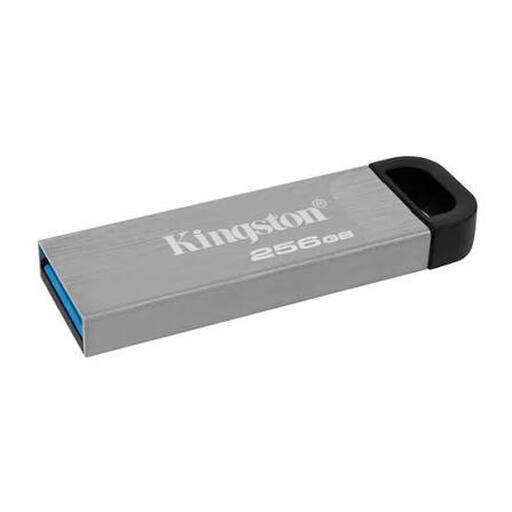 No image available
For larger image folders, if 256 GB is enough for everything you need to store at once.
The product description lists USB 3.2 Gen 1 and write speeds of up to 60 MB/s.
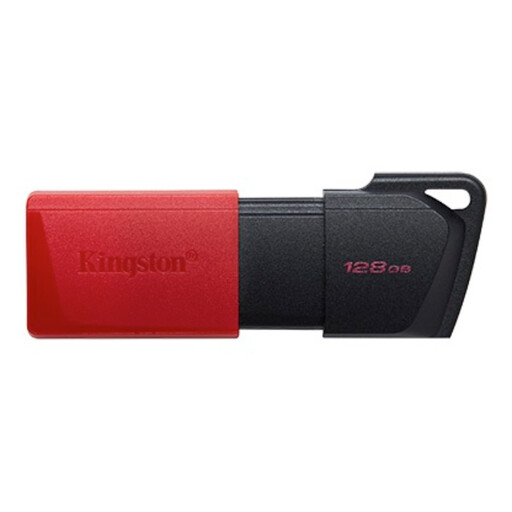 No image available
For image folders that fit within the stated 128 GB capacity.
USB 3.2 Gen 1; the product description lists write speeds of 40 MB/s.
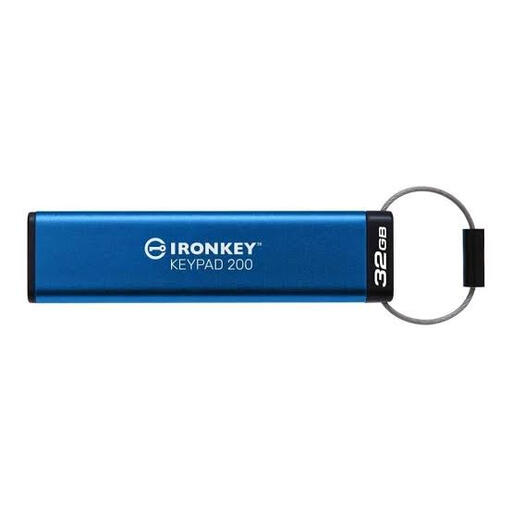 No image available
For confidential images when you need access protection and unlocking the stick fits into your studio workflow.
The product details list AES-256 hardware encryption and PIN entry using an integrated keypad. USB 3.2 Gen 1; the product description quotes write speeds of up to 115 MB/s.
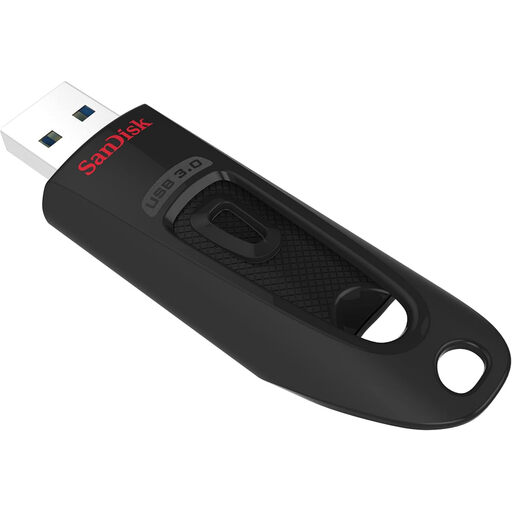 No image available
For larger image folders if the 256 GB capacity and USB-A connector suit your needs.
The product title lists 256 GB and USB 3.0.
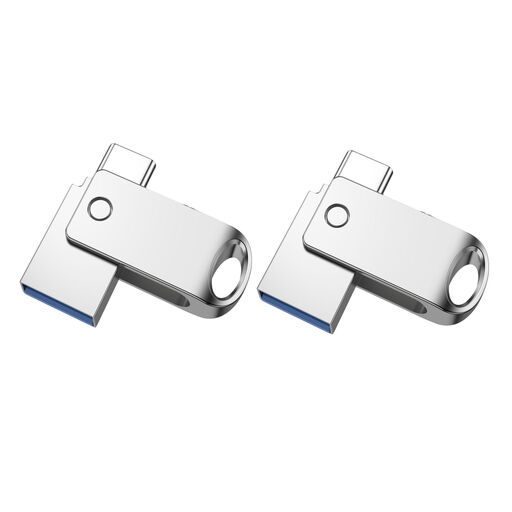 No image available
For transferring files between studio devices with USB-A and USB-C connectors, as long as the stated capacity is enough for your image folders.
USB 2.0 and OTG; the product title lists 32 GB and a 2-pack. The product description mentions a swivel design.
Apple Support lists exFAT as a formatting option for external drives over 32 GB that will be used with Mac and Windows. Even so, check access on the studio devices you’ll actually use. Back up any existing files before formatting, as formatting deletes them.
Microsoft lists 4 GB as the FAT32 file size limit; exFAT supports individual files larger than this. Before reformatting, check both the file size and whether the target devices support the file system, and back up any existing files.
No. Encryption protects against unauthorised access, but it doesn’t replace a separate copy in case the transfer stick is lost or fails. The Federal Office for Information Security (BSI) recommends keeping an additional backup of important data.