Collectors of large recipe and project archives
If you want to keep scans, related project files and several saved versions together, the total size of your folders and the actual usable storage space are what matter.


For recipe scans and large project folders, choose a USB stick with enough usable capacity for all your files and versions, and a connector that fits the devices you use. Check your folder sizes before buying. If you regularly copy large files, the write speed of the exact model matters more than its read speed alone. A fast or encrypted stick is no substitute for keeping a separate copy or testing that you can restore your files: Germany’s Federal Office for Information Security (BSI) notes that the lifespan of storage media cannot be predicted precisely.
If you want to keep scans, related project files and several saved versions together, the total size of your folders and the actual usable storage space are what matter.
If you copy large folders regularly, consider write speed and recovery testing separately. A copy is only useful if you can open important files from it. The BSI recommends restoring backed-up data to check it.
If you switch between USB-A and USB-C devices, check that the connectors fit and that all your devices support the file system. If you carry personal files with you, clearly stated access protection may also be important.
| What matters | What to check when buying | Who is it important to? |
|---|---|---|
| Space for scans and multiple folder versions | Work out the total size of all the folders you need to keep at the same time, then compare it with the usable storage space of the exact model. | If I want to keep several scans, project files and older versions together, I don’t want to underestimate how much space I need. Around 31% of consumers are likely to put storage capacity first. |
| A recoverable, separate backup | Open selected scans after copying them, and store the USB stick separately from your computer. | If I want important files to remain available if a device fails, I want to do more than create a backup: I need to be able to read the files from it too. Around 25% of consumers are likely to prioritise recovery. |
| Write speed when copying large folders | Check the write speed of the exact model and your computer’s USB port. Maximum speeds do not guarantee transfer times. | If you regularly copy large project folders, you’ll want to have a good idea of how long the write process will take. Around 19% of consumers are likely to put write speed first. |
| Connectors and file system for multiple devices | Check the USB-A and USB-C ports and the file systems supported by all your devices. FAT32 limits individual files to 4 GiB. | If I switch between devices with different ports, I want to be able to open the files on both. Around 13% of consumers are likely to prioritise the connector and file system. |
| Access protection for files you take with you | Check whether the exact model explicitly offers encryption and how you can unlock your files when needed. | If I keep personal documents on a USB stick while I’m out and about, I want to restrict access if it’s lost and still be able to retrieve my login details. Around 12% of consumers are likely to put access protection first. |
Any storage device can fail, and the Federal Office for Information Security says its lifespan cannot be predicted precisely. Without a separate copy, you could lose both the original and the backup at the same time.
Keep the original and the backup in separate places, and regularly open selected files directly from the copy.
Write speed matters when you’re transferring files to a USB stick. Manufacturers’ maximum speeds also depend on the port and device you use, and don’t tell you how long it will take to transfer a particular folder.
Compare the write speed quoted for the exact model with your computer’s port, rather than relying on the biggest MB/s figure alone.
Having the right USB-A or USB-C connector doesn’t guarantee that a device supports the stick or its file system. Mobile devices may also need to support USB OTG.
Check the connector and file system on both the backup and recovery devices. For mobile devices, also check whether they support USB OTG.
The DataTraveler ranges cater for different connector and storage needs. IronKey Vault Privacy 50 is a separate range for buyers specifically looking for hardware encryption.
The JetFlash 930C is worth considering if you want to use a USB stick with compatible USB-A and USB-C devices.
The Extreme PRO USB 3.2, model SDCZ880-512G-G46, is a documented 512 GB USB-A option.
The 512 GB Dual QuickStick #32042 is designed for switching between compatible USB-A and USB-C devices.
The FIT Plus MUF-256AB/APC is a compact 256 GB USB-A model.
This selection includes USB sticks with USB-A and USB-C connectors for switching between compatible devices. Before buying, check that the capacity and file system suit your files and devices.
 No image available
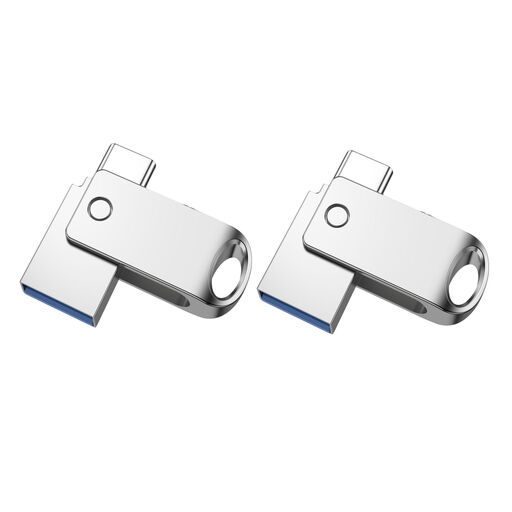
For switching between compatible USB-A and USB-C devices; the product details also mention OTG.
USB 2.0; 32 GB; pack of 2. Check USB OTG support on mobile devices before buying.
 No image available
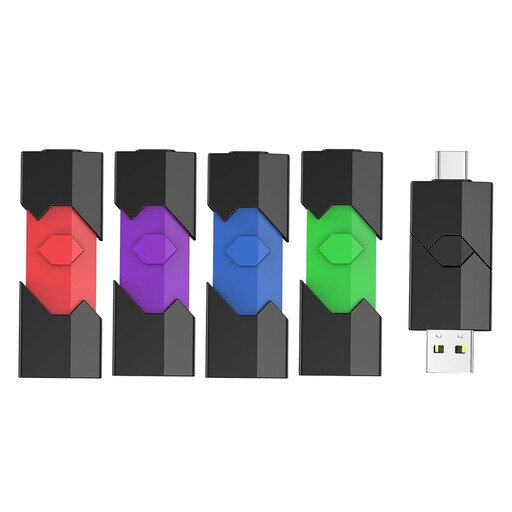
The product description lists USB-A, USB-C and OTG, as well as different colours to help organise separate projects.
USB 2.0; pack of 5. Check USB OTG support on mobile devices, and make sure the stated storage capacity suits your needs.
 No image available
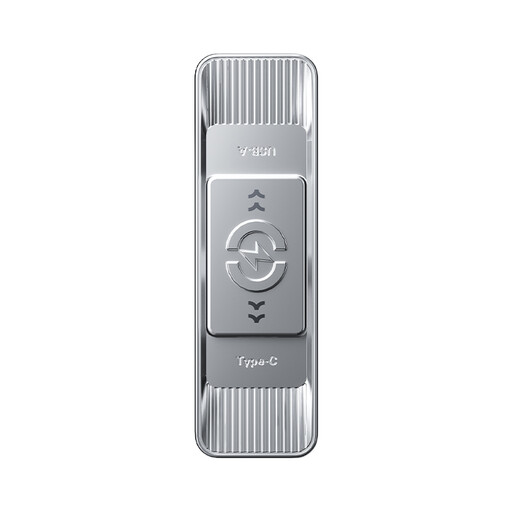
For switching between compatible devices with USB-A and USB-C ports; the title quotes read speeds of up to 570 MB/s.
128 GB; USB 3.2 Gen 1; USB-A and USB-C. The quoted read speed does not tell you how fast the stick will write during a backup.
 No image available
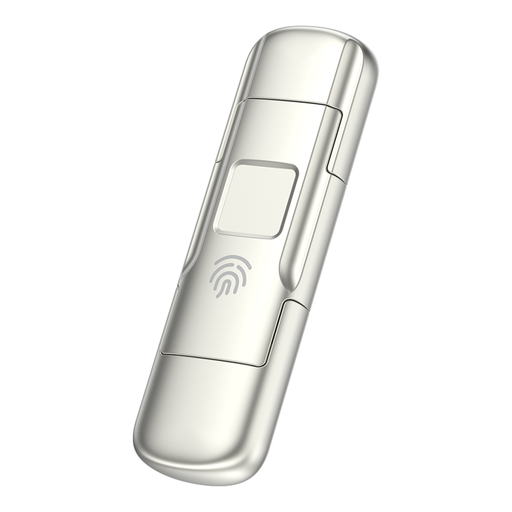
For large folders on compatible USB-A and USB-C devices; the product description mentions fingerprint access.
256 GB; USB 3.2 Gen 1; up to 550 MB/s read and 500 MB/s write according to the product title. The product description states that data in the secure partition cannot be recovered if both the password and fingerprint access fail.
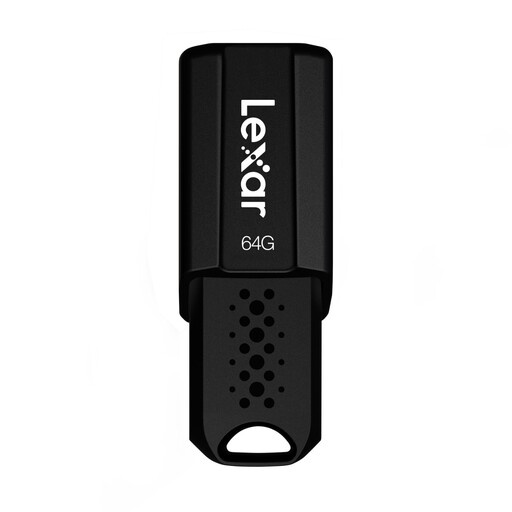 No image available
An option if 64 GB is enough for the scans and documents you’ve selected.
USB 3.1; up to 150 MB/s read according to the product title. No write speed is specified.
Add up the size of all your scan and project folders on your computer, including any versions you want to keep on the stick at the same time. Compare the total with the usable space on the exact model, which may be less than its stated capacity.
The capacity of the stick isn’t the only thing to consider: Microsoft gives FAT32 a maximum individual file size of 4 GiB, while its comparison shows that exFAT has a higher limit. Before reformatting, check which file systems all your devices support, and make another copy of any files already on the stick.
Try opening important scans directly from the copy and check the folder structure. The Federal Office for Information Security recommends keeping the backup in a separate location from your PC. The lifespan of storage media cannot be predicted precisely.
Not necessarily. For the Verbatim Dual QuickStick, the manufacturer explicitly states that the included Nero backup software is only suitable for Windows. Check software support separately from whether the stick can be connected to your device.