Choose a capacity that suits your existing scans and the versions you want to keep, then check the connections on your devices. A USB stick won’t keep older versions for you: name each version separately or use a suitable backup feature, test that you can restore your files and keep another copy somewhere separate. If you make frequent, large backups, the write speed of the specific model matters more than an advertised read speed.
Who is this backup for?
Collectors of multiple recipe versions
If you regularly edit scans or transcriptions, you may want to retrieve an earlier version when needed. Microsoft Support explains how to browse and restore saved versions using File History. Alternatively, you can organise each version separately.
Keepers of irreplaceable family scans
If you want to be able to restore your files after a device failure, accidental deletion or damage at the place where they’re stored, plan to use more than one storage device. The German Federal Office for Information Security notes that the lifespan of storage media cannot be predicted precisely.
People using multiple devices
If you edit or share scans on devices with different connections, make sure the plugs are compatible with your devices. For example, SanDisk’s Ultra Dual Drive Luxe has both USB-A and USB-C; check the connections on other models individually.
What should you look for when buying?
First, check the size of your recipe folder and allow for the versions you want to keep in future. Then check that the connections, backup process and write speed suit your devices and copying habits.
| What you need |
What to check before buying |
Who is it important to? |
| Space for versions |
Add up the folder size and the versions you plan to keep; allow for separate folders or a versioning feature. |
If I don’t want a new backup to overwrite older edits, I’ll make sure to allow space for them. Around 29% of consumers put keeping older versions first. |
| Restoring files |
Keep another copy somewhere separate and try copying a file back. |
If my family scans are irreplaceable, I want to be able to restore them if the stick fails or goes missing. Around 29% of consumers prioritise protection against device failure or loss. |
| Connection compatibility |
Check the USB connections on all your devices, as well as the requirements of your backup software. |
If I switch between devices, I want to be able to connect the stick to each one I need and access the files. Around 18% of consumers put compatible connections for multiple devices first. |
| Write speed |
Compare the stated write speeds and, if available, tests for the exact capacity you want. |
If I make frequent, large backups, I don’t want to wait unnecessarily long for files to copy. Around 12% of consumers give recurring write tasks top priority. |
| Privacy |
For personal information, consider encryption and how you’ll access the key or password. |
If I take a stick containing personal scans with me, I want to make unauthorised access more difficult while still being able to access the files reliably myself. Around 12% of consumers prioritise privacy. |
Common buying misconceptions
-
Confusing a USB stick with a complete backup strategy
A single storage device can fail. If you keep the original and the copy in the same place, both could be affected by damage.
Plan for working files, organised versions and another copy kept separately. Try copying a backed-up file back and opening it.
Keeping a separate copy takes extra upkeep and may require another storage device.
-
Assuming a high read speed means a fast backup
The read speed doesn’t tell you how quickly the stick writes new backups. So, if you copy files regularly, the write speed of the model you choose is what matters.
Compare stated write speeds or independent tests for the exact capacity you want, rather than using a read speed to estimate how long copying will take.
-
Assuming the bundled backup software will work on every device
According to the manufacturer, the Nero software supplied with the Verbatim Store ’n’ Stay Nano is compatible with Windows only.
Before buying, check your operating system, connection and planned restore process. If the software isn’t compatible, you’ll need another suitable backup method.
Brands to consider
SanDisk
The Ultra Dual Drive Luxe is an option if you want to transfer scans between devices with USB-A and USB-C connections.
- SanDisk states read speeds of up to 400 MB/s for models of 64 GB and above.
- This manufacturer figure refers to reading, not an equivalent write speed. Check the write speed for the specific model.
Kingston
The DataTraveler Kyson is a USB-A option; IronKey is a separate product range for people who need encryption.
- Kingston states read speeds of up to 200 MB/s and write speeds of up to 60 MB/s for Kyson models from 128 to 512 GB.
- These are manufacturer figures, not guaranteed speeds for every file transfer. Encryption features on an IronKey model don’t automatically apply to the Kyson.
Verbatim
The Store ’n’ Stay Nano with USB-C may suit devices with this connection; software compatibility is also worth considering.
- Verbatim says the 256 GB Nano model comes with Nero backup software.
- According to Verbatim, this software is compatible with Windows only. Check that it works with the device you’ll use for backups.
Transcend
The JetFlash 920 is a USB-A option for people who transfer files regularly.
- Transcend states read speeds of up to 420 MB/s and write speeds of up to 400 MB/s for the JetFlash 920.
- These are manufacturer figures. Compare them with the stated speeds or tests for the capacity you’re actually planning to choose.
USB sticks at Joybuy
This selection of Joybuy products includes USB sticks for storing recipe scans and project versions, with a range of capacities, connections and access protection options.
 No image available
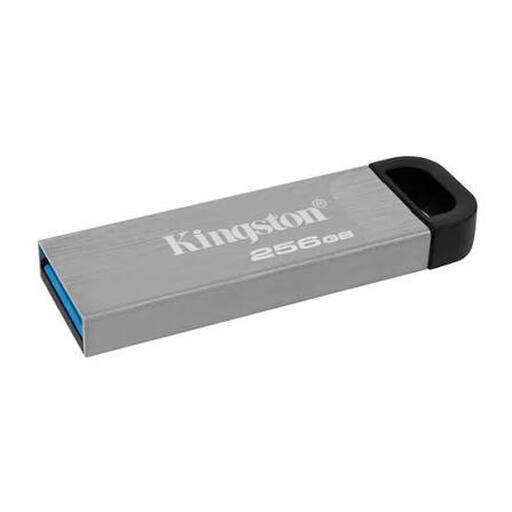
Kingston DataTraveler Kyson 256 GB
Could suit you if you save recipe files on a device with a USB-A connection.
Kingston states read speeds of up to 200 MB/s and write speeds of up to 60 MB/s for Kyson models from 128 to 512 GB. These are manufacturer figures, not a guaranteed transfer time.
View at Joybuy
 No image available
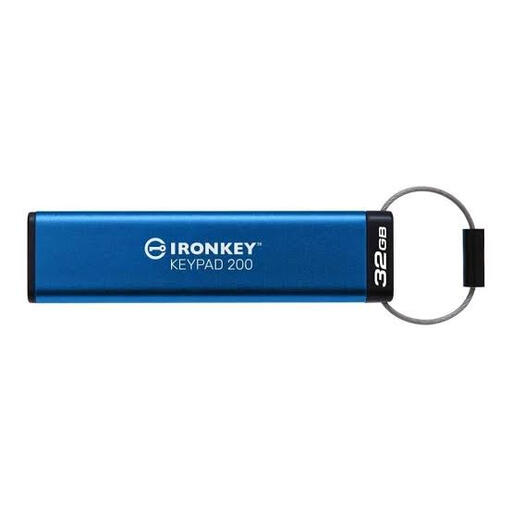
Kingston IronKey 32 GB Keypad 200
Could be worth considering for recipe scans containing personal information if you need access protection and can open the files on the devices you use.
The product name specifies 32 GB, AES-256 encryption and a keypad. Make sure you can store the PIN securely and test that you can restore your files.
View at Joybuy
 No image available
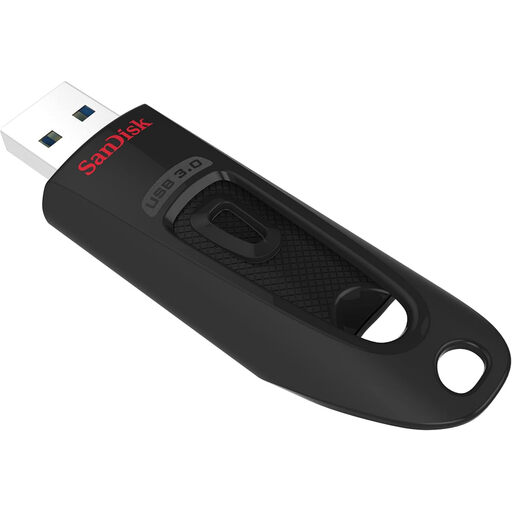
SanDisk Ultra 256 GB USB 3.0
The 256 GB model could be a good option for a collection of recipe files. Compare its capacity with the space your folder actually needs.
The product name specifies 256 GB and USB 3.0. A stick won’t create a version history for you.
View at Joybuy
 No image available
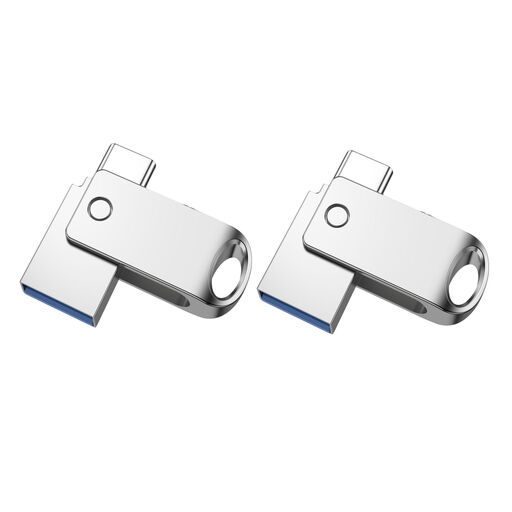
Kexin 2-in-1 USB 2.0, 32 GB, pack of 2
A pack of two could suit you if you want to organise project versions on separate sticks. Remember to keep important copies somewhere separate, too.
The product name specifies 32 GB, USB 2.0 and a 2-in-1 Type-C format. Check that the plugs are compatible with your devices.
View at Joybuy
 No image available
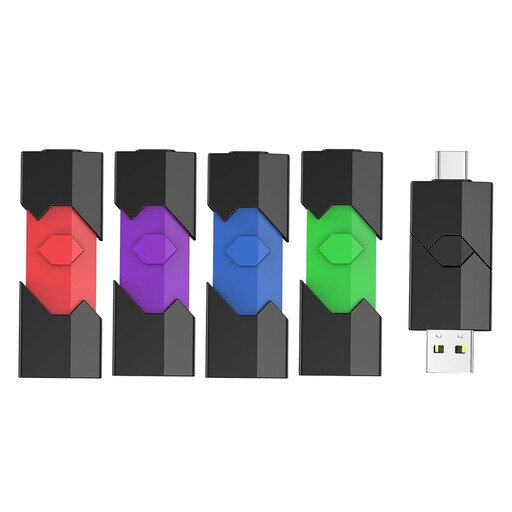
Kexin 2-in-1 Type-C, 64 GB, pack of 5
A pack of five could be useful for keeping files organised separately, as long as you label each stick clearly.
The product name specifies a 2-in-1 Type-C format, 64 GB and five sticks. Check that the connections are compatible with your devices before buying.
View at Joybuy
Frequently asked questions
Does a USB stick automatically save earlier versions of my recipes?
No. Simply connecting a stick won’t create a version history. On Windows, File History can be set up to save and restore earlier versions; check that it includes your recipe folder. Alternatively, name and save each version separately.
How can I check that my backup works?
After backing up, try copying an older version of a recipe back and opening it. The German Federal Office for Information Security recommends planning for recovery rather than relying on the storage device alone.
Is one stick enough for irreplaceable family recipes?
Relying on a single stick for your only backup is risky: the lifespan of storage media can’t be predicted precisely, and damage where it’s stored could affect the copy as well. Keep another copy somewhere separate.
What are my rights in Germany if a USB stick is faulty?
Your statutory rights under the legal guarantee are separate from any voluntary manufacturer’s warranty. The German Consumer Advice Centre explains the difference; consumer information from the Council of the European Union states that goods are generally covered by a statutory guarantee of at least two years. This doesn’t replace keeping a separate backup of your stored data.


