For collectors of large scan folders
If you group lots of scanned letters into project folders, check how much storage you actually need, including room for future growth. If you copy files regularly, take write speed into account too.


First, check the size of your scanned files and project folders, then choose a capacity and connectors that suit your devices. If you regularly copy large amounts of data, write speed matters. For confidential letters, you should also check which access protection suits the way you use the stick. Don’t rely on it as your only archive copy: the Federal Office for Information Security (BSI) notes that the lifespan of storage media cannot be predicted precisely.
If you group lots of scanned letters into project folders, check how much storage you actually need, including room for future growth. If you copy files regularly, take write speed into account too.
If you want to keep scans for the long term, plan a separate backup in addition to your USB stick and check that you can restore files from it. The BSI recommends allowing enough storage space for backups.
If you carry personal letters with you or share a USB stick with others, weigh up access protection and ease of use. Also consider how you would access another copy if you forgot your login details.
Start by checking how much storage your archive needs, then consider the write speed, connectors and security features that suit the way you plan to use it.
| What matters | What to check before buying | Who is this important for? |
|---|---|---|
| Capacity | Work out the total size of your folders, including room for future growth, and check the usable storage on the specific model. | I want enough space for all my scan and project folders, including planned additions. That’s why around 25% of consumers put sufficient capacity first. |
| Recovery | Keep a separate backup and open files from the backup medium at random to check they work. | If I want to keep letters for the long term, I want to be able to retrieve them even if a USB stick fails. That’s why around 25% of consumers prioritise preservation and recoverability. |
| Write speed | Check write speeds, not just read speeds, and distinguish manufacturers’ maximum figures from test results. | When I regularly copy large folders, I want to know how quickly data is actually written. That’s why around 20% of consumers put copying time first. |
| Confidentiality | Check the security features, ease of use and recovery plan for the specific model. | If I carry or share scans of personal letters, I want to be able to protect access to the files. That’s why around 15% of consumers prioritise confidentiality. |
| Connectors | Check that the connectors on the specific USB stick match those on the devices you use. | If I use the same scan folder on devices with different USB connectors, I want to avoid connection issues. That’s why around 15% of consumers check connector compatibility first. |
A high read speed doesn’t tell you how quickly large folders will be written to the USB stick. Manufacturers’ maximum figures also apply only under certain host conditions.
Check the write speeds and relevant test results for the specific model, rather than looking only at its USB standard or read speed.
Slow write speeds can make large backups take longer.
An encrypted or high-performance USB stick won’t protect you if it holds your only recoverable copy. The BSI notes that the lifespan of storage media cannot be predicted precisely.
Keep another copy separately and check regularly that you can open files from it.
A separate copy requires extra storage space and regular maintenance.
Test results for specific 128 GB models don’t prove that this capacity will be enough for your folders and future additions.
Work out how much storage you need before choosing a model, and bear in mind that usable storage may differ from the stated capacity.
The Extreme Pro USB 3.1 is a USB-A option for copying larger amounts of data; the variant covered here has 128 GB of storage.
The 128 GB Keypad Secure is designed for users who want to protect scanned letters they carry with them using an integrated access lock.
The High Speed Line is a USB-A option available in 64, 128 and 256 GB variants.
According to the manufacturer’s website, the JetFlash 890 has USB-A and USB-C connectors, making it suitable for switching between compatible devices.
The DataTraveler Duo is designed for switching between USB-A and USB-C devices, while the DataTraveler Kyson is a USB-A option available in different capacities.
This selection includes USB sticks for scan archives. Check that each variant has enough capacity for your folders and that its connectors are compatible with your devices.
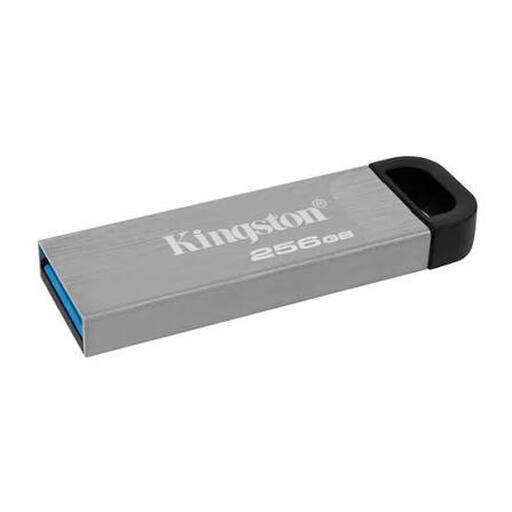 No image available
Consider this variant if your scan folders, including planned additions, will fit within 256 GB.
Capacity: 256 GB.
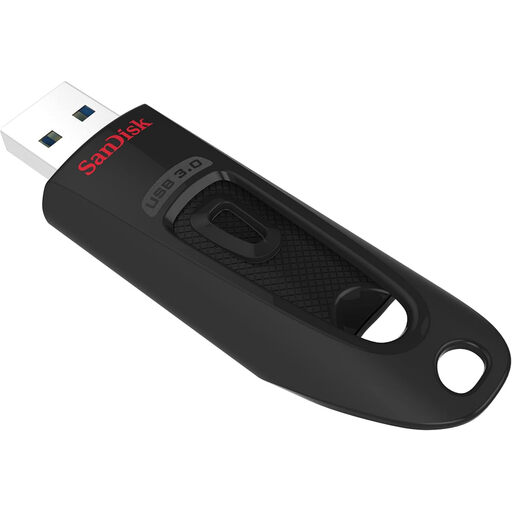 No image available
An option if the 256 GB variant has enough space for your archive. Before buying, also check the write speed and make sure the connectors are compatible with your devices.
Capacity: 256 GB. Interface according to product name: USB 3.0.
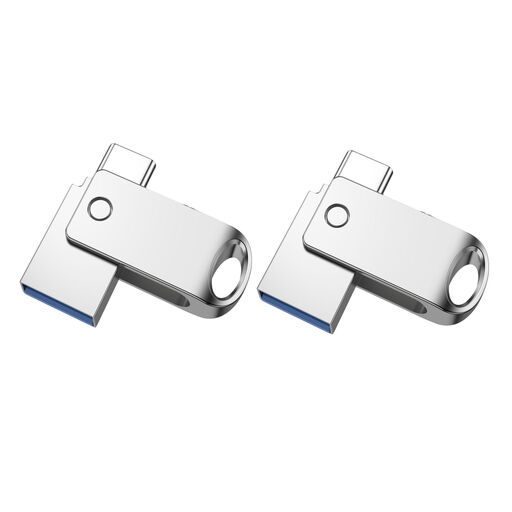 No image available
These two sticks may suit you if you need two separate storage locations with 32 GB each. Keep a backup copy in a separate place.
2 × 32 GB. USB-A and USB-C. USB 2.0.
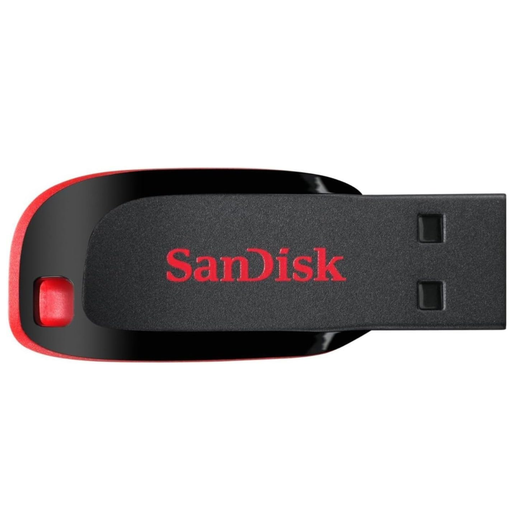 No image available
First check whether the 64 GB variant has enough space for all your folders and planned additions.
Capacity: 64 GB.
 No image available
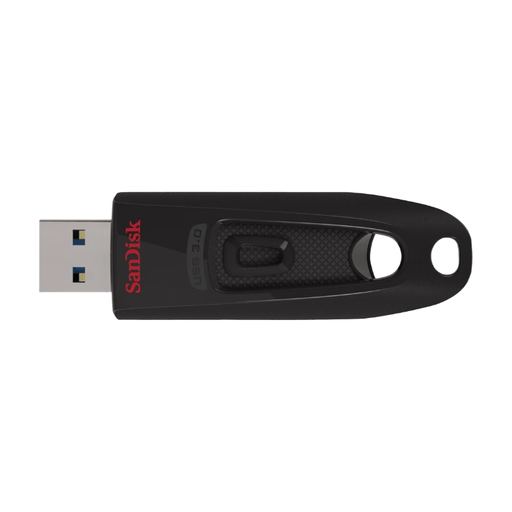
Choose this capacity only if it’s enough for your archive and future additions. Also check the write speed for copying large amounts of data.
Capacity: 64 GB. Interface according to product name: USB 3.0.
No, not if you want to guard against a device failure without losing your data. The BSI notes that the lifespan of storage media cannot be predicted precisely and includes recoverability as part of data protection. Keep a separate copy and occasionally check that you can open files from it.
First check the total storage required, then check the size of the largest individual file. If your current file system can’t store individual files of that size, check whether all the target devices support a suitable file system. Microsoft describes exFAT as a file system for very large files and storage devices. Don’t format a USB stick containing data unless you have a secure copy of those files.
Allow enough storage space and time to maintain another copy, kept separately. The BSI recommends leaving enough space for backups and notes that files must be recoverable.