
Lieferung heute & morgen

Qualitätsgarantie

Willkommens-Angebote freischalten: KOSTENLOSE Lieferung | Bis zu 80 % RABATT | Kostenlose 30-Tage-JoyPlus-Testphase
App herunterladen
A USB-C laptop can handle numerous tasks through a single port: connecting a monitor, transferring data, accessing a network and charging at the same time. In practice, however, USB-C docking stations differ considerably. A large number of ports does not automatically mean that all functions are available simultaneously.
The Joybuy Product Recommendation Officer therefore focuses on clear, verifiable features: supported standards, video output, charging power, operating systems and typical usage scenarios.
The shape of the connector alone says little about its functions. A USB-C port may only transfer data and power, or it may also support DisplayPort Alt Mode, USB Power Delivery and high data rates. Before buying a docking station for a laptop or tablet, check whether the device port supports video output.
If a port does not support DisplayPort Alt Mode, a USB-C hub with HDMI may only handle data and power, rather than connecting to an external monitor.
Specifications such as “4K” often refer to a single video output. When two monitors are connected, the refresh rate or resolution may change. For example, a model with two HDMI ports may support 4K at 60 Hz with one screen, but a lower refresh rate in dual-monitor mode.
The operating system also plays a role. Depending on the hardware, Windows often supports advanced display options such as MST. With macOS, the device generation and chip architecture may limit the use of multiple independent displays.
A USB-C docking station with USB-C Power Delivery can pass power through to the laptop, but it requires a USB-C charger to be connected. The advertised output of 60 or 100 W usually refers to the maximum input power. Some of this power is used by the docking station and connected devices.
You should therefore check the charging power your laptop requires and use a suitable, certified power supply. For power-hungry devices, a Thunderbolt docking station with a suitable power supply may be more appropriate than a compact USB-C multiport adapter.
For office work with one screen, a USB-C hub with HDMI supporting resolutions up to 4K at 60 Hz is often sufficient. For two monitors, the following specifications are crucial:
If you want to use several high-resolution displays, fast storage devices and a network connection at the same time, you should consider the bandwidth of the main connection. Thunderbolt 4 offers a different level of performance from a USB-C port with USB 3.2.
According to its specification, USB 3.2 Gen 1 reaches up to 5 Gb/s, while USB 3.2 Gen 2 reaches up to 10 Gb/s. In practice, the speed also depends on the cable, storage device and system load. USB-A 2.0 ports are better suited to keyboards, mice or receivers, while external SSDs require a faster USB port.
A docking station with Ethernet is useful for video conferencing, large downloads and stable network connections. Look for the Gigabit Ethernet standard with 10/100/1000 Mbit/s. Card readers with SD and TF slots are particularly practical for cameras, drones and mobile devices.
An aluminium casing can help dissipate heat, but it is no substitute for good ventilation. The device may become warm when many ports are in use at the same time. It should be placed on a stable, unobstructed surface and not covered with paper or fabric.
Also compare the cable length, dimensions and position of the ports. A short, permanently attached cable is practical when travelling, but may not offer enough flexibility at a desk.
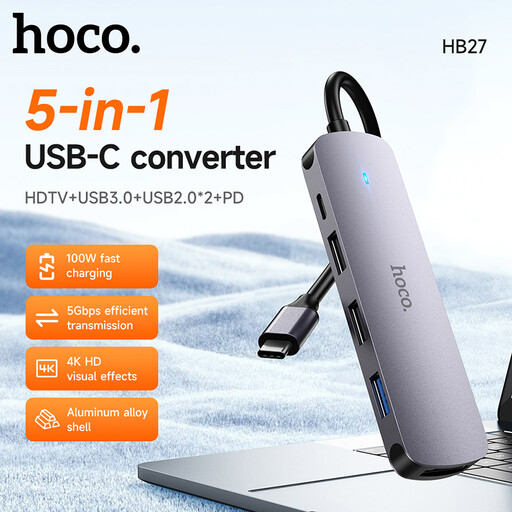
Why this product suits the profile: This 5-in-1 hub combines HDMI, USB ports and USB-C PD in a compact format for laptops, tablets or OTG-compatible smartphones.
The specifications explicitly state 4K at 30 Hz and up to 60 W PD. This makes the limits of the video output and charging power easier to assess.
HDMI, one USB 3.0 and two USB 2.0 ports, plus an integrated USB-C PD port with up to 60 W.
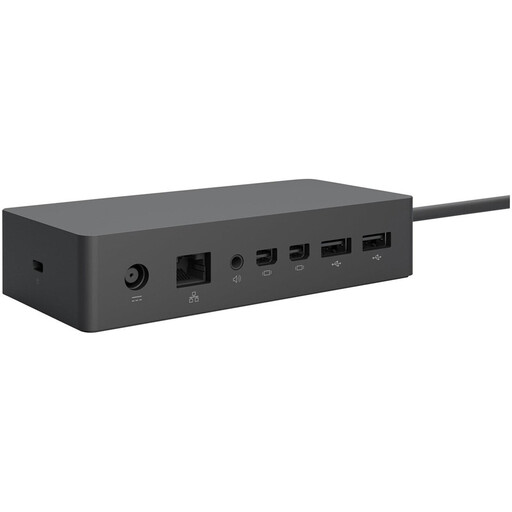
Why this product suits the profile: This Thunderbolt docking station is aimed at Windows users looking for a central connection for displays, USB devices, wired networking and audio.
The main connection is specified as Thunderbolt 4. This distinguishes it from USB-C hubs without comparable Thunderbolt support; compatibility should still be checked in advance.
Three Thunderbolt 4 and three USB-A 3.0 ports, Gigabit Ethernet and a 3.5-mm audio port.
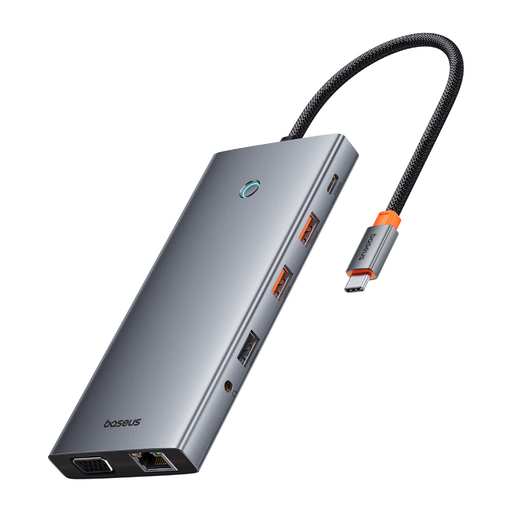
Why this product suits the profile: For creatives, students and users with numerous peripherals, this USB-C multiport adapter combines a wide range of connections for displays, storage, networking and audio.
The product specifications distinguish between USB-A and USB-C data ports, as well as the individual video outputs. The limits of the computer in question must be checked when using multiple monitors.
Two HDMI, one DisplayPort and one VGA output, 100 W PD, Gigabit Ethernet, plus SD and TF card readers.
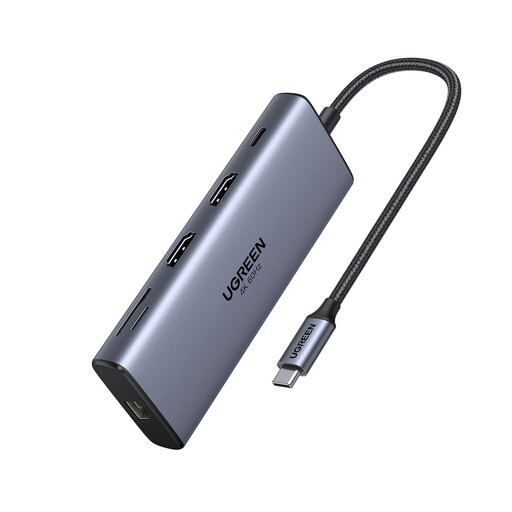
Why this product suits the profile: This configuration is designed for a permanent workstation with two HDMI monitors, wired networking and external storage media.
The product description specifies 4K at 60 Hz for both HDMI outputs and also points out the necessary device compatibility. This prevents it from being treated as automatically compatible with every USB-C port.
Two HDMI ports, two USB-C and two USB-A ports with up to 10 Gb/s, plus 100 W PD and Gigabit Ethernet.
We have put together a complete, regularly updated list of products that fully meet these strict selection criteria and the safety regulations applicable in the EU.
No. The key factors are the operating system, supported USB standards and the functions of the USB-C port. For video output, for example, the computer must support DisplayPort Alt Mode or Thunderbolt. The charging power and number of external monitors may also be limited by the particular laptop.
A USB-C hub is usually more compact and expands one port with several connections, such as HDMI, USB-A or a card reader. A docking station is often designed for a permanent workstation and offers more ports, power delivery, networking and multiple video outputs. However, the terms are not always used consistently by retailers.
There is no standard service life that applies in every case. It depends on usage, heat development, connection cycles, cable quality and the power supply. Good ventilation, suitable cables and using an appropriate USB-C PD charger can reduce everyday strain. Before buying, also check the warranty and returns conditions for the specific offer.