
Lieferung heute & morgen

Qualitätsgarantie

Willkommens-Angebote freischalten: KOSTENLOSE Lieferung | Bis zu 80 % RABATT | Kostenlose 30-Tage-JoyPlus-Testphase
App herunterladen
A USB-C hub can turn a single port into a versatile interface for monitors, USB devices, networks, memory cards and power delivery. However, product names can vary considerably: a compact USB-C multiport adapter is not automatically a fully equipped USB-C docking station. If you focus only on the number of ports or terms such as “4K”, you could end up buying a model that does not work as expected with your laptop, MacBook or tablet.
Not every USB-C port supports video output. In most cases, the port must support DisplayPort Alternate Mode. On some devices, USB-C is intended solely for data or charging. In such cases, a USB-C hub with HDMI, DisplayPort or VGA cannot transmit video signals, despite having the right connectors.
Thunderbolt 3 ports should not be treated as equivalent to every USB-C hub either. A Thunderbolt 3 adapter can offer special functions, but it requires a compatible device. According to its product description, the Choetech HUB-D03, for example, is designed exclusively for Thunderbolt 3 and not for a standard USB-C port.
Resolution must always be considered together with the refresh rate and the number of displays being used at the same time. A USB-C hub with 4K may output 4K at 30 Hz or 60 Hz, resulting in different experiences for work, video playback or gaming.
A USB-C hub for dual monitors also requires support from the operating system and the host port. macOS may have different limitations from Windows. When HDMI and VGA are used simultaneously, both screens may only be able to display the same image. This is the case with the MOKiN 8-in-1 model, for example, according to its product details: HDMI and VGA together support mirror mode at a maximum of 1080p.
A USB-C hub with Power Delivery passes power from the connected charger to the laptop or tablet. The “100 W PD” specification therefore does not necessarily mean that the hub itself includes a 100 W power supply. The actual power reaching the host device may also be lower, as the hub requires some power for its own functions.
You should therefore check:
For a keyboard, mouse and USB sticks, USB-A ports offering up to 5 Gbit/s are often sufficient. External SSDs or large video files benefit from USB-C or USB-A ports offering 10 Gbit/s. Photographers and video editors should look for separate slots for SD and microSD cards. A USB-C hub with an SD card reader is particularly useful when you want to transfer files directly at your mobile workstation.
For a wired network, an RJ45 Gigabit Ethernet port is important. A USB-C hub with Ethernet can provide a stable connection of up to 1,000 Mbit/s, provided that the router, cable and end device support this speed.
A USB-C hub with DisplayPort is suitable for displays with this input. If you use older presentation equipment, you may prefer a USB-C hub with VGA. For multiple screens, you must also check whether MST is available on Windows, or whether the relevant display support is available on macOS.
Aluminium housings can increase mechanical stability and support heat dissipation. A hub may become warm when several monitors, Ethernet, card readers and connected drives are active. It is therefore sensible to position it in a clear space with sufficient ventilation. A permanently attached cable measuring around 15 to 20 cm is convenient for mobile use, but may be impractical if the USB-C port is a long way away.
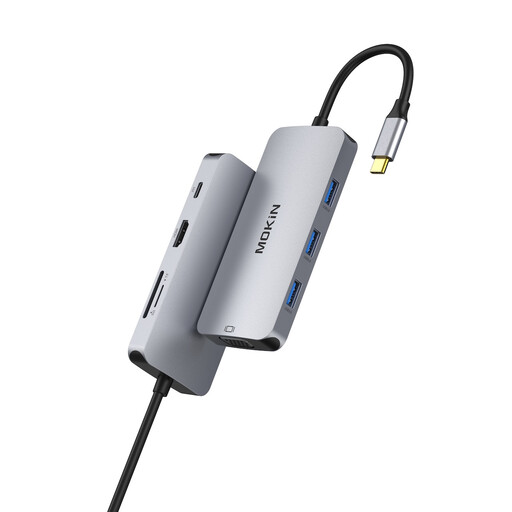
Why this product suits this profile: For home working, studying and mobile presentations, it provides three USB-A ports, HDMI, VGA, an SD/TF card reader and USB-C PD.
The technical specifications state separate resolutions for HDMI and VGA, as well as the restriction that applies when both are used simultaneously. This makes it easier to plan your monitor set-up before buying.
HDMI up to 4K at 30 Hz, VGA up to 1080p at 60 Hz and three USB 3.0 ports offering up to 5 Gbit/s, according to the product description.
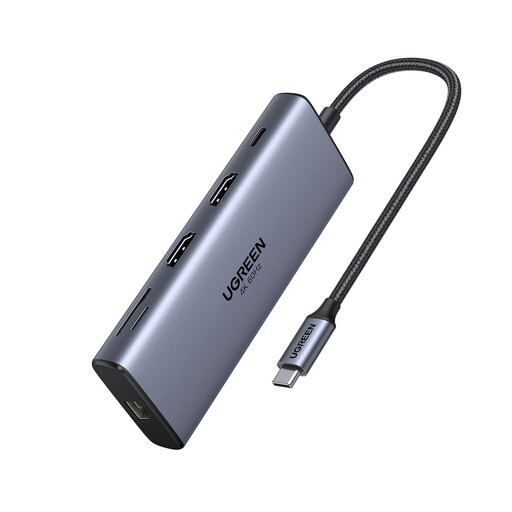
Why this product suits this profile: For a permanent workstation with two monitors, fast storage devices and a wired network, this model brings together multiple connections.
The specifications distinguish between refresh rate, data rate, Ethernet and PD output. This means you can choose based not only on a high number of ports, but also on specific performance figures.
Two HDMI ports with 4K at 60 Hz, USB-C 3.2 ports offering up to 10 Gbit/s, Gigabit Ethernet, an SD/TF reader and USB-C PD up to 100 W, according to the product description.
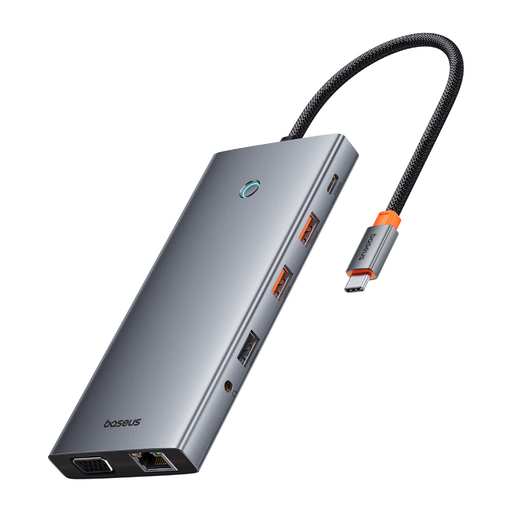
Why this product suits this profile: Creatives, photographers and users with extensive peripheral equipment get HDMI, DisplayPort, VGA, card readers, audio, Ethernet and USB ports in a single unit.
The product specification lists the individual standards, including USB 3.2 Gen 2 with up to 10 Gbit/s and RJ45 at 1,000 Mbit/s. Host support for multiple displays must still be checked.
13 ports, PD up to 100 W, DisplayPort up to 8K at 30 Hz according to the product details, plus SD and TF card readers.
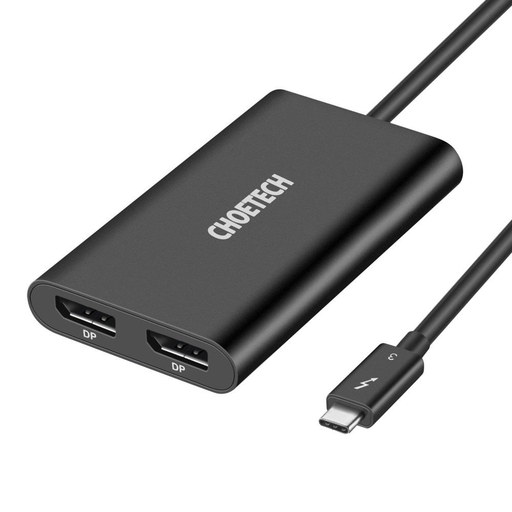
Why this product suits this profile: Suitable for users whose Thunderbolt 3 device needs to drive two DisplayPort monitors and who do not require a card reader or network connection.
The compatibility limitation is stated clearly: the adapter is intended only for Thunderbolt 3 ports. This reduces the risk of planning to use it with a data-only USB-C port.
Two DisplayPort outputs offering up to 4K at 60 Hz per port and a data rate of up to 40 Gbit/s via Thunderbolt 3, according to the product description.
We have put together a complete, regularly updated list of products that fully meet these strict selection criteria and the safety regulations applicable in the EU.
Before buying a USB-C hub, check the following points directly on your device:
MacBook models with an Apple chip may be subject to specific restrictions when using external displays. The hub manufacturer’s specifications therefore do not replace checking compatibility with the laptop or tablet manufacturer.
No. The MacBook’s USB-C port must support the required video and data transmission. In addition, macOS and the chip inside the device may limit the number and operating mode of external monitors. Before buying, you should check the model, operating system and desired display mode.
This depends on the hub, host device, operating system and connection standard. For example, a model may offer two HDMI outputs with 4K at 60 Hz, while the laptop may not fully support this combination. Mirror mode and extended desktop mode must also be considered separately.
A hub without a connected charger will normally draw power from the host device as soon as it is actively connected. Power consumption may increase when several USB devices, a network connection and monitors are in use. A USB-C hub with Power Delivery enables pass-through charging via a separate USB-C charger; the maximum power delivered depends on the charger, hub and laptop.