Digital artwork detail-checkers
If you check fine outlines, symbols or text and keep references or tools open on a second screen, look at resolution, readable scaling and how the displays can be arranged.


For fine outlines and text, consider resolution, readable scaling and the space needed for both screens. If you’re preparing colour-critical print work, you’ll also need to consider the target colour space, profiles and, where appropriate, calibration. Before you buy, check that your computer supports two external displays at the resolutions you need: a USB-C port on the monitor or a DisplayPort output alone doesn’t guarantee this. Apple Support advises Mac users to check the number of supported displays, the ports and the appropriate cables.
If you check fine outlines, symbols or text and keep references or tools open on a second screen, look at resolution, readable scaling and how the displays can be arranged.
For a defined print destination, suitable colour spaces, profiles and, where appropriate, calibration matter more than a single coverage figure.
If you want to run both displays from your existing laptop, check its display support and video connections against the cables you’ll need and its charging requirements.
First decide whether you’ll mainly be assessing digital designs or a defined print output. Then check that the resolution and scaling are easy to work with, and that your computer can drive both displays.
| What matters | What to look for when buying | Who is this most important to? |
|---|---|---|
| Fine details and a readable workspace | Consider the native resolution, screen size and scaling together with the space available for both displays. | When I check small paths, symbols or text, I want to see the details without the interface becoming hard to read at my chosen scaling. Around 29% of consumers put detail checking first. |
| Colours suited to the intended output | Match the output destination, colour mode and profiles; also factor in any accessories needed for planned calibration. | For a specific print job, I want to judge whether the colour mode, profiles and calibration suit my output destination. Around 29% of consumers prioritise their colour workflow. |
| Connecting two displays | Check the number and resolutions of displays supported by your computer, along with its video connections, cables and charging requirements. | If I want my laptop to run both screens at once, I want to know in advance that the computer and connection are up to the job. Around 24% of consumers put connection compatibility first. |
| Desk space and running costs | Compare the width and depth of both monitors, including their stands, as well as their adjustment options and model-specific energy information. | With two displays, I want to know whether both will fit on my desk and can be positioned as needed; power consumption matters to me too. Around 18% of consumers prioritise desk space and running costs. |
The monitor connection is only one part of the setup. Your computer must also support the number of displays and resolutions you want to use.
Check how both screens will connect to your specific computer model before choosing a connection method.
Depending on your computer, you may need extra cables or a different connection solution.
A coverage figure on its own is no substitute for suitable profiles or matching your setup to the specific output destination.
Decide on your print workflow first, then choose suitable colour modes and any accessories needed for planned calibration.
A calibration sensor is listed as an optional accessory for hardware calibration of the EIZO CS2740.
With two monitors, the stands and your preferred layout also need to fit the available space.
Measure the overall width and stand depth of both monitors, and check which adjustment options you’ll need at your workstation.
The information below applies to the specific models and product lines named. Use it as a guide for comparison, not as a blanket statement about an entire brand or product availability.
The ProArt PA279CRV is an example of a 27-inch 4K monitor with colour modes and DisplayPort daisy-chain connections.
The DesignVue range includes examples from the QHD PD2705Q to models with 4K resolution and a range of colour and connectivity features.
The ColorEdge CS2740 is an example of a monitor with features for a defined colour and calibration workflow.
The UltraSharp U2725QE is a 27-inch 4K example designed around a Thunderbolt hub.
The UltraFine 27UP850K-W is an example of a 27-inch 4K IPS monitor with USB-C and an adjustable stand.
The products below range from portable second-screen extensions for compatible laptops to 27-inch QHD monitors for digital designs. Before you buy, check that your computer supports two external displays.
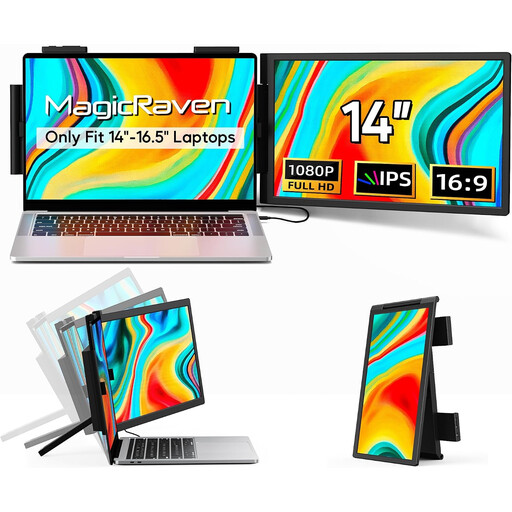 No image available
Described as a portable second screen for compatible laptops; the stated compatibility range is 14 to 16.5 inches.
FHD with 1920 × 1080 pixels, IPS and 60 Hz; HDMI, USB-A and USB-C are listed in the product title.
The product title lists Windows, Mac and Android as compatible systems. Check the connection options on your specific device.
 No image available
Described as a portable laptop display extender for a two-screen setup.
IPS display with 1920 × 1200 pixels and a 16:10 aspect ratio; USB-C and Mini HDMI are listed in the product title.
 No image available
This portable monitor is described as an addition to a laptop screen for a two-screen setup.
15.3-inch FHD display with USB-C; the product title also lists a thickness of 4.5 mm and a weight of 1.2 kg.
 No image available
An option for digital designs if you’re looking for a 27-inch QHD monitor with a height-adjustable stand.
Fast IPS panel with 2560 × 1440 pixels; the product title also lists DisplayPort and HDMI.
At 27 inches, QHD offers fewer pixels than 4K, as shown by the resolutions listed for ASUS and BenQ models. If you work with very fine outlines, factor this difference into your scaling choice.
 No image available
A suitable option for digital designs if a 27-inch QHD monitor with a tilting stand works for your setup.
Fast IPS panel with 2560 × 1440 pixels; the product title lists 120 Hz OC and 99% sRGB.
At 27 inches, QHD offers fewer pixels than 4K. If you’re checking fine outlines, factor the resolution and your chosen scaling into your decision.
No. A USB-C port on the monitor alone doesn’t guarantee this. Check the number of external displays your specific computer supports, its video connections and the cables you’ll need; Apple Support specifically recommends checking these points for Macs.
If you’re comparing colours directly across both displays, set the colour modes and profiles to the same output destination. Matching manufacturer coverage figures alone don’t guarantee consistent colour, so check your profiling and calibration workflow too.
Plan for both stands, the available desk space and your preferred arrangement together. Also check whether you can adjust the height, tilt or rotation to suit your workspace.
First compare the model-specific information on the EU energy label and in the product datasheet. To estimate your own costs, you’ll also need comparable power consumption figures, how long you use each monitor and your electricity tariff.