Key buying criteria
For a small desk, it’s worth checking the available space and setup first, then the resolution and aspect ratio. If you need to sign off colours, also consider the target colour space. The percentages give a rough indication of which of these priorities consumers put first when choosing a monitor for vector graphics.
| What matters |
What to check before buying |
Who should pay particular attention |
| Desk space and positioning |
Compare the width and depth with the stand, and check VESA mounting if relevant. BenQ lists the PD2506Q as 570.0 mm wide and 256.9 mm deep with the stand. |
If I need room on the desk for other work essentials, I measure the available space first; around 36% of consumers put desk space first. |
| Detail and workspace |
Compare native resolution and aspect ratio: the LG and BenQ models considered here are listed as QHD at 2560 × 1440 pixels, while ASUS and EIZO list 1920 × 1200 in a 16:10 format. |
If small outlines and text are important for visual checks, I compare the native display resolution rather than just the screen size; around 29% of consumers prioritise detail. |
| Colour checking |
Choose a target colour space and check the specific colour mode. EIZO lists hardware calibration for the CS2400S; in its test, PRAD rated the BenQ PD2506Q’s sRGB preset more favourably than its DCI-P3 preset. |
If I need to assess colours against a specified target colour space, I check the mode and calibration requirements carefully; around 21% of consumers put colour checking first. |
| Laptop connection |
Check the USB-C functionality and charging power against your computer. LG lists up to 15 W for the 24U631A-B, BenQ lists 65 W for the PD2506Q, and ASUS lists 96 W Power Delivery for the PA248CRV. |
If I want to connect and charge my laptop with a single cable, I check the charging power against its requirements; around 14% of consumers prioritise the connection setup. |
Monitors at Joybuy
This selection includes 24-inch monitors that may be suitable for general visual checks on a small desk. Most of the models listed offer Full HD; if you need to see particularly fine lines, make sure the resolution meets your requirements.
 No image available
KOORUI MB24V29FS4
A possible option for general visual checks on a 24-inch screen.
24 inches, Full HD and IPS. The product name also lists 120 Hz, 5 ms, 99% sRGB, HDMI, VGA and VESA 100 × 100 mm. The sRGB figure alone doesn’t prove colour accuracy.
View at Joybuy
 No image available
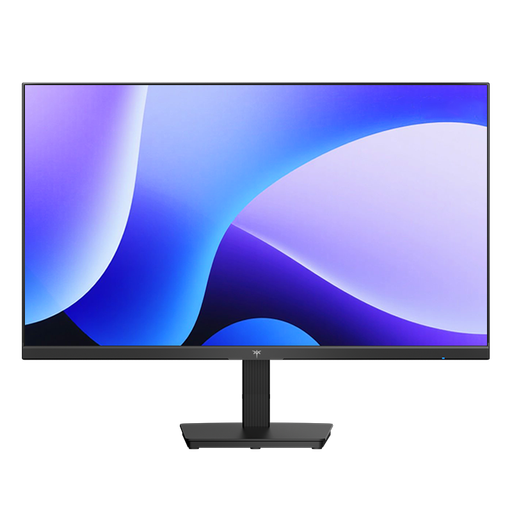
KTC H24B9S
This 24-inch monitor could be a good choice for general visual checks if Full HD is detailed enough for your needs.
Full HD and IPS; the product name also lists 144 Hz, HDMI and DisplayPort.
View at Joybuy
 No image available
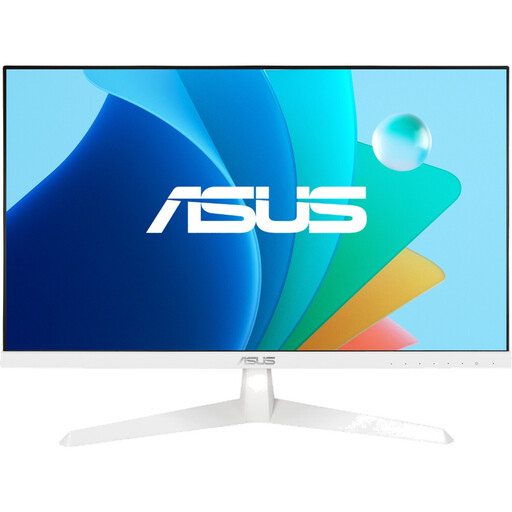
ASUS Eye Care VY249HF-W
A 24-inch option for general visual checks, provided Full HD gives you enough detail.
IPS, 1920 × 1080 pixels and 16:9; the product name lists HDMI and VESA 100 × 100 mm.
View at Joybuy
 No image available
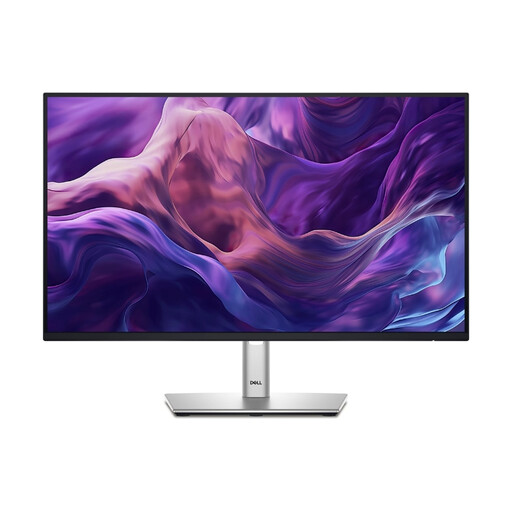
DELL P2425HE
A 24-inch option for general visual checks if Full HD is enough and USB-C meets your connection needs.
The product name lists Full HD, IPS and USB-C. Check that the USB-C functionality meets your requirements.
View at Joybuy
 No image available
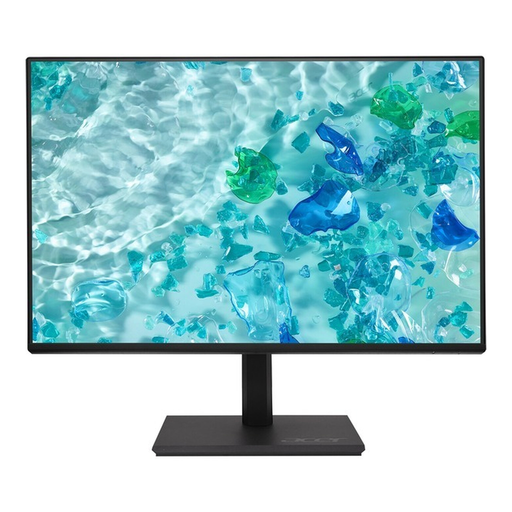
Acer Vero B247YGbmiqprx
A 24-inch model for a compact setup. Before choosing, check its resolution and dimensions, including the stand, to make sure it suits your workspace.
View at Joybuy
Frequently asked questions
Is Full HD enough for checking vector graphics?
Full HD may be enough for general visual checks. If you want to see more of your design and software interface at the same time, or assess fine details, compare the native display of a 1920 × 1080 model with QHD or 1920 × 1200. The right scaling also depends on how you use the monitor.
What should I consider when setting up and connecting a monitor?
Measure the space using the dimensions with the stand, and check whether you need height adjustment. If you’re using a laptop, make sure video output and USB-C charging power meet your computer’s connection and power requirements.
Do I need to calibrate a graphics monitor after setting it up?
If you need to make definitive colour decisions, plan a workflow that uses a suitable colour mode and, where necessary, calibration for your target colour space. EIZO describes the CS2400S as offering hardware calibration with ColorNavigator; that doesn’t mean other models have the same feature.
Who is responsible for the statutory guarantee if a monitor is faulty?
For a consumer purchase in the EU, your statutory two-year guarantee is with the seller, not the manufacturer. An additional manufacturer’s warranty doesn’t replace your statutory guarantee.
What rules apply to a monitor’s energy information and disposal?
The European Commission generally classifies computer monitors as electronic displays, which are subject to energy labelling and ecodesign rules; check the information for the specific model. The German Environment Agency recommends disposing of old electrical equipment separately from household waste, for example at a suitable collection point.


