What should you look for when choosing one?
Keep using your existing monitor
Best if: your screen, camera and audio already meet your needs, and your video-conferencing software offers the effect on the computer you’re using.
Bear in mind: Microsoft Support points out that confidential information may still be visible, even when the background has been changed.
Use your existing monitor with a separate webcam
Best if: you mainly want to change the camera position or framing, and your existing screen is large enough.
Bear in mind: Before buying, check that the webcam can be attached and connected where you plan to use it. It won’t provide a background effect if your meeting software isn’t compatible.
A conferencing monitor with a built-in webcam
Best if: you want the screen and conferencing equipment together at a shared workstation, with several laptops connecting to it.
Bear in mind: Features and connections vary by model; a built-in camera doesn’t create the background effect by itself.
Microsoft Support, Zoom Support and Google Meet Help describe background effects as features of the video-conferencing software. Availability may depend on your device, client, account and settings.
The percentages group consumers by their top priority when choosing a shared video-conferencing workstation.
| Priority |
What to check before buying |
Who it matters to |
| Controlling the background |
Test the effect in your software with your own computer and account, and check what your camera actually shows. |
I want to control a distracting background without automatically replacing my screen, so I’ll test the effect with my existing setup first. Around 36 % of consumers put background control at the top of their list. |
| Switching between devices |
For each laptop, check which connection supports the display, USB data and, where applicable, power supply. |
If several people or laptops use the same workstation, I want to check the connections needed for each device. Around 29 % of consumers prioritise quickly switching between users or laptops. |
| Screen position and desk space |
Think about the desk space available and the screen positions you may need before you buy. |
I want to adjust the screen for different seating positions while also making sure there’s enough room on the desk. Around 21 % of consumers put screen position and space at the top of their list. |
| Flexible camera positioning |
Check the camera position, mounting options and connections at your intended workstation. |
If camera angle or framing matters most to me, I want to be able to position or replace the webcam independently of the monitor. Around 14 % of consumers prioritise having a flexible choice of camera. |
Joybuy monitors with built-in webcams
The following Joybuy products are monitors with built-in webcams, designed for shared video-conferencing workstations. Whether the background feature is available still depends on the software and computer you use.
 No image available
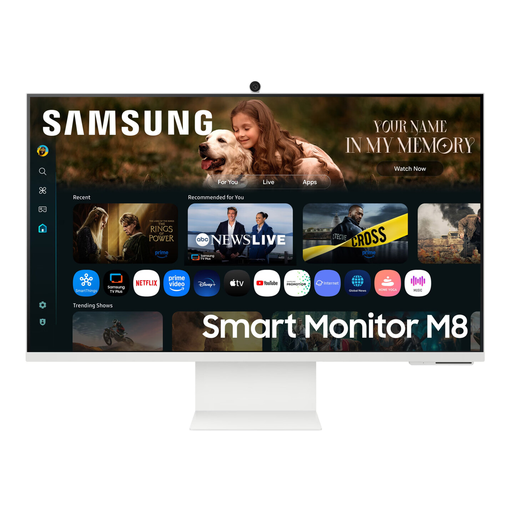
Samsung M8 M80F (2025), 32-inch 4K UHD monitor with webcam
An option for a shared video-conferencing workstation if you want the camera and speakers built into the monitor. Features listed include a 32-inch VA 4K UHD display, 60 Hz refresh rate, built-in webcam and speakers, 65 W USB-C Power Delivery, and height and tilt adjustment. The background effect comes from the video-conferencing software, not the monitor alone.
View at Joybuy
 No image available
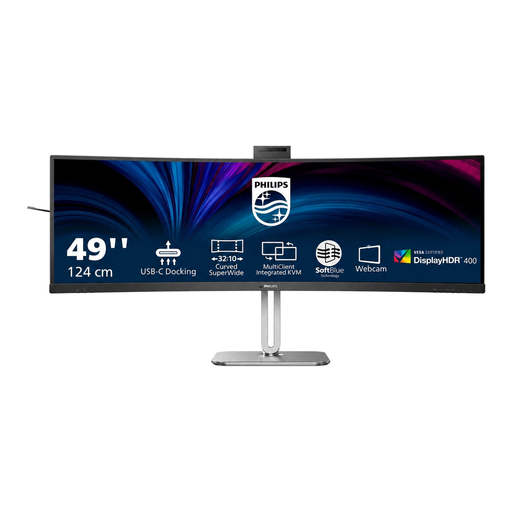
Philips 49B2U6900CH 6000 Series, 49-inch LED curved monitor
An option if a built-in conferencing camera and switching between two PCs are important at your shared workstation. Features listed include a 49-inch display, 5,120 × 1,440 pixels, 75 Hz refresh rate, a pop-up 5 MP webcam with microphone, 100 W USB-C docking and SmartKVM for two PCs. The background effect depends on the video-conferencing software and computer you use.
View at Joybuy
 No image available
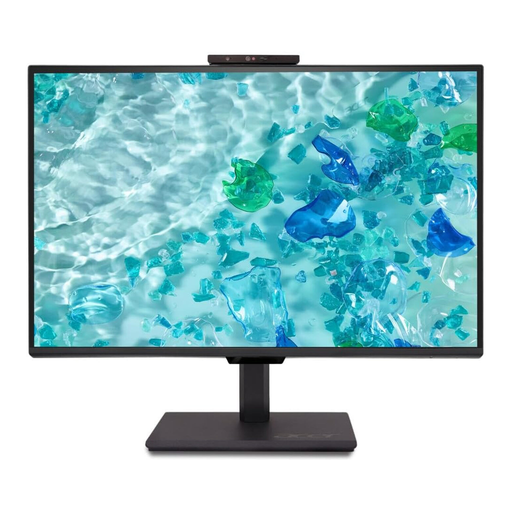
Acer Vero B248YGbemiqprcuzx, 24-inch business monitor
An option for a shared video-conferencing workstation if you want a built-in camera and microphone. The product title describes a 24-inch business monitor with a 5 MP IR webcam and microphone. The camera alone won’t create a background effect; that depends on the video-conferencing software on the computer you use.
View at Joybuy
 No image available
MSI PRO MP275QPDGDE, 27-inch WQHD docking monitor
An option if you want conferencing equipment and a laptop connection together at a shared workstation. Features listed include a built-in Full HD webcam with microphone, 98 W USB-C Power Delivery docking, KVM and an ergonomically adjustable stand. The background effect is provided by the video-conferencing software on the computer you use.
View at Joybuy
Frequently asked questions about background effects and conferencing monitors
Can the monitor blur my background on its own?
No, a monitor alone doesn’t provide a background effect. Microsoft Support, Zoom Support and Google Meet Help describe it as a software feature. Before buying anything new, test it with your computer and existing camera.
Why can’t I find the blur option on my work computer?
The option may depend on the requirements of the application you use, your device, client, account or settings. Zoom Support lists system requirements for virtual backgrounds, while Google Meet Help refers to client, account and Workspace settings. Check the requirements for the specific application you use.
What should I check when connecting a conferencing monitor?
For the specific model and each laptop, check separately that video, USB data and the power supply you need all work. Philips UK describes these features for the 27B1U5601H/01, but that doesn’t automatically prove compatibility with every laptop.
Are a manufacturer’s guarantee and your statutory rights the same thing?
No. Your statutory rights are set out by law and cover faults in goods in relation to the seller. A guarantee is a voluntary promise with its own terms and conditions. The Verbraucherzentrale recommends considering the terms and who is responsible for service separately.
Does a blurred background automatically meet workplace data protection requirements?
No, blurring doesn’t guarantee that confidential information will be hidden from the camera. Microsoft Support highlights this risk; the Federal Commissioner for Data Protection and Freedom of Information places responsibility for protecting personal data on the user of the system. Any other duties that apply in a particular working relationship will depend on the circumstances.


