A video-call workspace behind thick walls
Wi-Fi reception is weak where you make video calls. The key question is whether moving the router or adding another Wi-Fi access point will help.


For video calls through thick internal walls, first check whether the internet connection itself or the Wi-Fi at your workspace is limiting the connection. If moving your router to a better position isn’t enough, a wired access point can bypass the wireless signal travelling through the wall. Wireless mesh is another option if the additional node can still get good reception where you place it. A new main router is most worthwhile if you were planning to replace your existing one anyway and the new model is compatible with your internet connection.
Wi-Fi reception is weak where you make video calls. The key question is whether moving the router or adding another Wi-Fi access point will help.
If you can run an Ethernet cable to your computer or an access point, you can avoid relying on a wireless signal travelling through the wall.
If you’re planning to replace your main router, check the connection type, existing modem and possible Wi-Fi extensions together.
| What you need | What to check before buying | Who is this particularly important for? |
|---|---|---|
| Reception where you make video calls | Check reception in your home office and at potential locations for additional Wi-Fi access points. | If I make video calls in my home office, I need a reliable Wi-Fi connection there. Around 36% of consumers put reception where they make calls first. |
| Ethernet connection | Check the cable route and available ports for your computer or access point. | If I can run a cable to my computer or a remote Wi-Fi access point, I want to avoid relying on a wireless signal through the wall. Around 29% of consumers prioritise a stable Ethernet connection. |
| A suitable replacement router | Check whether the router is compatible with DSL, cable or fibre, your existing modem or ONT, and the required operating mode. | If I’m replacing my main router anyway, the new device needs to work with my connection and existing modem. Around 21% of consumers put finding a suitable replacement router first. |
| The internet connection as a potential bottleneck | Check your internet connection and Wi-Fi at your workspace separately, and consider the requirements of the video-calling app you use. | Before buying new Wi-Fi equipment, I want to know whether the internet connection itself is affecting my calls. Around 14% of consumers prioritise checking their broadband line and upload speed first. |
The maximum Wi-Fi speed doesn’t tell you how well the signal will travel through the walls to your video-call workspace, or how much upload speed your internet connection can provide there.
Check your internet connection and Wi-Fi at your workspace separately before deciding whether to replace or extend your router.
An additional node still needs a reliable connection to the rest of your network. A repeater extends the signal it receives; it won’t fix a poor connection to its source.
Check that potential locations have good reception. If you can run a cable, consider a wired access point or Ethernet backhaul.
The location you choose, or an additional cable route, needs to work with your room layout.
DSL, cable and fibre connections may require different router and modem configurations.
Before buying, check the full model name, your connection type and any existing modem or ONT.
The FRITZ!Box 7690 is worth considering as a DSL router if you’re looking for a suitable replacement; you can plan for additional Wi-Fi access points separately.
The Deco X50 Pro is an example of an expandable mesh system to consider if you need several Wi-Fi access points rather than just a new main router.
The Speedport Smart 4 is relevant to households considering a suitable main router and an extension with Speed Home WLAN.
The RT-BE92U is an option for buyers considering a standalone router with AiMesh support, rather than a router with a built-in DSL modem.
The Joybuy products below include wireless mesh systems and an access point connected via Ethernet. They’re relevant if you’re considering an additional Wi-Fi access point or a wired connection to your workspace.
 No image available
A two-unit mesh system for when you need several Wi-Fi access points.
Wi-Fi 7, dual-band, Gigabit Ethernet, white.
 No image available
An additional Wi-Fi access point for when you can run an Ethernet connection to it.
Dual-band, 2.5 GbE, PoE+, white. It requires an Ethernet network connection and a suitable PoE power supply.
 No image available
A three-unit mesh system for when you need Wi-Fi access points in several rooms.
Dual-band, Gigabit ports.
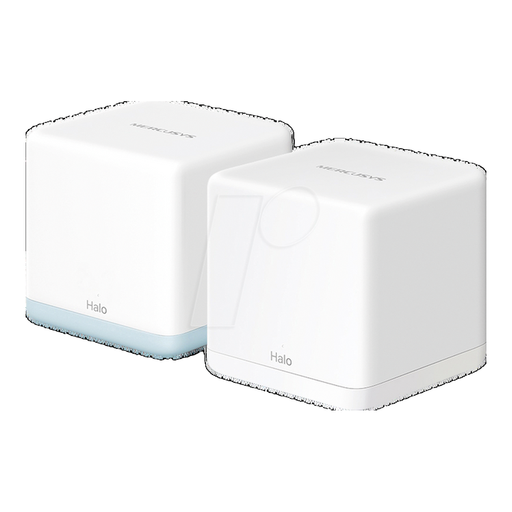 No image available
A two-unit mesh system for when you need several Wi-Fi access points.
Dual-band, Gigabit ports. The product description recommends placing the second unit within range of the first.
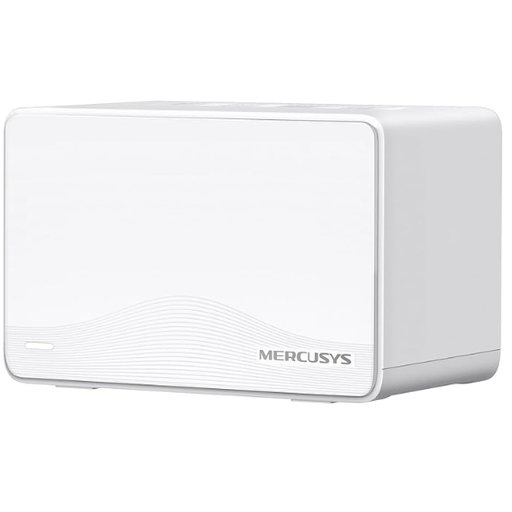 No image available
A two-unit mesh system for when you need additional Wi-Fi access points or wired connections.
Wi-Fi 7, BE3600, dual-band, three Gigabit ports per unit. The product description recommends placing the second unit within range of the first.
No. The Wi-Fi generation alone won’t tell you how good reception will be behind thick walls. First, check the connection where you make video calls and your internet service; Zoom recommends different bandwidths for its web app depending on the type of call and video quality.
Place it somewhere it can still get a reliable signal from your router and reach your workspace. FRITZ! explains that a repeater extends the signal it receives, so placing it in a Wi-Fi dead zone won’t solve the problem on its own.
That depends on the system and its operating mode. TP-Link describes a specific wiring option for Deco in Access Point mode; before setting it up, check the instructions for your particular system and the ports available.
Check the actual speed of your internet connection separately from Wi-Fi reception in your home office. The German Federal Network Agency describes its broadband measurement service as a way to compare your actual connection speed with the speed agreed in your contract.
Check whether the router’s DSL, cable or fibre compatibility matches your modem or ONT and the required operating mode. Also check whether you need to meet any other requirements, such as support for phone services. The model name alone won’t tell you whether a device is suitable for your connection setup.