Video editors working by a window
If you check your preview and timeline in changing daylight, tackle distracting reflections at your workstation first. The BAuA considers reflections part of screen-based workstation design.


Don’t choose a monitor based solely on a high brightness rating or an anti-glare finish. First check whether window light is a problem where you sit, and whether you can adjust the monitor’s position or add shading. For colour assessment, look for a mode suited to your output format and, if needed, a controlled calibration workflow. The German Federal Institute for Occupational Safety and Health (BAuA) treats distracting reflections as a matter of workplace design; manufacturers’ specifications for individual models don’t prove that they’ll be easy to see from every desk by a window.
If you check your preview and timeline in changing daylight, tackle distracting reflections at your workstation first. The BAuA considers reflections part of screen-based workstation design.
If you assess colours for a specified output format, look for suitable colour modes and a controlled workflow rather than focusing solely on wide colour gamut coverage.
If you need space for your timeline, preview and tools at the same time, screen size and readable scaling matter. Also check that the connection and charging power are suitable for your laptop.
Start by checking the light conditions at your workstation, then consider your colour and workspace requirements, and finally make sure the monitor connects to your computer.
| Criteria | What to check | Who it matters most to |
|---|---|---|
| Visibility in window light | Check the finish and typical brightness; consider the window angle, time of day and any shading options at your desk. | If I work in changing daylight, I want to tackle reflections where I sit first. Around 36 % of consumers put visibility in window light first. |
| Colours for video assessment | Decide on your output format, then check the colour modes that suit it and, where relevant, the calibration options for the specific model. | If I need to assess colours for a defined video format, a suitable mode matters more than the widest possible colour gamut coverage. Around 29 % of consumers prioritise colour assessment. |
| Room for your timeline and preview | Consider screen size and resolution alongside the scaling that’s easiest to read in your operating system. | If I want to use my preview, timeline and tools side by side, I need a workspace that remains easy to read. Around 21 % of consumers put workspace first. |
| Connecting to your editing laptop | Check the video signal, cable and charging requirements against the connection and intended display mode of the specific monitor. | If my editing setup runs through my laptop, I want to know that the connection and power supply are suitable for my device. Around 14 % of consumers prioritise the laptop connection. |
A brightness rating won’t tell you whether the window is reflected on the screen from where you sit. Typical brightness and HDR peak brightness are also different measurements.
First check the light and monitor position, then consider the finish and typical brightness of the specific model.
Manufacturers specify different colour gamuts and modes for different models. Coverage alone doesn’t tell you which mode is right for your output format.
Decide on your output format, then check the appropriate colour mode and, where relevant, the calibration options.
The presence of a port doesn’t automatically mean that your chosen display mode will work or that your laptop will charge sufficiently.
Check your computer’s signal mode, cable and charging requirements against the specifications for the specific monitor. Depending on the connection, you may need a suitable cable or a separate power supply.
The ProArt PA279CRV is a 27-inch 4K option for a versatile editing setup.
Creative Pro models such as the PD2706U and PD2732U offer different features for creative colour and video workflows.
The ColorEdge CG2700X is designed for people assessing video with defined colour modes and integrated calibration.
The UltraSharp U2725QE is a 27-inch 4K option if hub features and connectivity are important at your workstation.
The ColorPro VP2786-4K is another option with an integrated calibration sensor for creative colour workflows.
These Joybuy monitors cater to different needs for workspace, laptop connectivity and repeated colour assessment. An anti-glare finish or technical brightness rating doesn’t replace checking the light conditions at your own workstation.
 No image available
For a QHD workspace with repeated colour assessment, the product description lists DeltaE calibration.
27 inches; 2560 × 1440 pixels; AG finish; 450 cd/m² typical SDR brightness; 1152 local dimming zones.
 No image available
If you want to arrange your timeline, preview and tools across a wide workspace, screen size and resolution are important factors to consider.
40 inches; 5120 × 2160 pixels; 21:9; IPS; matt finish; 400 Nits; USB-C with 65 W Power Delivery.
 No image available
For a detailed workspace with laptop connectivity, consider the resolution and the connection you need together.
27 inches; 3840 × 2160 pixels; IPS; 400 Nits typical; non-glare finish; USB-C with 90 W Power Delivery.
The product description lists DeltaE < 1, as well as 100 % sRGB and 99 % Adobe RGB.
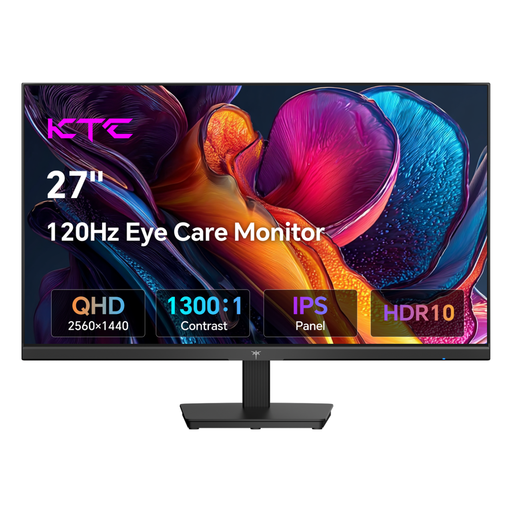 No image available
If you’re looking for a QHD workspace for your timeline and preview, you can compare the screen size and resolution with the layout you want.
27 inches; 2560 × 1440 pixels; IPS; 120 Hz; 123 % sRGB according to the product description.
HDMI and DisplayPort are listed as connections.
 No image available
If you’re planning a laptop workstation with docking features, check the listed connectivity and colour gamut coverage against your specific video editing workflow.
27 inches; 2560 × 1440 pixels; 100 Hz; USB-C with 98 W Power Delivery; integrated USB-C dock.
For colour-critical assessment, take the stated 84 % sRGB and 79 % DCI-P3 into account.
Not necessarily. Check the position of the window, how the light falls at different times of day and whether you can add shading. The BAuA treats distracting reflections as part of workstation design, not simply as a feature on a monitor’s data sheet.
Choose a mode to suit your specified output format. For a Rec. 709 workflow, look for a mode listed for that standard; wide Adobe RGB or P3 coverage alone won’t determine which mode is right.
First, reduce distracting reflections by positioning the monitor appropriately, then use the colour mode that suits your project. If your assessments need to be consistently colour-critical, check whether a calibration function compatible with the model fits your workflow; EIZO lists an integrated sensor for the CG2700X.
For eligible distance purchases by consumers, the withdrawal period is generally 14 days from delivery; exceptions and specific conditions apply. For faulty goods bought by consumers from a trader, EU consumer information specifies a legal guarantee of at least two years from receipt. A voluntary manufacturer’s warranty is separate.