If you’re editing a village history and want to see a long timeline and several editing panels at once, a wide 21:9 monitor is a good choice. For checking the detail in 4K footage, a 16:9 monitor with 3840 × 2160 pixels is a more natural fit. For an SDR export, you should also match the Rec.709 mode to your project settings. Connectivity, scaling legibility and desk space may affect your choice.
Which monitor suits you?
Editing with multiple tracks
If you’re arranging archive footage, interviews and other video layers along a long timeline, wide editing panels can make it easier to keep track of everything. Adobe describes the Source Monitor and Program Monitor as separate areas for preparing clips and playing back sequences.
Matching colour for SDR
If you’re matching footage recorded in different ways for a set SDR export, you should make sure the monitor mode and project settings are in sync. Adobe associates Rec.709 with an SDR workflow.
Editing 4K on a laptop
If you want to check details in 4K while editing on a laptop, check the video connection and power supply, as well as how easy the editing interface is to read at your chosen scaling. Adobe also explains how to display the preview on a second monitor in Premiere.
Buying criteria compared
21:9 for your editing workspace
A good fit if: You want to arrange your timeline, source footage and panels across as much width as possible.
The trade-off: The documented LG example, with 3440 × 1440 pixels, doesn’t have the 2160 vertical pixels of a 4K UHD monitor.
16:9 with 4K for checking detail
A good fit if: 3840 × 2160 pixels and a documented Rec.709 mode suit your footage and SDR export target.
The trade-off: There’s less width for side-by-side panels. At 27 inches, you should also check how easy the screen is to read at your preferred scaling.
A larger screen or separate preview monitor
A good fit if: You want a larger 4K workspace or a separate full-screen preview, and have a suitable video output.
The trade-off: A larger monitor needs more desk space. To use a second monitor, your computer and editing software must support video output.
| What matters |
What to check before buying |
Who it matters most to |
| Keeping track of the timeline and tracks |
Match the aspect ratio and pixel count to how you plan to arrange the timeline, preview and panels. |
If you want to keep lots of tracks and windows in view at once, usable width is especially important. Around 36% of consumers put an overview of the timeline first. |
| Colour for SDR |
Check the project’s output colour space, and the specific model’s Rec.709 mode and calibration options. |
If you’re matching footage for a set SDR export, the monitor mode should suit your project settings. Around 29% of consumers prioritise colour matching for SDR. |
| Checking detail in the video image |
Consider the resolution and screen size together, and try out your preferred scaling in the editing software. |
If you want to assess detail in 4K, pixel count matters; at the same time, the interface should remain easy for you to read. Around 21% of consumers put checking 4K detail first. |
| Connecting to your existing computer |
Check the video output, cable, power delivery required and, if applicable, connection for a second preview monitor. |
If your laptop is powering your editing setup, the connection needs to carry the required video signal and provide enough power. Around 14% of consumers prioritise a suitable laptop connection. |
Common buying mistakes
-
Confusing 21:9 width with a native 4K preview
A 21:9 monitor, such as the documented LG example with 3440 × 1440 pixels, gives you a different layout from a 4K UHD monitor with 3840 × 2160 pixels: more horizontal space, but fewer vertical pixels.
First decide whether timeline width or checking detail in 4K matters more for your most important task.
-
Assuming a wide colour gamut means the right SDR mode
A wide colour gamut doesn’t determine the colour space in which your film sequence is exported. Adobe distinguishes between the sequence’s output colour space and the monitor mode, so Rec.709 is not the same thing as general colour gamut coverage.
Choose your export format, then check that the specific model has a suitable colour mode and offers ways to check how the image is displayed.
-
Assuming USB-C guarantees full laptop compatibility
The 90 W listed for the BenQ PD2732U and 96 W for the ASUS PA279CRV are model-specific power delivery figures. On their own, they don’t tell you whether your laptop can output a picture through the connection or receive enough power.
Check video output, power requirements and cable compatibility against the specifications for your particular computer and monitor.
Depending on your laptop, you may need a suitable cable or a different connection.
Key brands at a glance
LG
The 34BA75QE-B is a specific 21:9 example for a wide editing workspace.
- LG lists a 34-inch screen, 3440 × 1440 pixels, an IPS panel and 90 W USB-C power delivery for this model.
- Its resolution doesn’t have the 2160 vertical pixels of a 4K UHD monitor. These specifications apply to this model, not all LG monitors.
BenQ
The PD2705U and PD2732U have documented specifications for a Rec.709 SDR workflow.
- BenQ Germany lists 99% Rec.709 for the PD2705U, and 100% Rec.709 and 90 W Power Delivery for the PD2732U.
- These are manufacturer specifications for different models, not independent test results or features that apply across the brand.
ASUS
The ProArt PA279CRV is a 27-inch 4K option with a documented Rec.709 mode.
- ASUS Germany lists 3840 × 2160 pixels, a Rec.709 mode and 96 W USB-C Power Delivery.
- Whether the interface is easy to read at 27 inches with your scaling, and whether your laptop can transmit the video signal, depends on the devices you’re using.
Dell
The UltraSharp U3225QE offers a larger 4K workspace with a Thunderbolt hub.
- Dell lists a 31.5-inch screen, 3840 × 2160 pixels and power delivery of up to 140 W for the U3225QE.
- These specifications alone don’t establish that it’s especially suitable as a colour reference monitor, and they don’t apply to every UltraSharp model.
EIZO
The ColorEdge CS2740 is an option for a colour workflow that includes hardware calibration.
- EIZO describes hardware calibration with ColorNavigator and a 16-bit LUT for the CS2740.
- Calibration doesn’t replace choosing the right output colour space for your project.
Monitors at Joybuy for a wide timeline and 4K detail checks
This selection includes wide ultrawide monitors for your editing workspace, as well as 4K models for checking detail. Compare pixel count, screen size and connection requirements with your editing setup.
 No image available
CRUA 49-inch DQHD ultrawide monitor
The 32:9 aspect ratio is designed to give you plenty of room for your timeline and editing panels.
49 inches; 5120 × 1440 pixels; 165 Hz; 1500R curvature. The resolution doesn’t have the 2160 vertical pixels of a native 4K preview.
View at Joybuy
 No image available
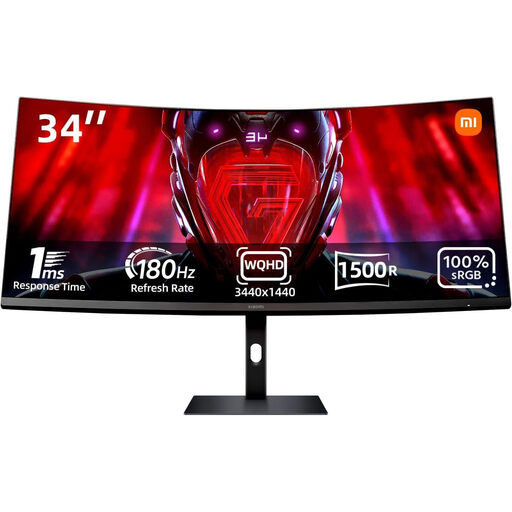
Xiaomi G34WQi 34-inch ultrawide monitor
The 21:9 aspect ratio gives you a wide workspace for your timeline and editing panels.
34 inches; WQHD; 180 Hz; 100% sRGB. The stated resolution doesn’t have the 2160 vertical pixels of a native 4K preview.
View at Joybuy
 No image available
MSI MAG 274UPDFDE E16M 27-inch UHD monitor
Its UHD resolution makes this model an option if you want to check image detail at your editing desk.
27 inches; UHD 160 Hz or FHD 320 Hz; Mini-LED; Rapid IPS.
View at Joybuy
 No image available
CRUA CR320QB 32-inch 4K monitor
4K resolution can be useful for checking detail in your footage. Also check that the screen size suits your workspace.
32 inches; 3840 × 2160 pixels; 3000R curvature; 100% sRGB.
View at Joybuy
 No image available
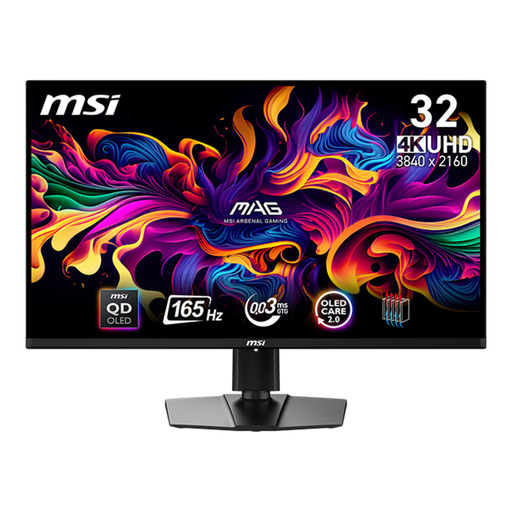
MSI MAG 321UPDE QD-OLED 31.5-inch 4K monitor
4K is an option if you want to check detail and have room for a larger screen in your editing setup.
31.5 inches; 3840 × 2160 pixels; QD-OLED.
View at Joybuy
Frequently asked questions
Do I need an HDR monitor to edit a village history?
No, not just because of the subject matter. First decide on the actual export format: Adobe describes Rec.709 for an SDR workflow and separate settings for HDR exports. An HDR10 specification in a monitor’s details doesn’t, on its own, prove that it can provide a suitable HDR reference display.
How can I use a second monitor just for video previews?
In Adobe Premiere, you can enable Mercury Transmit in the playback settings, then select a connected monitor for video output. First check that your computer can drive a second screen.
How can I keep colours consistent throughout longer editing projects?
Match the monitor mode to your chosen output colour space. For the CS2740, EIZO describes hardware calibration with ColorNavigator; this doesn’t replace setting the correct colours in your editing sequence.
What information should I compare to check energy consumption?
Compare the energy label and EPREL entry for the exact model. The European Commission explains classes A to G and consumption figures for SDR and HDR. The annual cost also depends on the specific model and how you use it.


