Laptop editing setup with few power sockets
You want to check your timeline and preview on an external screen without plugging in your laptop’s power adapter as well. Look for USB-C video output and enough charging power for your laptop.


A 4K monitor with USB-C Power Delivery can show your timeline and preview over a single cable while charging your laptop – if your laptop, port, cable and charging requirements are all compatible. Check compatibility first, along with whether the screen gives you enough usable space for your work. If you need to make colour-critical decisions, you’ll also need a suitable target colour space and a way to calibrate the monitor.
You want to check your timeline and preview on an external screen without plugging in your laptop’s power adapter as well. Look for USB-C video output and enough charging power for your laptop.
If you need room for clips, tracks, the preview and your tools all at once, consider the usable screen area, resolution and whether you can adjust the monitor’s position to suit your workspace.
If you’re assessing colours as well as your edit, match the colour mode to your output target and calibrate the monitor. Adobe recommends calibration for video editing.
First, check that the monitor can receive a video signal from your laptop over USB-C and provide enough power to charge it. Then compare the workspace, colour workflow and setup with your editing needs.
| What matters | What to check before buying | Who it matters most to |
|---|---|---|
| Charging your laptop when power sockets are limited | Check your laptop’s USB-C video output, its charging requirements, the specific monitor’s Power Delivery output and the cable you’ll need. | If I want to avoid plugging in a separate laptop power adapter at my editing desk, the video signal and charging power need to suit my device. Around 36% of consumers put charging with limited power sockets first. |
| A clear timeline and preview | Check the timeline and tools using your intended operating system scaling; take the screen dimensions and viewing distance into account. | If I want to keep my timeline, preview and tools in view at the same time, I need a screen area that works well for my setup. Around 29% of consumers give usable workspace the highest priority. |
| Assessing video colours | Check your project’s target colour space, suitable monitor presets and available calibration method. | If I need to assess colours, the right colour mode and the ability to calibrate matter more than a wide colour gamut alone. Around 21% of consumers put colour control first. |
| Setup and energy comparisons | Check the mounting options and desk space required; the European Commission describes an A to G energy efficiency scale for electronic displays. | If my desk only supports certain mounts and I want to compare energy information, the setup and the specific energy label need to meet my requirements. Around 14% of consumers prioritise these points. |
A USB-C port on the monitor alone doesn’t guarantee video output from your laptop or enough power to charge it. The specified charging power varies between models.
Check video output, charging requirements, monitor output and cable compatibility for your exact device combination.
Depending on compatibility, your laptop power adapter may still need a socket at your desk. You might also need a different video connection.
For colour-critical decisions, you also need to consider the right target colour space and calibration.
First, establish your output target and check whether the monitor offers a suitable colour mode and calibration method. For checking your timeline alone, this won’t necessarily be a deciding factor.
Setting up a colour workflow may take extra time for selection and calibration.
An ergonomic stand or a specific mounting option will only work if it suits your desk edge and available space.
Check the mount, space behind the desk and room to move against the requirements of the mount you plan to use.
The ProArt PA279CRV is designed for a 27-inch 4K editing setup, with USB-C docking and colour modes.
The DesignVue PD2706UA combines a 27-inch 4K workspace with an ergonomic arm and USB-C.
The ColorEdge CS2740 and CG2700X are designed for 4K colour workflows, with calibration features.
The 32UN880K-B is designed to give you more physical 4K screen space and flexible positioning with an ergonomic stand.
The UltraSharp U2725QE is a 27-inch 4K Thunderbolt hub option for a setup with multiple ports.
This Joybuy selection includes monitors for timelines and previews, including 4K models with USB-C Power Delivery where this feature is mentioned in the product title.
 No image available
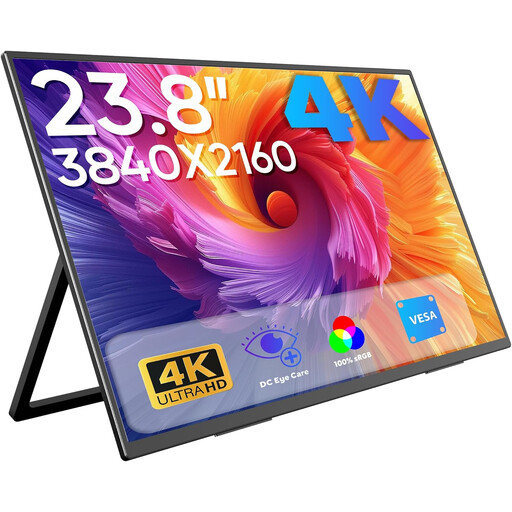
The stated 4K resolution may be useful for displaying your timeline and preview; check that the size suits your editing setup.
3840 × 2160 pixels, 60 Hz and 100% sRGB; built-in stand, USB-C and Mini HDMI inputs, plus built-in dual speakers. The product title states that it is VESA-compatible.
 No image available
An option for viewing your timeline and preview on a 27-inch screen; make sure the USB-C video connection and charging power suit your laptop.
3840 × 2160 pixels, IPS, 120 Hz and 90 W USB-C Power Delivery; the product title also mentions a height-adjustable stand and PIP and PBP features.
 No image available
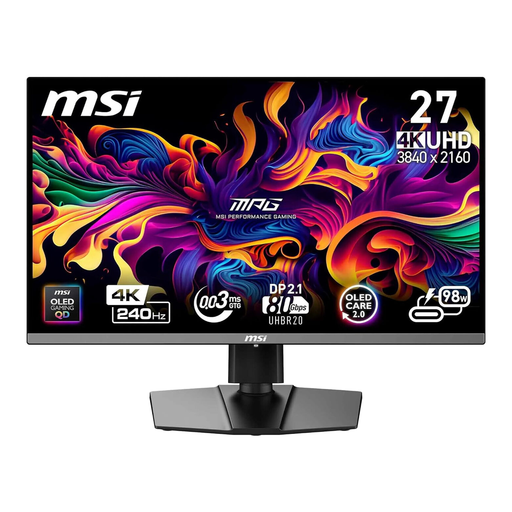
The 4K resolution is useful for viewing your timeline and preview; compare the screen size with the space you have available.
3840 × 2160 pixels, QD-OLED, 240 Hz and USB-C with 98 W Power Delivery.
 No image available
The 32-inch screen gives you more physical workspace; make sure you have enough room for it at your editing desk.
3840 × 2160 pixels, QD-OLED, 240 Hz, USB-C with 98 W Power Delivery and a height-adjustable stand.
 No image available
The 32-inch screen and 4K resolution are useful for viewing your timeline and preview; check that the screen and stand suit your workspace.
3840 × 2160 pixels, OLED, 240 Hz, USB-C with 90 W Power Delivery and a USB hub. The product title also mentions an ergonomic stand with height, tilt, swivel and pivot adjustment.
No. Your laptop must be able to output a suitable video signal through the port you’re using, and the monitor’s Power Delivery output must be right for your laptop. EIZO specifies up to 60 W for the CS2740, while ASUS lists 96 W for the PA279CRV.
Choose a colour mode that matches your video output target and calibrate the monitor before making colour-critical decisions. Adobe recommends calibration for video editing; EIZO lists a BT.709 preset, among other features, for the CG2700X.
Compare the EU energy labels for the specific models and check the stated HDR information. Without knowing how long you’ll use the monitor and your electricity tariff, it isn’t possible to work out your personal running costs. The European Commission describes an A to G energy efficiency scale for electronic displays.
Consumers generally have a 14-day right to cancel online purchases, although exceptions and the terms of the specific contract may apply. The Verbraucherzentrale also distinguishes statutory rights for faulty goods from a voluntary manufacturer’s warranty.
Yes. The European Commission classifies computer monitors as electronic displays and describes an A to G energy efficiency scale for them. Check the label for the specific model, including the HDR information.