For a permanent editing set-up, a USB-C monitor with suitable Power Delivery can provide a picture and charge your laptop over a single cable; the monitor itself still needs a socket. If you work in different places without a dedicated socket for a monitor, a portable display powered by your laptop may be an option, but it offers less screen space and draws power from the laptop. First, check your device’s video output, the monitor input, the cable and your charging requirements. Then choose a screen size and colour mode to suit your project.
Who is this monitor guide for?
A laptop editing set-up with just one spare socket
You want to connect your laptop to the monitor at your permanent editing station with one cable for video and, if the charging power is sufficient, to charge it too. The monitor still needs mains power.
Editing holiday videos from time to time
You want a clear view of your preview, timeline and tools, and a colour display mode that suits your planned video output format.
Editing videos in different locations
You need a portable second screen, would rather not rely on an extra monitor socket and can manage with less screen space.
What should you look for when buying?
| What to consider |
What to check |
Who should pay particular attention? |
| Connectivity and charging |
Check your laptop’s video output, that the monitor input you plan to use supports video, its Power Delivery rating and that you have the right cable. ASUS lists 96 W USB-C Power Delivery for the PA279CRV; BenQ lists 90 W at the PD2732U’s Thunderbolt 4 input. |
If I only have one spare socket at my editing station, I want to know whether one cable can handle both the picture and laptop charging; around 36% of consumers would put connectivity and charging first. |
| Colour mode |
Check that the planned SDR or HDR output format matches the colour modes available on the specific model. BenQ lists Rec.709, sRGB and HDR modes among those available on the PD2732U. |
If I want to assess colours for a particular video format, I need a suitable mode; around 29% of consumers would prioritise colour control. |
| Screen space |
Consider the screen size, native resolution, desk space and scaling that works for you. ASUS and BenQ both list a 27-inch screen with 3840 × 2160 pixels for the PA279CRV and PD2732U; ASUS lists a 15.6-inch screen with 1920 × 1080 pixels for the MB16AC. |
If I want to see the preview and timeline at the same time, the available screen space matters to me; around 21% of consumers would prioritise their editing software layout. |
| Portability without a monitor socket |
If you’re using a display powered by your laptop, check the video output and power supply for your specific set-up. ASUS says the ZenScreen MB16AC receives its video signal and power through a USB connection. |
If I edit at different desks, I don’t want to need a separate monitor socket; around 14% of consumers would put portability first. |
Common misconceptions when buying a monitor
-
“USB-C” automatically means video and enough power to charge your laptop
USB-C ports can offer different features depending on the connection. On the BenQ PD2732U, the Thunderbolt 4 input is specified for video and 90 W Power Delivery, while another USB-C upstream port only transfers data.
Check your laptop’s video output and charging requirements against the exact monitor input and cable you plan to use.
You may still need your laptop’s power supply; you might also need a different connection.
-
A portable USB monitor charges your laptop too
The ASUS ZenScreen MB16AC gets its power from the host device, so it doesn’t supply power to your laptop.
Before you buy, decide which way you need the power to flow and check that your laptop can power the screen in your planned set-up.
Your laptop has to power the portable screen too, so take the available power in your set-up into account.
-
Wide colour gamut coverage guarantees accurate video colours
A percentage for colour gamut coverage doesn’t tell you which mode is right for your video’s output format. Manufacturers’ details about colour modes and calibration features apply to the specific model.
Plan your output format and colour mode together, and don’t treat manufacturers’ claims as measurements of your own device.
Brands to consider
ASUS
The ProArt PA279CRV and ZenScreen MB16AC ranges cater for different workspaces: a stationary 27-inch 4K monitor and a portable second screen powered by its host device.
- ASUS lists 96 W USB-C Power Delivery for the PA279CRV; for the MB16AC, the manufacturer says video and power are supplied through a USB connection.
- The PA279CRV specifications don’t apply to the ZenScreen. With the portable model, bear in mind its smaller Full HD workspace and that it draws power from your laptop.
BenQ
According to BenQ, its Creative Pro models PD2732U and PD2706U are designed for colour-focused workflows.
- BenQ lists 4K, several colour modes and 90 W Power Delivery via the Thunderbolt 4 input for the PD2732U.
- Another USB-C upstream port on the PD2732U is specified for data only. The manufacturer’s claims are not independent confirmation of colour-accurate results.
EIZO
The ColorEdge CS2740 is designed for a permanent video and colour workflow, with a stronger focus on calibration.
- EIZO’s German-language data sheet lists 4K, hardware calibration and up to 60 W via the USB-C upstream port.
- Whether 60 W is enough to power your laptop depends on its port and power requirements; these are manufacturer specifications.
Dell
The UltraSharp U2725QE is positioned as a stationary 27-inch 4K Thunderbolt hub monitor with an integrated connectivity hub.
- Dell lists 90 W power delivery and an integrated USB hub for this model.
- Check that the laptop connection and stated charging power are suitable for your device; these features aren’t standard across all Dell monitors.
LG
The 27UP850K-W is a 27-inch 4K IPS monitor with USB-C.
- LG lists typical DCI-P3 coverage of 95% for this specific model.
- Check separately that the USB-C charging power available to your laptop is sufficient before choosing.
Joybuy monitors for a permanent editing set-up
The models below are stationary monitors with USB-C Power Delivery. Each still needs its own socket; also check that the connection and charging power are suitable for your specific laptop.
 No image available
INNOCN CB27U1 27-inch 4K UHD
For a permanent editing set-up with a laptop whose port supports the stated Power Delivery rating.
27 inches, 3840 × 2160 pixels, USB-C with 90 W Power Delivery.
View at Joybuy
 No image available
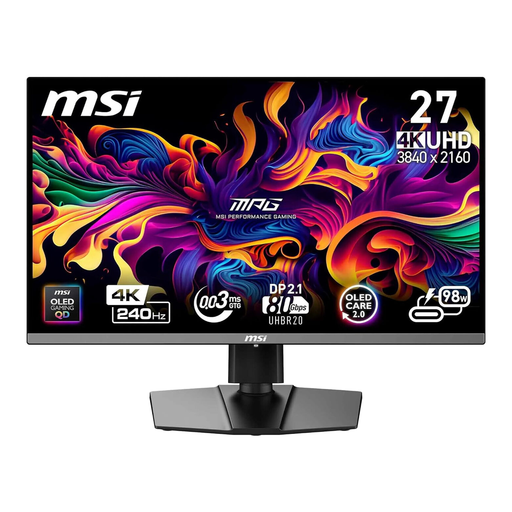
MSI MPG 272URXDE 26.5-inch 4K UHD QD-OLED
For a stationary editing set-up where you want to power your laptop via USB-C, provided the stated power rating meets its requirements.
26.5 inches, 4K UHD, QD-OLED, USB-C with 98 W Power Delivery.
View at Joybuy
 No image available
MSI MPG 322URXDE 32-inch 4K UHD QD-OLED
For a permanent workstation where you want more screen space for your preview and timeline.
32 inches, 3840 × 2160 pixels, QD-OLED, USB-C with 98 W Power Delivery.
View at Joybuy
 No image available
KTC M27P6 27-inch 4K MiniLED
For a permanent editing set-up if you’re considering a 27-inch monitor with USB-C charging.
27 inches, 3840 × 2160 pixels, USB-C with 65 W Power Delivery.
View at Joybuy
 No image available
ASUS ROG Swift OLED PG32UCDMR 32-inch 4K UHD
For a stationary workstation with more screen space, provided the USB-C connection and charging power are suitable for your laptop.
32 inches, 3840 × 2160 pixels, USB-C with 90 W Power Delivery.
View at Joybuy
Frequently asked questions
Is one USB-C connection enough for video and laptop charging over a single cable?
No, the connector shape alone doesn’t guarantee this. Check your laptop’s video output and charging requirements, the video capability and Power Delivery rating of the correct monitor input, and the cable. The BenQ PD2732U supports video and 90 W Power Delivery via its Thunderbolt 4 input; another USB-C upstream port is for data only.
What should I adjust for video editing after connecting the monitor?
Choose a colour mode that suits your planned output format, then check the resolution and scaling on your computer. BenQ lists Rec.709, sRGB and HDR modes among those available on the PD2732U; the right choice depends on your project.
How can I compare power consumption and potential running costs?
Compare the EU energy label and product details for specific monitor models; the European Commission describes an energy efficiency scale from A to G for electronic displays. A portable model powered by your laptop will also draw power from it. Any annual cost will depend on factors including how long you use it and your electricity tariff.
What are the rules in Germany for returns, faults and disposing of an old monitor?
For online purchases, consumers generally have a 14-day right to cancel; the Verbraucherzentrale (German consumer advice service) says this period starts from the conclusion of the contract or receipt of the goods. Your statutory rights for faulty goods are separate from any voluntary guarantee. An old monitor must be handed over to an authorised collection provider, such as a municipal collection point or a retailer required to accept returns, as explained by the German Federal Environment Ministry.


